Keeping important documents only on a Mac often feels safe while everything is working smoothly, because the computer is right in front of you and files seem easy to access, yet this sense of security can disappear quickly if the device stops working, gets lost, or suffers an unexpected failure.
Many Mac users store years of personal documents, photos, work files, and digital memories locally without realizing that a single problem could make all of that information suddenly inaccessible.
This guide on how to backup Mac to cloud was created to help you understand, in a tranquil and explanatory way, how cloud backup works on macOS, how to choose which folders deserve protection first, and how to activate built in cloud services without technical jargon or brand pressure.
Throughout this article, you will learn the basic concept of cloud backup, how to select and organize folders before syncing, how to enable cloud services available on macOS, and how to check that synchronization is complete so your files are truly protected.
The objective is to help you feel confident and in control, knowing that your most important files are safely stored beyond your physical computer.
Understanding What Cloud Backup Means on a Mac
Before starting any setup, it is important to understand what cloud backup actually means, because many people confuse it with simply uploading a few files or sending documents by email.
A cloud backup is a copy of your files stored on remote servers, allowing you to access and restore them even if your Mac is damaged, lost, or replaced.
On macOS, cloud backup often works through folder synchronization, which keeps selected folders updated automatically.
Backup Versus Simple Storage
- Backup focuses on safety and recovery.
- Storage focuses on access and convenience.
- Backup creates redundancy.
- Cloud storage keeps copies off your device.
Understanding this difference helps set realistic expectations.
Why Cloud Backup Is Important for Mac Users
Relying on a single device for important files is risky, because even reliable hardware can fail without warning.
Cloud backup protects against situations that local storage cannot handle.
Situations Where Cloud Backup Makes a Difference
- Hardware failure or disk errors.
- Accidental deletion of files.
- Theft or loss of the computer.
- System corruption after updates.
- Unexpected damage such as spills.
Cloud backup transforms major losses into recoverable situations.
Addressing Common Fears About Backing Up a Mac to the Cloud
Many Mac users hesitate to use cloud services because they worry about privacy, complexity, or losing control over their data.
These concerns are natural, especially for users who have never adjusted cloud settings before.
Typical Concerns and Calm Explanations
- Privacy worries are reduced with strong passwords.
- Complexity is lower than expected with built in tools.
- Control remains with the user through folder selection.
Confidence grows with understanding.
Choosing Which Folders to Back Up First
Trying to back up everything at once can feel overwhelming, so a smarter approach is to start with folders that contain irreplaceable information.
Most Mac users store their most valuable data in a few predictable locations.
Folders Usually Worth Backing Up
- Documents.
- Desktop.
- Pictures.
- Work or project folders.
- Personal archives.
These folders often contain unique and important data.
Folders That Often Do Not Need Cloud Backup
- Applications.
- System folders.
- Temporary downloads.
Focusing on essentials keeps backups efficient.
Preparing Your Mac Before Activating Cloud Backup
Spending a little time preparing your folders makes cloud backup cleaner and easier to manage.
Basic Preparation Steps
- Delete obvious duplicates.
- Rename unclear files.
- Create simple folder categories.
Preparation improves long term organization.
mac Cloud Backup Options Built Into macOS
macOS includes built in cloud features designed to work smoothly with the system, making them ideal for beginners.
One widely used option is :contentReference[oaicite:1]{index=1}, which allows folder synchronization directly through system settings.
This approach avoids the need for third party tools.
Why Built In Cloud Services Are Beginner Friendly
- Integrated with macOS.
- Simple activation.
- Automatic syncing.
- Clear status indicators.
Integration reduces confusion.
iCloud Drive Basics Explained Simply
iCloud Drive works by syncing selected folders between your Mac and your cloud account.
When you save or modify a file inside a synced folder, a copy is updated online automatically.
What Syncing Really Means
- Files stay on your Mac.
- Copies exist in the cloud.
- Changes update both places.
Syncing combines convenience with protection.
Step by Step: How to Backup Mac to Cloud Using Built In Tools
The following steps describe a basic and safe way to activate cloud backup on macOS.
Step 1: Open System Settings
- Click the Apple menu.
- Select System Settings.
This area controls cloud options.
Step 2: Access Cloud Settings
- Select your account.
- Open cloud storage options.
The system shows available features.
Step 3: Enable Folder Sync
Choose which folders you want to sync.
- Documents.
- Desktop.
- Pictures.
Starting with these covers most needs.
Step 4: Allow Initial Sync to Complete
The first synchronization may take time.
- Keep the Mac connected to power.
- Ensure stable internet.
- Be patient.
Initial uploads are usually the longest.
Understanding Sync Versus Backup on macOS
Syncing keeps files consistent, while backup focuses on recovery.
Many macOS cloud tools combine both ideas.
Key Differences Explained Simply
- Sync mirrors changes.
- Backup allows recovery.
- Version history adds protection.
Version history is especially valuable.
How Version History Protects Your Files
Cloud services often keep previous versions of files.
This allows you to recover older versions if something goes wrong.
Useful Scenarios for Version History
- Accidental overwrites.
- Unwanted edits.
- Corrupted files.
This feature adds a safety layer.
Organizing Files for Better Cloud Backup
Good organization makes cloud backup easier to manage.
Simple Folder Organization Tips
- Group files by purpose.
- Use clear folder names.
- Avoid deep nesting.
Simple structures work best.
How to Check If Cloud Sync Is Complete
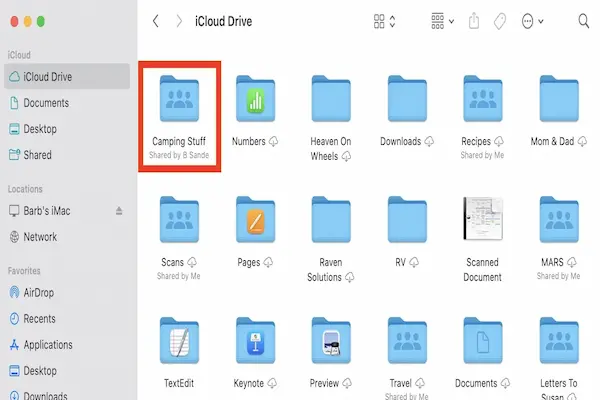
Confirming that files are synced is essential.
Ways to Verify Sync Status
- Check sync icons.
- Review cloud storage status.
- Compare file counts.
Verification builds trust.
Security Basics for Mac Cloud Backup
Cloud backup safety depends heavily on account security.
Strong Password Guidelines
- Use long passphrases.
- Avoid reused passwords.
- Include varied characters.
Password strength is essential.
Why Two Step Verification Matters
Two step verification adds an extra layer of protection.
- Protects against stolen passwords.
- Requires confirmation from another device.
This feature is strongly recommended.
Good Habits for Ongoing File Protection
Cloud backup works best with good habits.
Helpful Practices
- Review synced folders monthly.
- Check available cloud space.
- Keep macOS updated.
Consistency prevents surprises.
Common Mistakes When Backing Up a Mac to the Cloud
- Assuming everything is backed up automatically.
- Ignoring sync warnings.
- Backing up unnecessary files.
- Neglecting security settings.
Avoiding these mistakes improves reliability.
How Much Cloud Storage Do You Need
The amount of space required depends on your data.
Estimate Your Needs
- Check size of Documents.
- Check size of Pictures.
- Add room for growth.
Start small and expand if needed.
Free Cloud Storage Basics
Free storage tiers can be useful.
What Free Tiers Are Good For
- Essential document backup.
- Testing cloud sync.
Limitations to Keep in Mind
- Limited space.
- Requires selective syncing.
Free options are a good starting point.
When to Consider Additional Backup Layers
Cloud backup is powerful, yet additional layers add safety.
Extra Protection Options
- External drive backups.
- Separate archives for critical files.
Layered protection is strongest.
How Often Should You Check Your Cloud Backup
Regular checks ensure reliability.
Suggested Routine
- Monthly sync review.
- Quarterly organization check.
Routine builds confidence.
Frequently Asked Questions About How to Backup Mac to Cloud
Will cloud backup slow my Mac?
Initial sync may use resources temporarily.
Can I access files from another Mac?
Yes, through your cloud account.
Are my files safe online?
Safety depends on strong security settings.
Final Thoughts and a Calm Next Step
Learning how to backup Mac to cloud is an important step toward protecting your documents, photos, and personal information, especially when your Mac holds years of valuable data.
When you understand the concept of cloud backup, choose important folders thoughtfully, enable built in cloud services, and verify that synchronization is complete, your files become far more resilient to unexpected problems.
Could you start today by selecting just one important folder, such as Documents, and enabling cloud sync for it, so that your most valuable files are no longer stored in only one place?