Looking at the same desktop background every single day can slowly make your computer feel boring, impersonal, or simply outdated, especially when the device is used for work, study, or leisure for many hours.
Many users want to change the desktop wallpaper but feel unsure about where to click, which image to choose, or whether a wrong setting could affect screen quality, resolution, or performance.
This guide on how to change desktop wallpaper was created to show, in a light, simple, and very visual way, how to personalize the background on both Windows and Mac computers, using clear menu paths, practical examples, and easy tips that anyone can follow.
Throughout this article, you will learn how to change wallpaper step by step on Windows and macOS, understand the difference between using a single image and a slideshow, choose the right image resolution, use your own photos as wallpaper, and organize folders of images to make personalization easier in the future.
The objective is to help you make your computer feel more like yours, without fear, confusion, or unnecessary technical details.
Why Changing the Desktop Wallpaper Makes a Difference
The desktop wallpaper is one of the first things you see when you turn on your computer, which means it has a strong influence on how comfortable, motivated, or relaxed you feel while using the device.
Personalizing the background is not only about aesthetics, because it can also improve focus, reduce visual stress, and create a sense of ownership over your computer.
Common Reasons People Change Wallpaper
- To make the computer feel more personal.
- To use favorite photos or memories.
- To reduce visual clutter.
- To match mood or season.
- To refresh the look of the system.
Even a small change can make daily use more pleasant.
Understanding Desktop Wallpaper Basics Before Changing Anything
Before changing the wallpaper, it helps to understand what it actually is and how the system uses images as backgrounds.
A desktop wallpaper is simply an image displayed behind icons and windows, and it does not affect your files, programs, or performance in a noticeable way.
What a Desktop Wallpaper Does and Does Not Do
- It changes visual appearance.
- It does not affect stored files.
- It does not damage the system.
- It can be changed anytime.
Knowing this removes unnecessary fear.
How to Change Desktop Wallpaper on Windows Step by Step
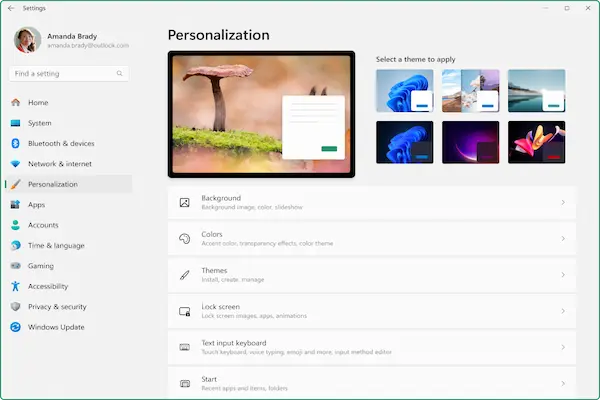
Windows offers a clear and visual way to change the desktop background through display settings, and the process is very beginner friendly.
Method 1: Change Wallpaper Using Desktop Right Click
This is the fastest and most common way.
- Right click on an empty area of the desktop.
- Select Personalize.
- Open the Background section.
This menu controls wallpaper options.
Choosing a Background Type on Windows
Windows allows different background types.
- Picture.
- Solid color.
- Slideshow.
Each option offers a different visual effect.
How to Set a Single Image as Wallpaper
- Select Picture.
- Choose an image from suggestions.
- Click Browse for your own photo.
The selected image appears immediately.
How to Use Your Own Photo as Wallpaper
Using a personal photo adds a unique touch.
- Select Browse.
- Navigate to your photo folder.
- Select the image.
- Confirm selection.
Your photo becomes the background instantly.
Understanding Wallpaper Fit Options on Windows
Windows includes several fit options that control how the image fills the screen.
Common Fit Options Explained
- Fill: covers the screen fully.
- Fit: shows the entire image.
- Stretch: stretches image to screen.
- Tile: repeats small images.
- Center: centers image without scaling.
Choosing the right fit improves visual quality.
How to Set a Wallpaper Slideshow on Windows
A slideshow allows multiple images to rotate automatically as wallpaper.
Steps to Create a Slideshow
- Select Slideshow.
- Choose a folder of images.
- Set change interval.
- Select fit option.
The desktop changes images automatically.
When a Slideshow Makes Sense
- Large photo collections.
- Seasonal images.
- Variety without manual changes.
Slideshow adds movement and variety.
How to Change Desktop Wallpaper on Mac Step by Step
macOS also provides a very visual and simple way to change the desktop background through system settings.
Method 1: Change Wallpaper Through System Settings
- Click the Apple menu.
- Select System Settings.
- Open Wallpaper or Desktop & Screen Saver.
This section controls background images.
Choosing a Wallpaper on Mac
macOS shows several categories.
- Dynamic wallpapers.
- Built in images.
- Photos.
- Folders.
You can preview images instantly.
How to Use a Personal Photo as Wallpaper on Mac
- Select Photos or Folders.
- Choose the folder with your images.
- Click on a photo.
The wallpaper updates immediately.
Understanding Desktop Background Options on macOS
Mac offers additional background behaviors.
Available Options Explained
- Static image.
- Dynamic wallpaper that changes.
- Slideshow from a folder.
Dynamic options change with time.
How to Set a Slideshow Wallpaper on Mac
Slideshows work similarly to Windows but with a different layout.
Steps to Enable a Slideshow
- Select a folder.
- Enable slideshow option.
- Choose change interval.
- Select random or sequential order.
Your desktop cycles through images.
Image Resolution Tips for Better Wallpaper Quality
Choosing the right image resolution prevents blurry or stretched wallpapers.
What Resolution Means Simply
- Resolution is image size in pixels.
- Higher resolution equals sharper images.
Matching resolution improves appearance.
Basic Resolution Guidelines
- Match screen resolution when possible.
- Avoid very small images.
- Landscape images work best.
Correct size makes a visible difference.
How to Organize Wallpaper Image Folders
Organizing images makes future changes easier.
Suggested Folder Structure
- Wallpapers
- Nature.
- Family.
- Minimal.
- Art.
Folders simplify slideshow selection.
Using Photos as Wallpaper Without Clutter
Personal photos are meaningful, but some choices work better.
Photo Selection Tips
- Avoid crowded images.
- Choose calm backgrounds.
- Test icon visibility.
Visibility matters for usability.
How Desktop Icons Interact With Wallpaper
Wallpaper choice affects icon readability.
Tips for Better Visibility
- Use darker images for light icons.
- Use simpler backgrounds.
- Reduce contrast extremes.
Comfort improves with balance.
Common Mistakes When Changing Desktop Wallpaper
- Using very low resolution images.
- Choosing overly busy photos.
- Ignoring fit options.
- Saving wallpapers randomly.
Avoiding these improves results.
How Often Should You Change Your Wallpaper
There is no correct frequency.
Popular Approaches
- Daily with slideshow.
- Monthly manual change.
- Seasonal updates.
Choose what feels comfortable.
Creative Ideas for Desktop Backgrounds
Wallpaper can reflect personality.
Inspiration Ideas
- Nature scenes.
- Minimal gradients.
- Personal photography.
- Motivational visuals.
Experimentation is encouraged.
Troubleshooting Wallpaper Issues
Sometimes wallpaper does not change as expected.
Common Fixes
- Restart the computer.
- Reapply the image.
- Check display settings.
Most issues are temporary.
Practice Exercise: Customize Your Desktop Step by Step
Exercise 1: Choose One Image
- Select a favorite photo.
- Set it as wallpaper.
Exercise 2: Create a Wallpaper Folder
- Create a Wallpapers folder.
- Add a few images.
Exercise 3: Test a Slideshow
- Enable slideshow.
- Set a short interval.
Practice builds confidence.
Frequently Asked Questions About How to Change Desktop Wallpaper
Does changing wallpaper slow down the computer?
No noticeable performance impact.
Can I use any image?
Yes, common image formats work.
Can I go back to the old wallpaper?
Yes, previous images remain available.
Final Thoughts and a Visual Next Step
Learning how to change desktop wallpaper is one of the easiest and most enjoyable ways to personalize your computer, because it requires no technical knowledge and delivers an immediate visual reward.
When you understand where the settings are, how image and slideshow options differ, and how resolution affects quality, customizing your desktop becomes a simple habit rather than a confusing task.
Could you choose one image today that represents your style or mood and set it as your wallpaper, just to experience how a small visual change can make your computer feel more like your own?