Keeping dozens of windows open at the same time is a very common situation for students and professionals, because modern work and study routines often involve browsers with many tabs, documents, spreadsheets, messaging apps, PDFs, videos, and tools that all compete for attention on a single screen.
When everything is placed in just one desktop, the result is usually visual overload, constant window switching, and the feeling that tasks are mixed together in a way that makes focus harder instead of easier.
This guide on how to use multiple desktops was created to show, in a productive and direct way, how virtual desktops work on both Windows and macOS, how to create and switch between them quickly, and how to organize each desktop by theme so your computer supports your workflow instead of distracting you.
Throughout this article, you will learn what virtual desktops are, how they differ from simply minimizing windows, how to use virtual desktops on Windows and Mac step by step, which keyboard shortcuts save the most time, and how to apply practical organization ideas for study, work, and leisure.
The objective is simple: help you regain control over your screen, reduce mental clutter, and multitask more efficiently without needing extra software or complex setups.
What Are Multiple Desktops and Why They Exist
Multiple desktops, also known as virtual desktops, allow you to create separate workspaces on the same computer, where each desktop can hold its own set of open windows and applications.
Instead of squeezing everything into one crowded space, you can spread tasks across different desktops and switch between them instantly.
This feature exists because operating systems recognized that users do not always work on one single task at a time, and that visual separation improves focus and organization.
What Multiple Desktops Are Not
- They are not separate user accounts.
- They do not duplicate files.
- They do not slow down the computer significantly.
Virtual desktops are simply different views of your open apps.
Main Benefits of Using Multiple Desktops
- Reduced visual clutter.
- Faster switching between tasks.
- Clear separation of activities.
- Better focus and less distraction.
Once understood, the feature becomes very hard to give up.
Multiple Desktops Versus Minimizing Windows
Many users try to manage clutter by minimizing windows or stacking them behind each other, yet this approach often creates confusion because everything still belongs to the same workspace.
Virtual desktops work differently, because each desktop acts like its own clean table, where only the windows related to a specific task are visible.
Key Differences Explained Simply
- Minimizing hides windows temporarily.
- Multiple desktops separate windows permanently.
- Minimized windows still compete for attention.
- Virtual desktops create mental boundaries.
This difference is what makes multiple desktops so effective.
Who Benefits Most From Using Multiple Desktops
Although anyone can use virtual desktops, some profiles benefit even more from this feature.
Common User Profiles That Benefit
- Students with classes, research, and assignments.
- Remote workers juggling meetings and documents.
- Creative professionals using multiple tools.
- Anyone who multitasks frequently.
If you often feel overwhelmed by open windows, this feature is for you.
How to Use Multiple Desktops on Windows
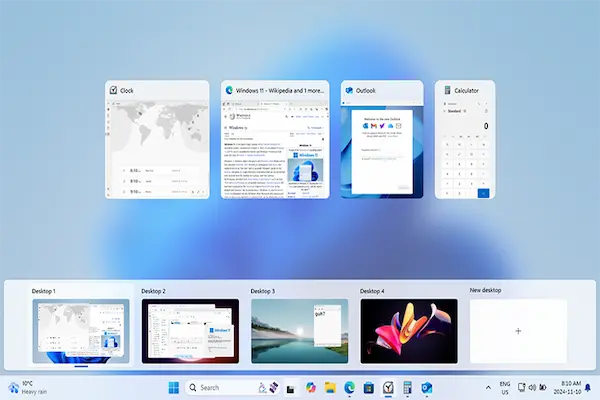
Windows includes a built in feature called virtual desktops, which can be accessed through Task View and configured very easily.
No extra programs are needed, and everything works smoothly once you know where to click.
Opening Task View on Windows
- Click the Task View icon on the taskbar.
- Or press Windows key and Tab together.
This view shows all open windows and desktops.
Creating a New Virtual Desktop on Windows
- Open Task View.
- Click New Desktop.
A new empty desktop appears immediately.
How Many Desktops Can You Create
Windows allows you to create several desktops, and most users find that three to five desktops are more than enough.
Switching Between Virtual Desktops on Windows
Switching desktops quickly is essential for productivity.
Mouse Method
- Open Task View.
- Click the desktop you want.
Keyboard Shortcut Method
- Windows key + Ctrl + Left Arrow.
- Windows key + Ctrl + Right Arrow.
Keyboard shortcuts are the fastest option once memorized.
Moving Windows Between Desktops on Windows
Sometimes you open an app on the wrong desktop, and moving it is simple.
Steps to Move a Window
- Open Task View.
- Drag the window to another desktop.
The window instantly moves to the chosen workspace.
Closing a Virtual Desktop on Windows
Closing a desktop does not close the apps, because Windows automatically moves them to another desktop.
How to Close
- Open Task View.
- Click the X on the desktop thumbnail.
This behavior prevents accidental loss.
How to Use Multiple Desktops on Mac with Mission Control
On macOS, multiple desktops are managed through a feature called Mission Control, which provides a visual overview of all open spaces.
If you are coming from Windows, think of Mission Control as a more visual version of Task View.
Opening Mission Control on Mac
- Swipe up with three or four fingers on the trackpad.
- Press the Mission Control key.
- Use the keyboard shortcut Control + Up Arrow.
The screen zooms out to show all desktops.
Creating a New Desktop on Mac
- Open Mission Control.
- Move the cursor to the top.
- Click the plus button.
A new desktop space is created.
Switching Between Desktops on Mac
macOS offers very smooth ways to switch desktops.
Trackpad Method
- Swipe left or right with three or four fingers.
Keyboard Method
- Control + Left Arrow.
- Control + Right Arrow.
Trackpad gestures feel natural for many users.
Moving Windows Between Desktops on Mac
Reorganizing apps across desktops is easy once Mission Control is open.
Steps to Move an App
- Open Mission Control.
- Drag the window to another desktop.
The app now belongs to that workspace.
Understanding Full Screen Apps and Desktops on Mac
On macOS, full screen apps automatically create their own desktop space.
This behavior can be useful or confusing, depending on your expectations.
What Happens With Full Screen Mode
- Each full screen app gets its own desktop.
- You can swipe between them.
- They appear in Mission Control.
This is normal macOS behavior.
Organizing Desktops by Theme: Practical Examples
The real power of multiple desktops appears when you assign a clear purpose to each one.
Instead of random usage, thematic organization creates structure.
Example 1: Student Setup
- Desktop 1: Online classes and video calls.
- Desktop 2: Research and browser tabs.
- Desktop 3: Writing assignments and notes.
- Desktop 4: Leisure and breaks.
This separation prevents study and leisure from mixing.
Example 2: Professional Setup
- Desktop 1: Email and messaging.
- Desktop 2: Main work documents.
- Desktop 3: Meetings and presentations.
- Desktop 4: Personal tasks.
Workflows become more predictable.
Example 3: Creative Workflow
- Desktop 1: Design tools.
- Desktop 2: References and inspiration.
- Desktop 3: File management.
Each desktop supports a mental mode.
How Many Desktops Should You Use
There is no perfect number of desktops, because usage depends on your routine.
General Guidelines
- Two desktops are good for beginners.
- Three to five desktops suit most users.
- Too many desktops can be counterproductive.
Start small and adjust gradually.
Multitasking Tips With Multiple Desktops
Virtual desktops are not just about separation, but also about smarter multitasking.
Practical Tips
- Keep similar apps together.
- Avoid mixing work and entertainment.
- Use shortcuts to switch quickly.
- Close unused desktops regularly.
Habits make the system work for you.
Using Desktops With External Monitors
When using more than one monitor, virtual desktops become even more powerful.
How Desktops Behave With Multiple Screens
- Each monitor can show different desktops.
- Windows can be moved across screens.
- Mission Control manages all spaces.
This setup supports advanced workflows.
Common Mistakes When Using Multiple Desktops
- Creating too many desktops at once.
- Forgetting which desktop holds which task.
- Never moving windows intentionally.
- Using desktops randomly.
A little planning avoids confusion.
Building a Habit Around Virtual Desktops
Using multiple desktops becomes effective when it turns into a habit rather than an occasional experiment.
Habit Building Suggestions
- Start each day by setting up desktops.
- Assign tasks before opening apps.
- Close desktops at the end of the day.
Consistency improves clarity.
Performance Considerations
Many users worry that multiple desktops consume extra resources.
What Actually Affects Performance
- Number of open apps.
- System memory.
Desktops themselves are lightweight.
Practice Exercise: Create Your First Organized Setup
Exercise 1: Create Two Desktops
- Create Desktop 1 for main work.
- Create Desktop 2 for browsing or leisure.
Exercise 2: Move Apps
- Move work apps to Desktop 1.
- Move personal apps to Desktop 2.
Exercise 3: Switch Using Shortcuts
- Practice keyboard shortcuts.
- Switch back and forth.
Short exercises speed up learning.
Frequently Asked Questions About How to Use Multiple Desktops
Do virtual desktops close my programs?
No, programs stay open.
Can I rename desktops?
Windows and macOS do not support naming by default.
Is this feature safe to use daily?
Yes, it is designed for everyday use.
Final Thoughts and a Productive Next Step
Learning how to use multiple desktops is one of the most effective ways to organize digital workspaces, because it transforms a chaotic screen into clearly defined areas that match how your brain switches between tasks.
When you understand how virtual desktops work on Windows and Mac, create them intentionally, and organize them by theme such as study, work, and leisure, multitasking becomes more structured and far less overwhelming.
Could you try today by creating just one extra desktop, assigning it a specific purpose, and noticing how much calmer your screen feels when tasks are no longer competing for the same space?