Sending many files at once can quickly become frustrating, especially when email services limit attachments, cloud uploads feel slow, or folders are filled with dozens of documents, photos, or spreadsheets that need to stay together.
In these situations, learning how to compress files into ZIP becomes an essential digital skill, because it allows you to group files into a single package, reduce clutter, and make sharing much easier without installing complex programs or using advanced technical terms.
Many users know that ZIP files exist, yet feel unsure about how to create them, how to extract them later, or whether compressing files can actually reduce size or just organize content, which often leads to hesitation or mistakes when dealing with important documents.
This guide was written for users who want a calm, step by step explanation of how ZIP compression works on both Windows and Mac, focusing on native system tools, clear menu paths, practical examples, and realistic expectations about when compression helps and when it does not.
Throughout this article, you will learn what ZIP files are, why they are useful, how to create ZIP files on Windows and macOS, how to extract them safely, how to organize files before compressing, and how to decide whether ZIP is the right solution for your specific sharing or storage need.
What Is a ZIP File and Why It Is So Common
A ZIP file is a compressed archive that groups one or more files and folders into a single file, making it easier to store, send, or move large sets of data without losing the original structure.
The ZIP format has been around for many years and is supported natively by Windows, macOS, and most modern devices, which explains why it is so widely used for file sharing.
Main Advantages of ZIP Files
- Combine many files into one.
- Keep folder structure intact.
- Simplify email and cloud sharing.
- Reduce clutter during transfers.
Because of this compatibility, ZIP files are often the safest choice.
ZIP Compression Versus Simple Folder Sharing
Some users wonder why they should compress files instead of just sending a folder, and the answer lies in how systems handle multiple files during transfers.
ZIP files behave like a single object, while folders may not upload or attach correctly in some services.
Why ZIP Is Often Better Than Sending a Folder
- Emails accept ZIP files but not folders.
- ZIP keeps everything together.
- Download is simpler for the receiver.
ZIP acts like a container for your files.
Understanding Compression in Simple Terms
Compression is a process that reduces file size by removing redundant information, although the results depend heavily on the type of files being compressed.
Some files compress very well, while others barely change size.
Files That Usually Compress Well
- Text documents.
- Spreadsheets.
- PDFs with text.
Files That Often Do Not Compress Much
- Photos already compressed.
- Videos.
- Music files.
In many cases, ZIP is more about organization than size reduction.
When ZIP Compression Is Most Useful
Understanding when to use ZIP helps avoid unrealistic expectations.
Common Practical Scenarios
- Sending many documents by email.
- Uploading project files to cloud storage.
- Sharing homework or reports.
- Backing up folders temporarily.
ZIP shines when structure matters.
Preparing Files Before Compressing Them
Taking a few minutes to organize files before creating a ZIP makes the result cleaner and easier to use.
Basic Preparation Checklist
- Remove duplicates.
- Delete unnecessary files.
- Rename files clearly.
- Group related items.
Preparation saves time for both sender and receiver.
How to Compress Files into ZIP on Windows
Windows includes native ZIP support, which means you can create ZIP files without downloading extra software.
The process is visual and beginner friendly.
Method 1: Create a ZIP File Using Right Click
- Select the file or folder.
- Right click on it.
- Choose Send to.
- Select Compressed (zipped) folder.
Windows creates a ZIP file immediately.
What Happens After Creating the ZIP
- A new ZIP file appears.
- The original files remain unchanged.
- You can rename the ZIP file.
The process is quick and reversible.
Compressing Multiple Files into One ZIP on Windows
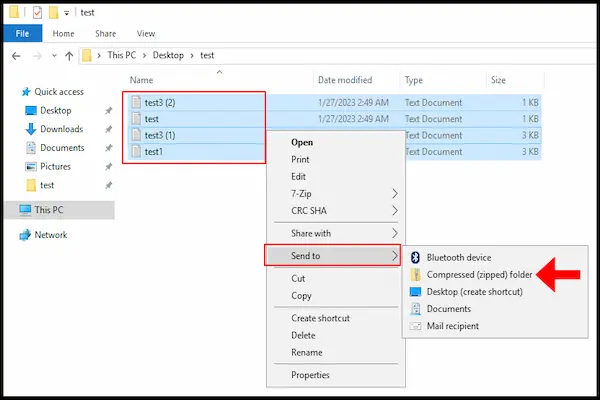
You can include many files in a single ZIP by selecting them together.
Steps for Multiple File Compression
- Select all desired files.
- Right click on the selection.
- Choose Send to.
- Select Compressed (zipped) folder.
All selected files are included.
How to Compress a Folder on Windows
Compressing a folder automatically includes everything inside it.
Folder Compression Steps
- Right click the folder.
- Select Send to.
- Choose Compressed (zipped) folder.
The folder structure is preserved inside the ZIP.
Where ZIP Files Are Saved on Windows
By default, Windows saves the ZIP file in the same location as the original files.
Why This Matters
- You can find it easily.
- You can move it later.
This behavior keeps things predictable.
How to Extract ZIP Files on Windows
Extracting a ZIP file means unpacking its contents back into regular files and folders.
Simple Extraction Steps
- Right click the ZIP file.
- Select Extract All.
- Choose destination.
- Confirm extraction.
The files appear in a normal folder.
Alternative Quick Method
- Double click the ZIP.
- Drag files out.
Both methods work well.
How to Compress Files into ZIP on Mac
macOS also includes native ZIP support, integrated directly into Finder.
The steps are very similar in concept to Windows.
Creating a ZIP File on Mac Using Right Click
- Select the file or folder.
- Right click or Control click.
- Select Compress.
The ZIP file is created instantly.
How macOS Names ZIP Files
- Single file: adds .zip to name.
- Multiple files: creates Archive.zip.
You can rename it afterward.
Compressing Multiple Files on Mac
Finder allows grouping files easily.
Steps for Multiple Items
- Select all desired files.
- Right click the selection.
- Choose Compress.
All files are included together.
How to Compress a Folder on Mac
Folder compression works the same way.
Folder Compression Steps
- Right click the folder.
- Select Compress.
The folder structure remains intact.
Where ZIP Files Are Saved on Mac
macOS saves the ZIP file in the same location as the original content.
Why This Is Helpful
- Easy to locate.
- No hidden paths.
This matches Finder behavior.
How to Extract ZIP Files on Mac
Extracting ZIP files on macOS is even simpler.
Basic Extraction Method
- Double click the ZIP file.
The contents are extracted automatically.
What Happens After Extraction
- A new folder appears.
- The ZIP remains unchanged.
This keeps the original archive intact.
Understanding ZIP File Contents
A ZIP file is like a folder inside a file.
What ZIP Files Can Contain
- Files.
- Folders.
- Subfolders.
The internal structure is preserved.
Organizing Files Inside ZIP Archives
Well organized ZIP files are easier to use.
Recommended Organization Tips
- Use one main folder inside ZIP.
- Avoid loose files.
- Name folders clearly.
This prevents confusion after extraction.
Using ZIP Files for Email Sharing
Email services often limit attachment size.
Why ZIP Helps With Email
- Single attachment.
- Cleaner sending process.
However, size limits still apply.
Using ZIP Files for Cloud Uploads
Cloud services handle ZIP files efficiently.
Cloud Sharing Benefits
- One upload instead of many.
- Easier downloads.
This is ideal for projects.
When ZIP Compression Does Not Reduce Size
It is important to know that ZIP does not always shrink files significantly.
Common Cases
- Already compressed media.
- Modern image formats.
In these cases, ZIP is mainly for organization.
ZIP Files Versus Other Archive Formats
There are other archive formats, but ZIP is the most universal.
Why ZIP Is Recommended for Beginners
-
- No extra software needed.
- Easy to create and extract.
Simplicity matters most.
Common Mistakes When Creating ZIP Files
- Compressing unnecessary files.
- Leaving unclear names.
- Forgetting to check contents.
A quick review avoids problems.
Security and Privacy Considerations
ZIP files can contain sensitive information.
Before Sharing a ZIP
- Review included files.
- Remove private documents.
Always double check contents.
Practice Exercise: Create and Extract a ZIP
Exercise 1: Prepare Files
- Create a test folder.
- Add a few files.
Exercise 2: Compress
- Create ZIP using system tools.
Exercise 3: Extract
- Extract the ZIP.
- Compare contents.
Practice builds confidence.
Frequently Asked Questions About How to Compress Files into ZIP
Does ZIP delete my original files?
No, originals remain unchanged.
Can I add files to an existing ZIP?
Yes, by opening and dragging files in.
Is ZIP safe to use?
Yes, when used properly.
Final Thoughts and a Practical Next Step
Learning how to compress files into ZIP is a simple yet powerful skill that makes everyday digital tasks easier, especially when dealing with many files that need to be shared, stored, or transferred together.
When you understand how ZIP files work on Windows and Mac, organize content before compressing, and know when compression helps or simply groups files, you gain confidence and efficiency without relying on advanced tools.
Could you try right now by selecting a small folder, creating a ZIP file using your system’s built in option, and extracting it again, just to reinforce how straightforward and useful ZIP compression really is?