Buying a wireless mouse, keyboard, or Bluetooth headphone usually comes with the promise of more freedom, fewer cables, and a cleaner desk, yet many people end up frustrated when the device simply does not connect, does not appear on the screen, or connects once and then refuses to work again.
This situation is extremely common among users who are not very familiar with system settings, because Bluetooth is one of those technologies that works almost invisibly when everything is right, but becomes confusing when a single step is missed or misunderstood.
This guide on how to connect Bluetooth devices was created especially for people who bought a Bluetooth mouse or headphones and cannot get them to work on a Windows PC or a Mac, explaining everything calmly, step by step, and with clear solutions for the most common problems.
Throughout this article, you will learn what Bluetooth is, how to turn it on in Windows and macOS, how to put devices into pairing mode, how to complete the connection correctly, and how to fix simple connection issues without panic or advanced technical knowledge.
The objective is simple: help you actually use your wireless device instead of leaving it in a drawer because it feels too complicated.
What Bluetooth Is and Why It Can Feel Confusing
Bluetooth is a short range wireless technology designed to connect devices like mice, keyboards, headphones, speakers, and smartphones without cables, using a secure pairing process that allows devices to recognize each other.
Although the idea sounds simple, Bluetooth requires a few precise steps, and missing any of them can prevent the connection from working, which often leads users to think the device is broken when it is not.
What Bluetooth Does in Simple Terms
- Creates a wireless connection between devices.
- Works over short distances.
- Requires pairing before use.
Once paired, devices usually reconnect automatically.
Common Bluetooth Devices People Try to Connect
Understanding which devices commonly use Bluetooth helps make the process feel more familiar.
Typical Bluetooth Devices for Computers
- Bluetooth mouse.
- Bluetooth keyboard.
- Bluetooth headphones.
- Bluetooth speakers.
The steps are similar for all of them.
Important Things to Check Before Starting
Before trying to connect anything, a few basic checks can save a lot of time and frustration.
Basic Pre Connection Checklist
- Make sure the device has battery.
- Confirm your computer supports Bluetooth.
- Move the device close to the computer.
- Turn off Bluetooth on other nearby devices.
These simple points prevent many connection issues.
How to Know If Your Computer Has Bluetooth
Most modern laptops include Bluetooth, but some desktop computers require an external adapter.
Checking Bluetooth on Windows
- Open Settings.
- Look for Bluetooth options.
If Bluetooth appears, your computer supports it.
Checking Bluetooth on Mac
- Open System Settings.
- Look for Bluetooth section.
All modern Macs include Bluetooth.
How to Turn On Bluetooth on Windows
Bluetooth must be turned on before any device can connect.
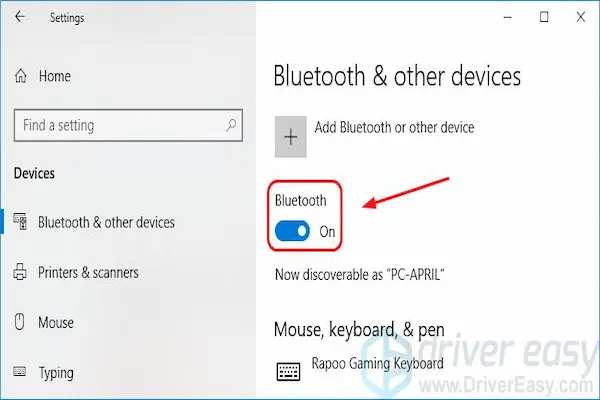
Method 1: Using Windows Settings
- Open Settings.
- Select Bluetooth and devices.
- Turn Bluetooth on.
The toggle should turn blue or show as enabled.
Method 2: Using Quick Settings
- Click the network or volume icon.
- Find the Bluetooth button.
- Turn it on.
This is the fastest method for many users.
How to Turn On Bluetooth on Mac
macOS makes Bluetooth access very visible.
Turning Bluetooth On
- Open System Settings.
- Select Bluetooth.
- Turn Bluetooth on.
The status should show as active.
Understanding Pairing Mode on Bluetooth Devices
Pairing mode is a special state that allows the device to be discovered by your computer.
If the device is not in pairing mode, it will not appear in the list, even if Bluetooth is on.
How Pairing Mode Usually Works
- Hold the power button for a few seconds.
- Look for blinking light.
- Check device instructions.
Blinking lights often indicate pairing mode.
How to Put a Bluetooth Mouse into Pairing Mode
Bluetooth mice usually have a dedicated pairing button or a long press power button.
Typical Steps
- Turn the mouse off.
- Press and hold the pairing button.
- Turn the mouse on while holding.
The indicator light should blink.
How to Put Bluetooth Headphones into Pairing Mode
Headphones often require a longer press.
Common Pairing Steps
- Turn headphones off.
- Press and hold power button.
- Wait for blinking or voice message.
Some headphones say “pairing mode” aloud.
How to Connect Bluetooth Devices on Windows
Once Bluetooth is on and the device is in pairing mode, Windows can complete the connection.
Steps to Pair a Device on Windows
- Open Settings.
- Select Bluetooth and devices.
- Click Add device.
- Choose Bluetooth.
- Select your device from the list.
The connection usually completes in seconds.
What Happens After Successful Pairing
- The device appears as connected.
- It reconnects automatically later.
No repeated pairing is needed.
How to Connect Bluetooth Devices on Mac
macOS pairing is straightforward and visual.
Steps to Pair a Device on Mac
- Open System Settings.
- Select Bluetooth.
- Wait for device to appear.
- Click Connect.
The device becomes active immediately.
Connecting a Bluetooth Mouse: What to Expect
After pairing a Bluetooth mouse, the cursor should start moving instantly.
If the Mouse Does Not Respond
- Check battery.
- Move mouse closer.
- Turn mouse off and on.
Most issues are minor.
Connecting Bluetooth Headphones: Audio Settings
Pairing headphones is only the first step.
After Pairing, Check Audio Output
- Open sound settings.
- Select Bluetooth headphones as output.
This ensures sound goes to the headphones.
Common Bluetooth Connection Problems and Solutions
Bluetooth issues are often repetitive and easy to fix once recognized.
Problem: Device Does Not Appear
- Check pairing mode.
- Restart Bluetooth.
- Restart device.
Problem: Device Connects Then Disconnects
- Check battery level.
- Reduce distance.
- Remove and re pair.
Problem: Device Appears but Will Not Connect
- Restart computer.
- Forget device and pair again.
Patience usually solves these issues.
How to Remove and Re Pair a Bluetooth Device
Removing a device resets the connection.
On Windows
- Open Bluetooth settings.
- Select the device.
- Click Remove.
On Mac
- Open Bluetooth settings.
- Select the device.
- Choose Remove.
Then pair again from scratch.
Fixing Bluetooth by Restarting Services
Sometimes Bluetooth needs a simple reset.
Simple Reset Steps
- Turn Bluetooth off.
- Wait a few seconds.
- Turn Bluetooth on again.
This refreshes connections.
Distance and Interference Considerations
Bluetooth works best at short distances.
Things That Can Interfere
- Walls.
- Metal objects.
- Many wireless devices.
Closer is always better.
How Many Bluetooth Devices Can Be Connected
Most computers support multiple Bluetooth devices.
Common Examples
- Mouse and keyboard together.
- Headphones and mouse.
Performance usually remains stable.
Bluetooth Versus Wireless USB Devices
Some devices use USB receivers instead of Bluetooth.
Key Differences
- Bluetooth uses system radio.
- USB receivers use a dongle.
Bluetooth frees USB ports.
Battery Tips for Bluetooth Devices
Battery level affects connection quality.
Battery Management Tips
- Charge regularly.
- Turn devices off when not used.
Low battery causes many issues.
Practice Exercise: First Successful Connection
Exercise 1: Prepare Device
- Charge device.
- Enter pairing mode.
Exercise 2: Connect on Computer
- Turn Bluetooth on.
- Add new device.
Exercise 3: Test Connection
- Move mouse or play audio.
Practice builds confidence.
Frequently Asked Questions About How to Connect Bluetooth Devices
Do I need internet to use Bluetooth?
No, Bluetooth works offline.
Can I connect the same device to two computers?
Usually one at a time.
Is Bluetooth safe to use?
Yes, for everyday devices.
Final Thoughts and a Calm Next Step
Learning how to connect Bluetooth devices is a valuable everyday skill that removes frustration and allows you to enjoy the convenience of wireless accessories without fear or confusion.
When you understand how to turn Bluetooth on, place devices into pairing mode, complete the connection, and fix simple issues calmly, wireless mice and headphones stop being a mystery and become reliable tools for daily use.
Could you try right now by turning on Bluetooth, placing one device into pairing mode, and connecting it step by step, just to see how manageable the process really is once it is broken down clearly?