Sharing a single computer among several people in the same household is very common, especially in families where parents, children, and sometimes grandparents all use the same Windows PC for study, work, entertainment, and everyday tasks, which often leads to confusion, mixed files, accidental deletions, and concerns about privacy and security.
When everyone uses the same user profile, documents end up scattered, browser histories mix together, passwords are saved where they should not be, and children may accidentally access settings or files that should be restricted, creating unnecessary stress and even real risks.
This complete guide on how to manage user accounts Windows was created to help families understand how Windows user accounts work, how to create separate profiles for each person, how to choose the correct account type, and how to apply basic security practices that protect both personal data and the computer itself.
Throughout this article, you will learn what Windows user accounts are, why separating profiles is important, how to add new users step by step, the difference between administrator and standard accounts, how to manage passwords safely, and how to adapt accounts for children and shared family use.
The goal is to make Windows feel organized, safer, and more personal for everyone who uses the same computer.
What Are User Accounts in Windows and Why They Exist
User accounts in Windows are individual profiles that allow each person to have their own space on the same computer, including personal files, desktop layout, apps, settings, and preferences, without interfering with other users.
Each account works like a separate environment, even though all profiles share the same physical machine.
What Each User Account Has
- Personal desktop.
- Individual documents and downloads.
- Own browser history and favorites.
- Separate app settings.
This separation is essential in shared environments.
Why Families Should Use Separate User Accounts
Many families continue using a single account simply because they are not aware of how easy it is to create and manage multiple profiles in Windows.
However, separating accounts brings practical and security benefits that are noticeable almost immediately.
Main Benefits of Separate Accounts
- Better privacy for each person.
- Reduced risk of accidental deletions.
- Safer environment for children.
- Cleaner organization of files.
Each family member gets their own digital space.
Understanding Account Types in Windows
Before creating or managing accounts, it is important to understand that Windows offers different account types, each with a specific purpose and level of permission.
Main Windows Account Types
- Administrator account.
- Standard account.
Choosing the correct type is crucial for safety.
Administrator Account Explained Simply
An administrator account has full control over the computer, meaning it can install programs, change system settings, add or remove users, and access all areas of the system.
This level of access is powerful but should be limited to trusted adults.
What an Administrator Can Do
- Install and remove software.
- Change security settings.
- Create and manage user accounts.
- Access system files.
Too many administrators increase risk.
Standard Account Explained Simply
A standard account is designed for everyday use, allowing users to run programs, browse the internet, and use files, while preventing changes that could affect the whole system.
This type is ideal for children and most family members.
What a Standard User Can Do
- Use installed apps.
- Create personal files.
- Customize their desktop.
What a Standard User Cannot Do
- Install system wide software.
- Change critical settings.
- Manage other accounts.
This limitation protects the computer.
Recommended Account Setup for Families
For most households, a simple structure works best.
Suggested Family Account Structure
- One administrator account for a parent.
- Standard accounts for other adults.
- Standard accounts for children.
This setup balances control and safety.
How to Access User Account Settings in Windows
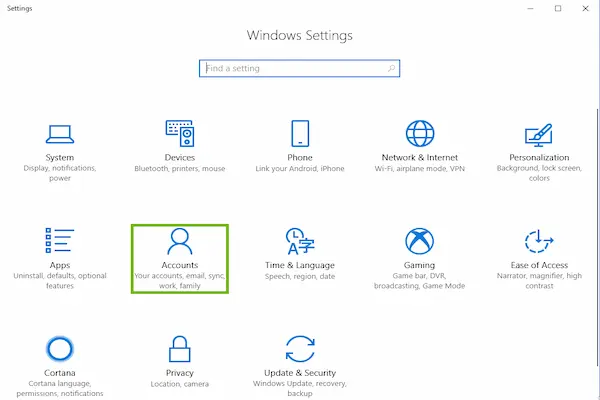
All user account management starts in Windows Settings.
Steps to Open Account Settings
- Open Settings.
- Select Accounts.
- Choose Family and other users.
This section centralizes user management.
How to Add a New User Account in Windows
Creating a new user account is straightforward and does not require advanced knowledge.
Step by Step to Add a New User
- Open Accounts settings.
- Go to Family and other users.
- Click Add account.
- Follow on screen instructions.
The process guides you clearly.
Adding a Family Member Account
Windows allows creating family accounts, especially useful for children.
Why Use Family Accounts
- Better parental control.
- Age appropriate settings.
- Safer browsing options.
This option is designed for households.
Adding a Local Account Versus Online Account
Windows supports both local accounts and accounts linked to an online profile.
Local Account
- Works only on the computer.
- No email required.
Online Account
- Uses email login.
- Syncs settings.
Both options are valid depending on preference.
How to Choose the Right Account Type During Creation
After creating a new account, you can assign its type.
Steps to Change Account Type
- Select the account.
- Click Change account type.
- Choose Administrator or Standard.
Always review account permissions.
How to Change an Existing Account Type
Permissions can be adjusted later if needed.
When to Change Account Type
- Child grows older.
- New responsibility needed.
Flexibility is built in.
Managing Passwords for Windows User Accounts
Passwords are a key part of account security, especially in shared computers.
Why Each Account Needs a Password
- Prevents unauthorized access.
- Protects personal files.
- Keeps settings private.
Even simple passwords are better than none.
How to Set or Change a Password in Windows
Steps to Change Password
- Open Accounts settings.
- Select Sign in options.
- Choose Password.
- Follow instructions.
The process is guided.
Tips for Creating Strong but Memorable Passwords
Strong passwords do not need to be complicated.
Password Best Practices
- Use a mix of words.
- Avoid obvious names.
- Do not reuse passwords.
Security starts with habits.
Managing Accounts for Children Safely
Children should always use standard accounts.
Extra Safety Tips for Kids Accounts
- Do not give administrator access.
- Use simple but private passwords.
- Review activity regularly.
Supervision is still important.
Switching Between User Accounts in Windows
Windows makes switching users easy.
How to Switch Users
- Open Start menu.
- Select user icon.
- Choose another account.
No need to log out completely.
Logging Out Versus Switching Users
Understanding the difference helps manage sessions.
Log Out
- Closes apps.
- Ends session.
Switch User
- Keeps apps open.
- Uses more memory.
Choose based on situation.
How to Remove a User Account Safely
Sometimes accounts are no longer needed.
Steps to Remove an Account
- Open Accounts settings.
- Select the account.
- Click Remove.
Always check files before removing.
Important Warning Before Removing Accounts
- Files may be deleted.
- Back up important data.
Never rush this step.
Backing Up Files Before Account Changes
Backing up prevents data loss.
Simple Backup Ideas
- Copy files to external drive.
- Use cloud storage.
Backup brings peace of mind.
How User Accounts Improve Computer Security
Separate accounts limit damage from mistakes or malware.
Security Benefits
- Reduced system wide changes.
- Better control of permissions.
Security works best in layers.
Common Mistakes When Managing User Accounts
- Everyone using administrator account.
- Sharing passwords.
- Never reviewing account list.
Awareness prevents problems.
Creating a Routine for Account Review
Accounts should be reviewed periodically.
Simple Review Checklist
- Check active accounts.
- Confirm account types.
- Update passwords.
Quarterly reviews work well.
Practice Exercise: Setting Up a Family Computer
Exercise 1: Create Accounts
- Create one admin account.
- Create standard accounts.
Exercise 2: Set Passwords
- Assign unique passwords.
Exercise 3: Test Switching
- Switch between users.
Practice builds confidence.
Frequently Asked Questions About How to Manage User Accounts Windows
Can I have more than one administrator?
Yes, but fewer is safer.
Can children install programs?
Not with standard accounts.
Is it hard to undo changes?
Most settings are reversible.
Final Thoughts and a Secure Next Step
Learning how to manage user accounts Windows is one of the most important steps for families who share the same computer, because it brings organization, privacy, and security without requiring technical expertise or extra software.
When each person has their own account, permissions are chosen carefully, and passwords are treated responsibly, the computer becomes a safer and more pleasant tool for everyone in the household.
Could you take a few minutes today to open the account settings, review who uses the computer, and create or adjust user accounts so each family member has their own protected space?