Sharing a Mac with children, partners, relatives, or even occasional guests is very common in many households, yet a surprising number of users still rely on a single account for everyone, which often leads to mixed files, lost documents, privacy concerns, accidental changes to settings, and unnecessary stress.
macOS was designed from the beginning to support multiple user accounts in a safe and organized way, allowing each person to have their own private space on the same computer, with separate files, preferences, passwords, and levels of access, all without slowing the system down or making daily use more complicated.
This complete guide on how to manage user accounts Mac was created for Mac users who live with children, share their computer with family members, or occasionally allow other people to use the same machine, and want to do so responsibly, with privacy, security, and clarity.
Throughout this article, you will learn what macOS user accounts are, why they are essential in shared environments, how to create and manage different types of accounts, how to activate and use the Guest account safely, how to apply basic parental controls, how to manage passwords, and which good practices make daily shared use much smoother.
The goal is to help you turn your Mac into a well organized shared device, where everyone has their own space and sensitive information stays protected.
What Are User Accounts on Mac and Why They Matter
User accounts on macOS are separate profiles that allow multiple people to use the same computer while keeping their files, settings, and personal information isolated from each other.
Each account has its own desktop, documents, downloads, browser history, saved passwords, and app preferences, even though all accounts share the same hardware.
What Each Mac User Account Includes
- Private desktop and Dock layout.
- Personal Documents and Downloads folders.
- Individual browser data and saved logins.
- Separate app settings and preferences.
This separation is the foundation of privacy on shared Macs.
Why Sharing One Account Is Usually a Bad Idea
Using a single account for everyone might seem simpler at first, yet it often causes problems that grow over time, especially in families with children or in homes where the Mac is used for work and personal activities.
Common Problems With One Shared Account
- Accidental deletion of files.
- Mixed browser history and saved passwords.
- Children accessing private documents.
- Unexpected changes to system settings.
Separate accounts solve most of these issues immediately.
Types of User Accounts Available on macOS
Before creating or managing accounts, it is important to understand that macOS offers different account types, each designed for a specific role and level of access.
Main macOS Account Types
- Administrator account.
- Standard account.
- Guest account.
Choosing the right type for each person is essential.
Administrator Account Explained Clearly
An administrator account has full control over the Mac, which means it can install and remove software, change system wide settings, manage other user accounts, and access all areas of the computer.
This power makes administrator accounts necessary, but also potentially risky if used carelessly.
What an Administrator Can Do
- Install apps and system updates.
- Add, remove, or modify user accounts.
- Change security and privacy settings.
- Access system files.
For safety, only trusted adults should have this role.
Standard Account Explained for Everyday Use
A standard account is intended for normal daily activities, allowing users to use installed apps, create personal files, browse the internet, and customize their workspace, while preventing changes that could affect other users or the system itself.
What a Standard User Can Do
- Use applications.
- Create and manage personal files.
- Customize their desktop.
What a Standard User Cannot Do
- Install system wide software.
- Change other users’ settings.
- Modify core system options.
This balance makes standard accounts ideal for children and guests.
The Guest Account: What It Is and When to Use It
The Guest account on macOS is a special type of account designed for temporary use, allowing someone to access the Mac without seeing or affecting the files of other users.
Once the guest logs out, all data created during that session is automatically deleted.
Typical Uses for the Guest Account
- Friends checking email.
- Relatives browsing the web.
- Short term access without setup.
This account protects privacy by design.
Recommended Account Setup for Families
Most households benefit from a simple and clear structure.
Suggested Family Account Structure
- One administrator account for a parent.
- Standard accounts for other adults.
- Standard accounts for children.
- Guest account enabled for visitors.
This setup balances convenience and security.
How to Access User Account Settings on Mac
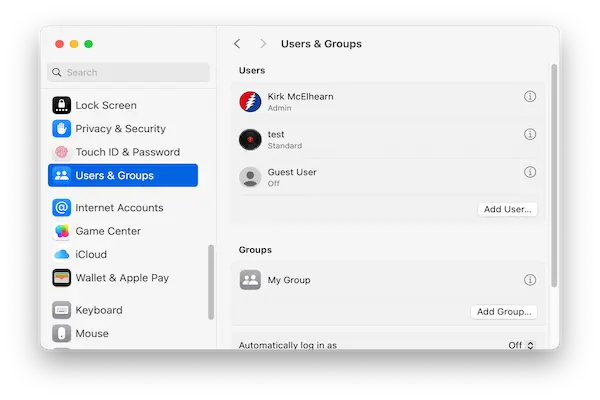
All account management on macOS starts in System Settings.
Steps to Open User Account Settings
- Click the Apple menu.
- Select System Settings.
- Go to Users and Groups.
You may need administrator authentication.
How to Create a New User Account on Mac
Adding a new user account is a guided and straightforward process.
Step by Step to Add a New User
- Open Users and Groups.
- Click the add button.
- Select account type.
- Enter name and password.
- Confirm creation.
The new account is ready immediately.
Choosing the Correct Account Type During Creation
macOS asks you to select the account type when creating a new user.
How to Decide
- Use Administrator for main owner.
- Use Standard for children and family.
When in doubt, choose Standard.
How to Change an Existing Account Type
If needs change over time, account types can be adjusted.
Steps to Change Account Type
- Open Users and Groups.
- Select the user.
- Toggle administrator option.
Changes apply immediately.
How to Enable the Guest Account on Mac
The Guest account is disabled by default and must be enabled manually.
Steps to Activate Guest Account
- Open Users and Groups.
- Select Guest User.
- Turn on guest access.
You can also limit guest permissions.
Configuring Guest Account Restrictions
macOS allows basic control over what guests can do.
Recommended Guest Settings
- Disable access to personal files.
- Allow basic browsing only.
These settings protect personal data.
Managing Passwords for Mac User Accounts
Passwords are essential for protecting each account.
Why Every Account Needs a Password
- Prevents unauthorized access.
- Protects private documents.
- Keeps browsing data safe.
Even children should have simple passwords.
How to Change a User Password on Mac
Steps to Change Password
- Open Users and Groups.
- Select the user.
- Click Change Password.
- Follow instructions.
Changes take effect immediately.
Tips for Creating Strong and Memorable Passwords
Good passwords do not need to be complex to be effective.
Password Best Practices
- Use multiple words.
- Avoid obvious names.
- Do not reuse passwords.
Memorability matters as much as strength.
Using Parental Controls and Screen Time
macOS includes tools designed to help parents guide and limit children’s computer use.
What Screen Time Can Control
- App usage limits.
- Content restrictions.
- Time schedules.
These tools support healthy habits.
Basic Parental Control Recommendations
Simple rules are often more effective than strict ones.
Suggested Restrictions for Children
- Limit app usage time.
- Restrict explicit content.
- Prevent app installations.
Adjust settings as children grow.
Switching Between User Accounts on Mac
macOS makes switching users fast and intuitive.
How to Switch Users
- Click user menu on menu bar.
- Select another account.
No need to log out completely.
Logging Out Versus Switching Users
Understanding the difference helps manage resources.
Log Out
- Closes apps.
- Ends session.
Switch User
- Keeps apps open.
- Uses more memory.
Choose based on situation.
How to Remove a User Account Safely
Removing an account should be done carefully.
Steps to Remove an Account
- Open Users and Groups.
- Select the account.
- Click Remove.
Important Warning
- User files may be deleted.
- Back up data first.
Never skip the backup step.
Backing Up User Data Before Changes
Backing up protects against accidental loss.
Simple Backup Options
- External drive.
- Cloud storage.
Backups provide peace of mind.
Privacy Benefits of Proper User Account Management
Separate accounts limit exposure of sensitive information.
Privacy Advantages
- Private browsing history.
- Isolated documents.
- Separate saved passwords.
Privacy improves trust in shared environments.
Common Mistakes When Managing User Accounts on Mac
- Everyone using administrator account.
- Not enabling guest account.
- Sharing passwords.
Small changes prevent big problems.
Creating a Routine to Review User Accounts
Accounts should be reviewed periodically.
Simple Review Checklist
- Check active users.
- Review account types.
- Update passwords.
Quarterly reviews work well.
Practice Exercise: Setting Up a Shared Mac
Exercise 1: Create Accounts
- Create one administrator account.
- Create standard accounts.
Exercise 2: Enable Guest Account
- Activate guest access.
Exercise 3: Test Switching
- Switch between accounts.
Hands on practice builds confidence.
Frequently Asked Questions About How to Manage User Accounts Mac
Can I have more than one administrator?
Yes, but fewer administrators are safer.
Does the guest account save files?
No, files are deleted after logout.
Can I change restrictions later?
Yes, settings are flexible.
Final Thoughts and a Responsible Next Step
Learning how to manage user accounts Mac is essential for anyone who shares a computer with family members or guests, because proper account management protects privacy, prevents accidental changes, and creates a calmer and more organized digital environment.
When each person has their own account, permissions are chosen carefully, guest access is configured safely, and passwords are handled responsibly, the Mac becomes a tool that works for everyone instead of a source of conflict or confusion.
Could you take a few minutes today to open the Users and Groups settings, review who uses your Mac, and adjust or create user accounts so that everyone has their own protected space?