Many people use computers every single day for work, study, or personal tasks, yet continue doing almost everything with the mouse, clicking menus, dragging windows, and repeating the same movements over and over again, often without realizing how much time and energy is being lost in these small actions.
Keyboard shortcuts are one of the simplest ways to make daily computer use faster and less tiring, because they replace several mouse clicks with quick key combinations that your hands can learn naturally over time, without requiring technical knowledge or advanced skills.
This complete guide on how to use basic keyboard shortcuts was created especially for beginners who feel slow when using the computer, who rely heavily on the mouse, or who simply want to become more comfortable and productive in a light and realistic way.
Throughout this article, you will learn what keyboard shortcuts are, why they work so well, the most important shortcuts for Windows and Mac, practical examples of how to use them in everyday situations, and a simple daily practice routine that helps you memorize shortcuts without pressure or frustration.
The goal is not to turn you into a power user overnight, but to help you save time little by little, reduce repetitive movements, and feel more confident when working on a computer.
What Are Keyboard Shortcuts and Why They Matter
Keyboard shortcuts are combinations of two or more keys that tell the computer to perform a specific action instantly, such as copying text, pasting content, switching between programs, or closing windows, without the need to open menus or use the mouse.
These shortcuts exist because many computer actions are repeated constantly, and using keys instead of clicks makes those actions faster and more precise.
Why Keyboard Shortcuts Are So Effective
- They reduce repetitive mouse movement.
- They save time on common actions.
- They keep your focus on the task.
- They reduce hand and wrist fatigue.
Small time savings add up quickly during the day.
Common Misconceptions About Keyboard Shortcuts
Many beginners avoid keyboard shortcuts because they believe shortcuts are complicated, hard to memorize, or only useful for advanced users, which is not true for the most basic and essential ones.
What Keyboard Shortcuts Are Not
- They are not only for programmers.
- They are not dangerous.
- They do not require memorizing dozens at once.
Learning just a few shortcuts already makes a difference.
The Most Important Keys You Need to Know
Before learning shortcuts, it helps to understand a few special keys that appear in many combinations.
Essential Modifier Keys
- Ctrl key on Windows.
- Command key on Mac.
- Alt key.
- Shift key.
These keys act as helpers that change what other keys do.
Understanding the Difference Between Windows and Mac Shortcuts
Most basic keyboard shortcuts work the same way on Windows and Mac, with the main difference being that Windows uses the Ctrl key, while Mac uses the Command key for most actions.
Once you understand this pattern, switching between systems becomes much easier.
Simple Rule to Remember
- Windows uses Ctrl.
- Mac uses Command.
The rest of the shortcut is usually the same letter.
Basic Keyboard Shortcuts Everyone Should Know
The shortcuts below cover actions that almost everyone performs multiple times per day, making them the best starting point for beginners.
Copy, Cut, and Paste Shortcuts
- Copy: Ctrl + C on Windows, Command + C on Mac.
- Cut: Ctrl + X on Windows, Command + X on Mac.
- Paste: Ctrl + V on Windows, Command + V on Mac.
These three shortcuts alone can save a lot of time.
When to Use Copy and Paste in Daily Life
- Moving text between documents.
- Duplicating information.
- Sharing content between apps.
Using the mouse for this takes much longer.
Selecting Text and Items Quickly
Selecting content is required before copying, cutting, or deleting, and keyboard shortcuts make this process much faster.
Selection Shortcuts
- Select all: Ctrl + A on Windows, Command + A on Mac.
- Select word: Double click with mouse or use Shift with arrow keys.
Select all is especially useful in documents.
Undo and Redo: Your Safety Net
Undo and redo shortcuts allow you to reverse or reapply actions instantly, which reduces fear of making mistakes.
Undo and Redo Shortcuts
- Undo: Ctrl + Z on Windows, Command + Z on Mac.
- Redo: Ctrl + Y on Windows, Command + Shift + Z on Mac.
Knowing undo encourages experimentation.
Saving Files Without Using the Mouse
Saving frequently is one of the most important habits for computer users.
Save Shortcut
- Save: Ctrl + S on Windows, Command + S on Mac.
Using this shortcut regularly prevents data loss.
When to Use Save Shortcut
- After writing a paragraph.
- Before closing a file.
- Before switching tasks.
Frequent saving becomes automatic with shortcuts.
Switching Between Open Programs Faster
Moving between open apps is one of the biggest time wasters when done with the mouse.
Switch Window Shortcuts
- Alt + Tab on Windows.
- Command + Tab on Mac.
This shortcut shows all open apps.
How to Use Switch Window Shortcuts
- Hold Alt or Command.
- Press Tab to cycle.
- Release to select.
This movement becomes very natural with practice.
Closing Windows and Tabs Quickly
Closing windows and browser tabs with the mouse often requires precise clicks.
Close Shortcuts
- Close window or tab: Ctrl + W on Windows, Command + W on Mac.
- Close app completely: Alt + F4 on Windows, Command + Q on Mac.
Be careful with close app shortcuts.
Opening New Tabs and Windows
Many users open new browser tabs constantly.
New Tab and New Window Shortcuts
- New tab: Ctrl + T on Windows, Command + T on Mac.
- New window: Ctrl + N on Windows, Command + N on Mac.
These shortcuts are especially useful online.
Finding Text Quickly
Searching within documents or web pages saves time.
Find Shortcut
- Find: Ctrl + F on Windows, Command + F on Mac.
This highlights matching words instantly.
Daily Uses for Find
- Finding names in documents.
- Locating keywords on websites.
- Reviewing long texts.
Scrolling manually is much slower.
Keyboard Shortcuts for Basic Navigation
Navigation shortcuts help move around without touching the mouse.
Navigation Shortcuts
- Home: Move to start of line or page.
- End: Move to end of line or page.
- Arrow keys: Move cursor precisely.
Combining arrow keys with Shift selects text.
Using Keyboard Shortcuts in Everyday Scenarios
Understanding shortcuts in context makes them easier to remember.
Example: Writing an Email Faster
- Open new email with keyboard.
- Write text.
- Use Ctrl or Command + A to select.
- Copy or cut content if needed.
- Save or send.
Less mouse movement keeps focus on writing.
Example: Organizing Files
- Select files with Shift and arrow keys.
- Copy and paste into folders.
- Undo mistakes instantly.
Shortcuts reduce repetitive clicking.
Keyboard Shortcuts Table for Beginners
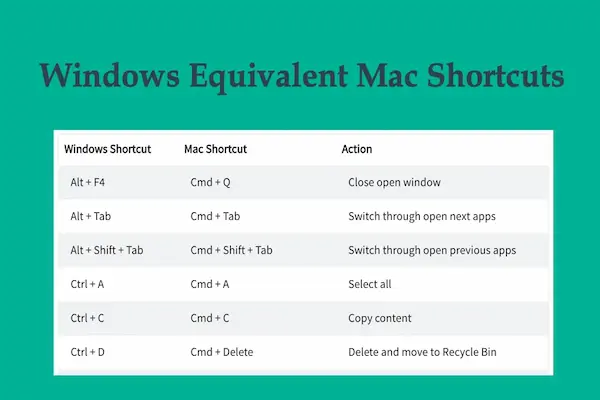
The table below summarizes the most important shortcuts to start with.
- Copy: Ctrl + C or Command + C.
- Paste: Ctrl + V or Command + V.
- Undo: Ctrl + Z or Command + Z.
- Save: Ctrl + S or Command + S.
- Switch apps: Alt + Tab or Command + Tab.
Learning just these already helps a lot.
How to Memorize Keyboard Shortcuts Without Stress
Trying to memorize many shortcuts at once usually leads to frustration.
A better approach is to learn gradually.
Simple Memorization Strategy
- Choose one shortcut per day.
- Use it intentionally.
- Repeat until natural.
Consistency matters more than speed.
Suggested Daily Keyboard Shortcut Training
Five Minute Daily Routine
- Pick one shortcut.
- Use it for all related actions.
- Avoid the mouse on purpose.
This habit builds muscle memory.
Common Mistakes Beginners Make With Shortcuts
- Trying to learn too many at once.
- Giving up after mistakes.
- Switching back to the mouse immediately.
Patience leads to progress.
Combining Mouse and Keyboard Efficiently
Using shortcuts does not mean abandoning the mouse completely.
Balanced Workflow
- Keyboard for repeated actions.
- Mouse for precise tasks.
The goal is efficiency, not rules.
Accessibility Benefits of Keyboard Shortcuts
Keyboard shortcuts also help users with limited mobility or discomfort.
Accessibility Advantages
- Less strain on wrists.
- Fewer precise movements.
Comfort improves productivity.
Keyboard Shortcuts Across Different Programs
Most basic shortcuts work the same way in many programs.
Programs That Share Common Shortcuts
- Text editors.
- Web browsers.
- File managers.
This consistency makes learning easier.
Building Confidence With Small Wins
Every time you successfully use a shortcut, confidence grows.
Celebrate Small Improvements
- Notice time saved.
- Feel smoother workflow.
Progress motivates continued learning.
Practice Exercise: One Shortcut at a Time
Exercise 1: Copy and Paste
- Select text.
- Copy with keyboard.
- Paste elsewhere.
Exercise 2: Switch Apps
- Open two programs.
- Switch using keyboard.
Exercise 3: Save Frequently
- Use save shortcut every few minutes.
Repetition builds habit.
Frequently Asked Questions About How to Use Basic Keyboard Shortcuts
Are keyboard shortcuts the same in all programs?
Most basic ones are very similar.
Do shortcuts cause mistakes?
Undo shortcuts fix most errors.
Is it too late to learn shortcuts?
It is never too late.
Final Thoughts and a Gentle Next Step
Learning how to use basic keyboard shortcuts is one of the easiest ways to gain time, reduce frustration, and feel more confident with everyday computer tasks, even if you consider yourself a beginner or someone who has always relied on the mouse.
By starting with just a few essential shortcuts, using them consistently in real situations, and allowing yourself time to practice without pressure, your workflow will gradually become faster and more comfortable without any dramatic changes.
Could you choose just one shortcut today, such as copy and paste or switching between windows, and commit to using it all day, just to experience how small habits can make a big difference?