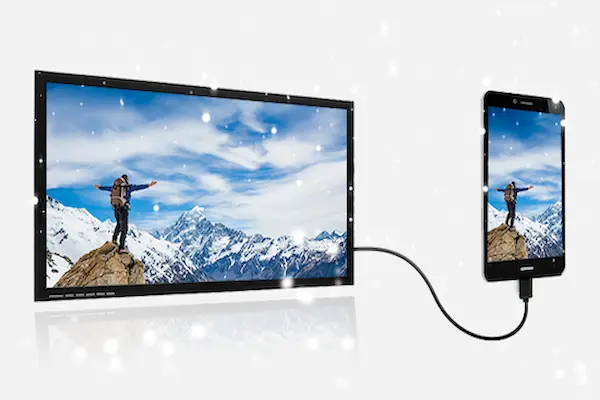
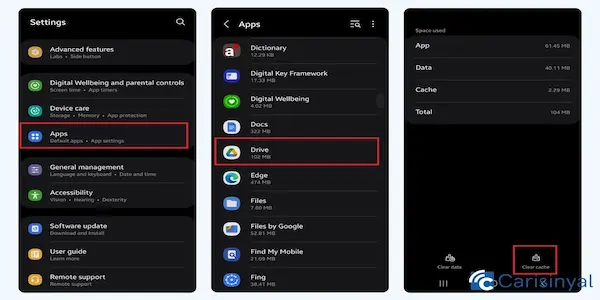
There are many situations in everyday life when using your phone as a Wi-Fi hotspot becomes unexpectedly helpful, especially when your home internet goes down, a friend needs temporary access, your laptop lacks a connection during travel, or a tablet without mobile data needs to come online quickly, and because this feature sits quietly inside every modern smartphone, it often goes unused simply because people are unsure how to enable it safely.
This guide explains how to share your phone’s internet using a hotspot, while also teaching how to protect your data, reduce unnecessary usage, and avoid battery drain, ensuring that the entire process feels simple, controlled, and safe regardless of whether you use Android or iPhone.
1. Understanding What a Phone Hotspot Is and How It Works
A phone hotspot allows your device to act as a small personal router, broadcasting a Wi-Fi network that other devices can join. Once activated, your phone shares its mobile data connection with your laptop, tablet, or another smartphone.
Because this technology relies on your data plan, it is important to understand exactly what happens behind the scenes, which helps you use it responsibly.
A hotspot does three things:
-
Creates a Wi-Fi network using your phone’s radio.
-
Authenticates connected devices with a password you control.
-
Routes mobile data from your carrier to the connected device.
Why people use hotspots
-
During travel or commuting.
-
When working remotely outside home.
-
When broadband temporarily fails.
-
When a friend or relative needs a quick connection.
-
When gaming consoles or laptops need temporary access.
Essential things to keep in mind
-
Hotspots consume battery quickly.
-
They use mobile data instead of Wi-Fi.
-
They require strong passwords to avoid unauthorized use.
-
They should be turned off immediately after use.
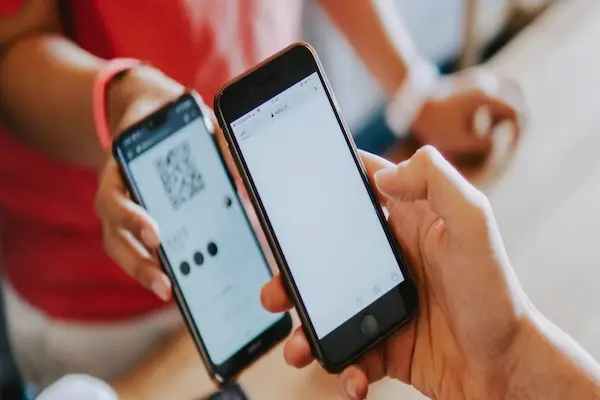
2. Preparing Your Phone Before Turning On the Hotspot
Before activating hotspot mode, preparing your device ensures stable performance and prevents accidental data loss. Because hotspot usage can strain your phone, a small pre-check routine helps avoid interruptions.
Checklist Before You Enable the Hotspot
-
Check your mobile data balance, ensuring you have enough to share.
-
Confirm your signal strength, since weak cellular coverage reduces speed.
-
Charge your phone, or connect it to a charger because hotspots drain battery.
-
Set a strong password, avoiding anything predictable.
-
Turn off large automatic downloads on connected devices.
-
Review your data-saver settings, so background processes don’t consume data unnecessarily.
Strong hotspot passwords should include:
-
At least 12 characters.
-
A mix of letters, numbers, and symbols.
-
No personal information.
Why this prep matters
Because your phone becomes the gateway for multiple devices, you want it to be stable, secure, and properly configured before creating the hotspot.
3. How to Share Wi-Fi From Android (Mobile Hotspot Step-by-Step)
Android phones may vary depending on manufacturer, but the overall process is similar across brands. The following instructions use universal menu names so anyone can follow them.
Step 1 — Open the Settings App
Open Settings, then look for terms such as:
-
“Network & Internet”
-
“Connections”
-
“Hotspot & Tethering”
-
“Mobile Hotspot”
Step 2 — Select Hotspot & Tethering
Tap the Hotspot & Tethering or Mobile Hotspot option to open all sharing tools.
Step 3 — Configure Your Wi-Fi Hotspot
Before turning it on:
-
Choose Hotspot name (SSID) — keep it simple and recognizable.
-
Set a strong WPA2 or WPA3 password.
-
Select 2.4 GHz if you want wider range; choose 5 GHz for faster speed.
Step 4 — Turn On the Hotspot
Toggle the switch to ON. Your phone now broadcasts a secure Wi-Fi network.
Step 5 — Connect Devices
On the device that needs internet:
-
Open Wi-Fi settings.
-
Find your hotspot name.
-
Enter your password.
-
Wait for confirmation.
Step 6 — Monitor Usage
Android provides real-time statistics:
-
Number of connected devices.
-
Data used.
-
Connection duration.
Step 7 — Turn Off When Finished
Disable the hotspot immediately afterward to:
-
Save battery.
-
Protect your data.
-
Prevent unwanted use.
4. How to Share Wi-Fi From iPhone (Personal Hotspot Step-by-Step)
Apple simplifies hotspot usage, calling it Personal Hotspot. Although it is easy to enable, ensuring proper configuration is essential for security.
Step 1 — Open Settings
Tap Settings, then choose Cellular or Mobile Data depending on region.
Step 2 — Confirm Your Data Plan Supports Hotspot
Most carriers support it by default, but some require activation.
Step 3 — Tap Personal Hotspot
This reveals all available hotspot options.
Step 4 — Set Up Your Password
Apple requires a strong password, which protects the connection from unauthorized devices.
Step 5 — Enable Allow Others to Join
Turning this on creates your Wi-Fi hotspot.
Step 6 — Connect Devices
Other devices will see your iPhone in Wi-Fi settings:
-
Select your hotspot name.
-
Enter your password.
-
Connect normally.
Step 7 — Disable Personal Hotspot When Done
iPhone automatically notifies you if devices remain connected, helping you avoid unnecessary data use.
5. Understanding Data Usage When Sharing Wi-Fi
Because your hotspot uses mobile data, understanding consumption is essential. Data drains much faster on laptops than on phones, especially with automatic updates active.
Activities that use very little data
-
Messaging apps (text only).
-
Email without attachments.
-
Browsing simple websites.
-
GPS applications.
Activities that use a lot of data
-
Video streaming.
-
Social media with autoplay videos.
-
Cloud backups.
-
System updates.
-
Large file downloads.
Safe Data-Use Habits When Sharing Wi-Fi
-
Tell others not to update software while connected.
-
Use data-saver mode.
-
Disable streaming in HD.
-
Check your carrier’s data alerts.
-
Set a limit within Android or iPhone settings.
6. Tips to Use Your Hotspot Without Wasting Battery
Because hotspots keep radios active continuously, battery reduction is inevitable. However, several small habits help reduce power drain.
Practical Battery-Saving Strategies
-
Plug your phone into a charger while hotspotting.
-
Lower screen brightness to minimum comfortable levels.
-
Close apps running in the background.
-
Turn off Bluetooth and NFC if not used.
-
Shorten auto-lock screen duration.
-
Reduce hotspot range by choosing 5 GHz if you don’t need long distance.
When battery is low
-
Stop hotspot usage immediately.
-
Switch to a lower-power mode.
-
Connect a power bank if available.
7. Essential Safety Practices for Using a Hotspot
Security must be treated seriously because an unprotected hotspot exposes your mobile data to anyone nearby.
Never Use Open Hotspots
Always set:
-
Password protection (WPA2 or WPA3).
-
Randomized passwords with no personal references.
Avoid Sharing Your Password Widely
Give it only to trusted people.
Rename Your Hotspot
Instead of using your real name or phone model:
-
Prefer generic names like “HomeNetwork_01”.
Monitor Connected Devices Regularly
Most phones show:
-
Device names.
-
MAC addresses.
-
Connection duration.
If you see an unknown device:
-
Disconnect it immediately.
-
Change your password.
Use Hotspot Only When Necessary
Turn it off as soon as you finish your task.
8. Best Times to Use Hotspot Responsibly
While hotspots are helpful, they should not become a default replacement for stable Wi-Fi.
Good Situations for Using Hotspot
-
Emergency remote work sessions.
-
Quick online tasks.
-
Short-term travel needs.
-
Helping a friend temporarily.
-
Connecting a laptop in public places where Wi-Fi is unreliable.
Situations to Avoid Hotspot Use
-
Heavy gaming.
-
Large downloads.
-
All-day work sessions.
-
When your data plan is almost depleted.
-
When someone else can access your unlocked phone easily.
9. Monthly Maintenance for Safe Hotspot Use
Creating a recurring routine ensures your hotspot remains clean, secure, and efficient.
Monthly Hotspot Maintenance Checklist
-
Update your hotspot password.
-
Review data usage trends.
-
Check battery health, since hotspot use stresses batteries.
-
Clear unnecessary background apps that may consume data.
-
Test hotspot speed in different areas, learning where reception is best.
-
Review your plan’s data limit, adjusting as needed.
-
Backup important files, ensuring no data is lost if the phone overheats or restarts.
10. Troubleshooting Common Hotspot Problems
Hotspots occasionally malfunction, but most problems have simple solutions.
If your device cannot connect
-
Restart the hotspot.
-
Forget the network and reconnect.
-
Change the hotspot password.
-
Switch from 5 GHz to 2.4 GHz.
-
Toggle airplane mode on and off.
If hotspot is slow
-
Move closer to a window or open space.
-
Check for background downloads.
-
Reduce number of connected devices.
-
Restart your phone to refresh the mobile connection.
If hotspot disconnects repeatedly
-
Disable battery saver mode.
-
Check if your carrier throttles data after a limit.
-
Ensure your phone temperature is safe.
Sharing Wi-Fi
Sharing Wi-Fi from your phone becomes much easier when you understand how to configure the hotspot properly, how to protect it with strong passwords, how to monitor your data wisely, and how to maintain safe habits that preserve your battery, your privacy, and your mobile plan. Because you now have a complete, step-by-step system for Android and iPhone, as well as a clear set of safety checklists and troubleshooting tips, you can confidently activate your hotspot whenever needed, knowing that you are using one of your phone’s most powerful features in a secure, controlled, and efficient way.
This guide is designed to help you feel fully capable of managing mobile hotspots responsibly, turning a once-confusing setting into a dependable tool for everyday life.