Learning how to secure lock screen phone is one of the most important yet often overlooked steps in protecting personal information, because the lock screen is the first line of defense between your private data and anyone who might pick up, borrow, lose, or steal your device, whether accidentally or intentionally.
Many people still rely on very simple PINs, predictable patterns, or no screen lock at all, usually because they believe stronger security will slow them down, feel inconvenient, or make the phone harder to use during busy moments, even though modern phones are designed to balance protection and convenience far better than in the past.
This guide was created for everyday users who want to make their phone lock screen more secure and practical at the same time, without technical jargon, fear-based messages, or unnecessary complexity, focusing instead on clear steps, smart choices, and habits that actually fit real life.
Why Lock Screen Security Matters More Than You Think
The lock screen protects far more than just access to the phone itself, because once someone gets past it, they can potentially see messages, emails, photos, apps, saved passwords, banking notifications, and personal conversations, often within seconds.
A poorly secured lock screen can lead to:
-
Exposure of private messages and contacts
-
Unauthorized access to social media or email accounts
-
Financial risk through payment apps or saved cards
-
Loss of sensitive photos or documents
-
Identity misuse or impersonation
Even short, accidental access can cause serious problems, which is why securing the lock screen should be considered a basic digital safety habit rather than an advanced security step.
Understanding the Main Types of Lock Screen Protection
Modern smartphones offer several ways to secure the lock screen, each with its own balance of security and convenience.
The most common options include:
-
PIN codes
-
Pattern locks
-
Passwords
-
Fingerprint unlock
-
Face unlock
Understanding how each method works helps you choose the best combination for your needs.
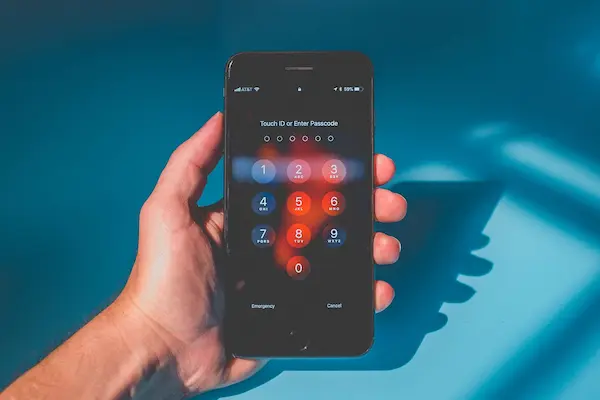
Using a PIN Code to Secure Your Phone
A PIN code is one of the most common and reliable lock screen methods, because it is simple, fast, and supported on all smartphones.
Why a PIN Is Better Than No Lock at All
Even a basic PIN prevents casual access and protects against quick snooping.
Benefits of using a PIN:
-
Easy to remember
-
Quick to enter
-
Works in all lighting conditions
-
Does not require special hardware
However, the strength of a PIN depends heavily on how it is chosen.
How to Choose a Strong PIN Code
Many users weaken their phone security by choosing predictable PINs.
Avoid PINs such as:
-
1234 or 0000
-
Birthdays or anniversaries
-
Repeating numbers
-
Simple sequences
Better PIN practices include:
-
Using at least six digits
-
Mixing numbers without patterns
-
Choosing a code unrelated to personal dates
Longer and less predictable PINs significantly increase security with minimal extra effort.
Using Pattern Locks: Convenience With Caution
Pattern locks allow users to unlock their phone by drawing a shape on a grid, which can feel intuitive and fast.
Pros of Pattern Locks
Pattern locks are popular because they:
-
Feel quick and natural
-
Are easy to remember visually
-
Require fewer taps than long PINs
Risks of Pattern Locks
Despite their convenience, pattern locks can be weaker if not chosen carefully.
Common weaknesses include:
-
Simple shapes
-
Short patterns
-
Easily visible finger smudges
If you use a pattern lock, consider:
-
Using a longer pattern
-
Avoiding obvious shapes
-
Enabling hidden pattern input
Passwords: Maximum Security, Lower Convenience
Passwords offer strong protection but are less common for daily phone unlocking.
Passwords are best when:
-
The phone stores highly sensitive data
-
Maximum security is required
-
The device is rarely unlocked
For most users, a strong PIN combined with biometrics offers a better balance.
Fingerprint Unlock: Fast and Secure When Used Properly
Fingerprint unlock has become one of the most practical security features on modern phones.
Benefits of Fingerprint Unlock
Fingerprint unlock offers:
-
Fast access
-
Strong protection
-
Reduced need to type codes
-
Convenience in daily use
Because fingerprints are unique, this method significantly improves security when paired with a PIN or password.
Tips for Setting Up Fingerprint Unlock Correctly
To improve accuracy and reliability:
-
Register the same finger twice
-
Add fingerprints from different angles
-
Clean the sensor regularly
-
Avoid wet or dirty fingers during setup
Multiple registered fingerprints increase success rates.
Face Unlock: Convenience With Awareness
Face unlock allows the phone to unlock by recognizing your face, which can feel seamless.
Advantages of Face Unlock
Face unlock provides:
-
Hands-free access
-
Quick unlocking
-
Easy setup
Limitations of Face Unlock
Not all face unlock systems offer the same level of security.
Potential limitations:
-
May unlock in low-security modes
-
Can be less reliable in poor lighting
-
May unlock unintentionally
Face unlock works best when combined with a PIN or fingerprint backup.
Combining Lock Screen Methods for Better Security
The strongest lock screen setups use multiple layers of protection.
Recommended combinations:
-
PIN + fingerprint
-
PIN + face unlock
-
Password + biometric
This approach ensures access even if one method fails.
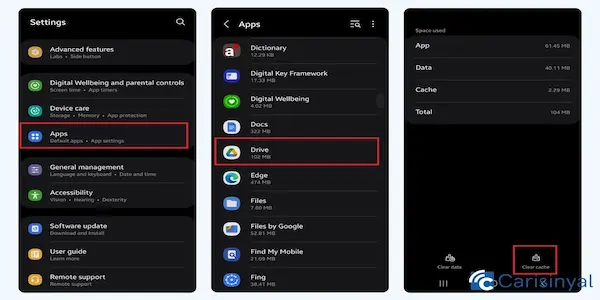
Step-by-Step: How to Secure Lock Screen Phone on Android
Android phones offer flexible lock screen security options.
Basic Setup Steps on Android
-
Open Settings
-
Go to Security or Lock Screen
-
Choose Screen Lock
-
Select PIN, Pattern, or Password
-
Follow on-screen instructions
After setup, add biometric options if available.
Additional Android Lock Screen Options to Review
Android also allows customization of lock screen behavior.
Useful settings include:
-
Auto-lock timing
-
Lock after sleep
-
Smart Lock exceptions
-
Lock screen notification controls
Reviewing these settings ensures security remains consistent.
Step-by-Step: How to Secure Lock Screen Phone on iPhone
iPhones offer a streamlined approach through Face ID or Touch ID settings.
Basic Setup Steps on iPhone
-
Open Settings
-
Go to Face ID & Passcode or Touch ID & Passcode
-
Set a passcode
-
Enable Face ID or Touch ID
-
Adjust lock screen options
A strong passcode remains the foundation of iPhone security.
iPhone Lock Screen Settings You Should Review
Important options include:
-
Passcode length
-
Allow access when locked
-
Notification previews
-
Automatic lock timing
Limiting what appears on the lock screen reduces risk.
Managing Notifications on the Lock Screen
Lock screen notifications can expose sensitive information.
Best Practices for Lock Screen Notifications
Consider:
-
Hiding message previews
-
Showing notifications only after unlocking
-
Allowing alerts without content
This protects privacy while keeping you informed.
Auto-Lock Timing: Finding the Right Balance
Auto-lock determines how quickly the phone locks after inactivity.
Recommended settings:
-
30 seconds to 1 minute for security
-
Shorter times for public use
-
Slightly longer times for home use
Faster locking reduces exposure risk.
Privacy Reminders for Shared or Public Environments
If you often leave your phone unattended or share space with others, security becomes even more important.
Helpful habits include:
-
Locking the phone manually when setting it down
-
Avoiding simple codes
-
Disabling lock screen widgets that show data
Small habits add strong protection.
Common Lock Screen Security Mistakes to Avoid
Many users weaken security unintentionally.
Avoid these mistakes:
-
Using no lock at all
-
Sharing your PIN
-
Writing the code near the phone
-
Relying only on face unlock
-
Ignoring updates to security settings
Awareness prevents easy breaches.
Myths About Lock Screen Security
Several myths discourage people from improving security.
Myth: Strong Locks Make Phones Too Slow
Reality:
-
Biometrics make unlocking fast
-
Strong security rarely adds noticeable delay
Myth: I Don’t Have Anything Important
Reality:
-
Messages, photos, and accounts still matter
-
Identity misuse does not require sensitive files
Myth: Pattern Locks Are Always Safe
Reality:
-
Weak patterns are easy to guess
-
Smudges can reveal patterns
Understanding facts helps make better decisions.
Building a Simple Lock Screen Security Routine
Security works best when it becomes routine.
A simple routine:
-
Review lock screen settings monthly
-
Update PIN or passcode occasionally
-
Clean biometric sensors
-
Check notification visibility
Routine checks keep security effective.
Quick Checklist to Secure Your Phone Lock Screen
Use this checklist as a reference:
-
Set a strong PIN or password
-
Enable fingerprint or face unlock
-
Hide sensitive notifications
-
Shorten auto-lock time
-
Avoid predictable codes
This checklist covers the essentials.
When to Reconsider Your Lock Screen Setup
Certain situations require stronger security.
Reconsider your setup if:
-
You travel frequently
-
You use financial apps often
-
You store work data
-
You share devices
Security should adapt to your lifestyle.
Final Thoughts on How to Secure Lock Screen Phone
Learning how to secure lock screen phone is not about paranoia or fear, but about creating a reasonable, respectful barrier that protects your personal information while still allowing you to use your device comfortably and efficiently throughout the day.
By choosing a strong unlock method, combining it with biometric options, managing notifications wisely, and avoiding common mistakes, you significantly reduce the risk of data exposure without adding frustration or complexity to your daily routine.
Once these steps are in place, the lock screen becomes a quiet but powerful safeguard, working constantly in the background to protect your digital life, your privacy, and your peace of mind, all with minimal effort and maximum benefit.