Losing a smartphone is one of those situations that nobody plans for, yet many people experience at least once in their lives, and when it happens, the feeling of panic can be overwhelming, especially if you have never configured any type of location or security feature on your device.
If you use an iPhone and have never activated Apple’s location tools, this guide was created exactly for you, with a calm, clear, and preventive approach that explains everything step by step, without technical language, so you can protect your device and your personal information before something goes wrong.
Throughout this complete tutorial, you will learn how to configure and use Apple’s Find My iPhone feature, understand how to locate device on a map, activate Lost Mode if necessary, erase data remotely in extreme cases, and adopt simple safety habits that can save you from major headaches in the future.
This article focuses on prevention, clarity, and confidence, showing that you do not need to be a technology expert to keep your iPhone secure and recoverable.
Understanding How to Find Lost iPhone and Why It Matters
Before learning how to find lost iPhone in practice, it is essential to understand why this feature exists and how it fits into your daily life as an iPhone user, especially if you have never explored the security settings of your device.
Apple created the Find My system to help users locate, lock, and protect their devices in case of loss or theft, using your Apple ID and iCloud account as the main connection between you and your iPhone.
Many people believe that losing a phone automatically means losing everything inside it, including photos, contacts, messages, and personal data, but this only becomes true when the preventive tools are not activated in advance.
When Find My iPhone is properly configured, you gain control over your device even when it is not physically in your hands, which dramatically increases your chances of recovery and reduces the risk of personal information exposure.
This guide is especially useful for users who:
- Have never enabled Find My on their iPhone.
- Do not know how to locate device using iCloud.
- Are unsure how Lost Mode works.
- Want to learn how to erase data remotely if needed.
- Prefer clear explanations without technical jargon.
Find My iPhone Guide: What You Need Before Activating
Before following the step by step instructions in this find my iPhone guide, it is important to make sure that a few basic requirements are already in place, since the system depends on them to work correctly.
Fortunately, most iPhone users already meet these requirements without realizing it, which means activation usually takes only a few minutes.
Essential Requirements
To activate and use Find My iPhone properly, you need the following elements configured on your device:
- An Apple ID signed in on your iPhone.
- iCloud enabled and working normally.
- Location Services turned on.
- An active internet connection, either Wi-Fi or mobile data.
If your iPhone is already logged into your Apple ID and connected to the internet, you are likely just a few taps away from enabling one of the most important security features available.
Why People Skip This Setup
Many users skip this configuration because they believe it is complicated, unnecessary, or something they can do later, yet the moment the phone is lost is precisely when it becomes impossible to activate these protections retroactively.
Understanding this reality is the first step toward prevention, which is why learning how to find lost iPhone before anything happens is far more effective than searching for solutions after the loss occurs.
Step by Step: How to Activate Find My iPhone
Now that you understand the importance and requirements, it is time to walk through the activation process in a calm and structured way, ensuring that no steps are missed.
Follow these instructions directly on your iPhone.
Accessing the Correct Settings
- Open the Settings app on your iPhone.
- Tap your name at the top of the screen to access Apple ID settings.
- Select the option called Find My.
This area centralizes all location related features associated with your Apple ID.
Enabling Find My iPhone
- Tap Find My iPhone.
- Turn on the Find My iPhone toggle.
- Enable Find My network when prompted.
- Activate Send Last Location for additional security.
By enabling these options, your iPhone will automatically send its last known location to Apple when the battery is critically low, which can be extremely helpful during recovery.
Confirming Location Services
To ensure everything works properly, it is also recommended to check Location Services.
- Go back to Settings.
- Tap Privacy & Security.
- Select Location Services.
- Make sure the main toggle is turned on.
Without Location Services, the system cannot locate device accurately.
How to Locate Device Using Find My iPhone
Once Find My iPhone is activated, learning how to locate device becomes a straightforward process that can be done from another Apple device or from any browser.
This feature is designed to show the approximate position of your iPhone on a map, provided it has battery power and some form of connectivity.
Locating from Another Apple Device
If you own an iPad or another iPhone, you can locate your lost device using the Find My app.
- Open the Find My app.
- Sign in with the same Apple ID.
- Select the Devices tab.
- Choose your iPhone from the list.
The map will display the device location or its last known position.
Understanding Map Information
The map may show different statuses depending on the situation.
- Green dot indicates the device is online.
- Gray dot shows the device is offline.
- Last known location appears if the device is not currently reachable.
Even when offline, this information can guide your next steps.
Using Lost Mode: Protecting Your iPhone Immediately
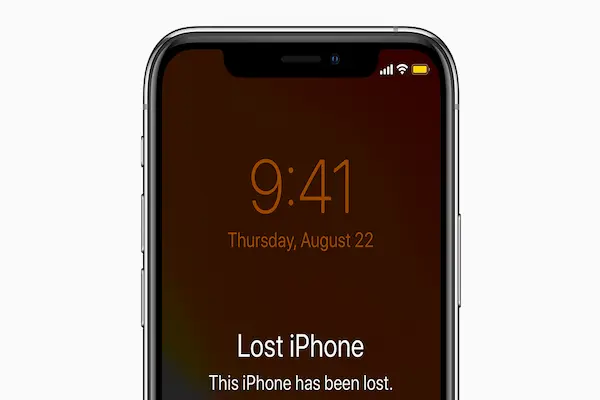
Lost Mode is one of the most powerful tools within the system, allowing you to lock your device remotely while displaying a custom message on the screen.
Understanding how Lost Mode works is essential when learning how to find lost iPhone safely and responsibly.
What Lost Mode Does
- Locks the device with a passcode.
- Disables Apple Pay automatically.
- Displays a message with contact information.
- Tracks location updates when available.
This mode is designed to protect your personal data while increasing the chances of someone returning your phone.
How to Activate Lost Mode
- Open the Find My app or access Find My via browser.
- Select your iPhone from the device list.
- Tap Activate under Lost Mode.
- Create a contact message and phone number.
Once activated, the device remains locked until you enter your Apple ID credentials.
Erase Data Remotely: When and How to Use It
In situations where recovery seems impossible, the option to erase data remotely provides peace of mind by ensuring your personal information does not fall into the wrong hands.
This feature should be used carefully, as it permanently deletes data from the device.
When Erasing Data Is Recommended
- The device was stolen and not recoverable.
- Sensitive personal or financial data is stored.
- Authorities advise against personal recovery attempts.
How to Erase Data Remotely
- Open Find My.
- Select your lost iPhone.
- Choose Erase This Device.
- Confirm your decision.
After erasing, the device remains linked to your Apple ID, preventing unauthorized use.
Practical Daily Scenarios Where Find My Helps
Understanding real-life situations helps reinforce why preventive configuration is essential.
Common Situations
- Leaving the phone in a taxi or ride share.
- Misplacing it at home or work.
- Forgetting it at a restaurant or store.
- Experiencing theft in crowded places.
In all these cases, Find My iPhone can significantly reduce stress and response time.
Security and Personal Safety Recommendations
While technology is helpful, personal safety should always come first.
Important Safety Guidelines
- Never confront someone you suspect has your phone.
- Share location information with authorities if needed.
- Avoid public recovery attempts alone.
- Change passwords after data erasure.
Using technology responsibly means knowing when to step back and prioritize your well-being.
Curiosities and Frequently Asked Questions About How to Find Lost iPhone
Does Find My iPhone work when the phone is turned off?
The system can show the last known location before the device powered down.
Can someone disable Find My iPhone?
Not without your Apple ID password.
Is erasing data reversible?
No, erased data cannot be recovered from the device.
Is Find My iPhone free?
Yes, it is included with every Apple ID.
Are You Prepared If Your iPhone Goes Missing?
Learning how to find lost iPhone is not about expecting something bad to happen, but about being prepared in case it does, allowing you to stay calm and act quickly without confusion.
By activating Find My iPhone, understanding how to locate device, using Lost Mode responsibly, and knowing when to erase data remotely, you transform a stressful situation into a manageable one.
If this guide helped you understand your iPhone better, take a moment to explore other tutorials and tips that can help you get even more value and security from your device.
Being informed today can save you from serious problems tomorrow.