
Opening File Explorer for the first time can feel confusing and even intimidating for beginners, especially when the screen suddenly fills with folders, icons, drive letters, and names that do not clearly explain what they are used for or where your files are actually stored.
Many new Windows users know how to open documents by double clicking icons on the desktop, yet feel completely lost when they have to deal with C:, Documents, Downloads, Pictures, or when someone asks them to “find a file” using the system itself.
This beginner guide to File Explorer was created with patience and clarity in mind, focusing on simple explanations, everyday examples, and small practical exercises that help you understand how File Explorer works, instead of memorizing steps without context.
Throughout this guide, you will learn what File Explorer is, how to navigate its main areas, what the most common folders mean, how to create and rename folders safely, how to search for files efficiently, which keyboard shortcuts are actually useful, and how to practice these skills without fear of breaking anything.
The objective is to help you feel calm and confident when using File Explorer, so that organizing and finding files becomes a normal and manageable part of using Windows.
What Is File Explorer and Why It Matters
File Explorer is the main tool in Windows used to view, organize, create, move, rename, and delete files and folders stored on your computer.
Whenever you open Documents, Downloads, Pictures, or a USB drive, you are using File Explorer, even if you did not realize it before.
Understanding File Explorer is essential because every file you create or download eventually lives somewhere inside it.
What File Explorer Allows You to Do
- See all files stored on your computer.
- Organize files into folders.
- Create new folders.
- Rename files and folders.
- Search for lost documents.
- Access external drives and USB sticks.
Once you understand the basics, many daily tasks become easier.
How to Open File Explorer
Before exploring its features, it helps to know the most common ways to open File Explorer.
Simple Ways to Open File Explorer
- Click the folder icon on the taskbar.
- Press the Windows key and E together.
- Click the Start menu and select File Explorer.
Any of these methods will open the same window.
Understanding the File Explorer Window Layout
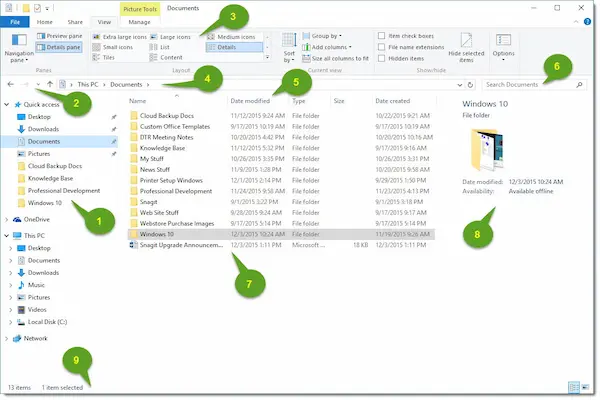
When File Explorer opens, the window is divided into several areas, each with a specific purpose, and learning what each part does removes much of the confusion beginners feel.
Main Parts of File Explorer
- Navigation pane on the left.
- Main file and folder area in the center.
- Address bar at the top.
- Search box on the top right.
- Toolbar with actions.
Each area works together to help you move around your files.
The Navigation Pane Explained Slowly
The navigation pane is the vertical list on the left side of File Explorer, and it shows shortcuts to common locations on your computer.
This area helps you move quickly between folders without getting lost.
Common Items in the Navigation Pane
- Quick Access.
- Desktop.
- Documents.
- Downloads.
- Pictures.
- This PC.
Clicking any of these items opens that location.
What Quick Access Means
Quick Access shows folders you use frequently and files you opened recently.
It does not move files, it only creates shortcuts.
Understanding “This PC” and Drive Letters
One of the most confusing parts for beginners is seeing drive letters like C: and wondering what they mean.
This PC represents your computer and all storage connected to it.
Common Drive Letters Explained
- C: is usually the main internal drive.
- D: or E: may be additional drives.
- USB drives appear when connected.
Your personal files are normally stored inside folders on the C: drive.
Where Your Files Usually Live
Windows organizes user files into standard folders to keep things predictable.
Most Common User Folders
- Documents for text files and work.
- Downloads for files from the internet.
- Pictures for photos and images.
- Music for audio files.
- Videos for video files.
Storing files in these folders makes them easier to find later.
The Difference Between Desktop and Documents
The Desktop is the screen you see behind open windows, while Documents is a folder meant for storing files long term.
Beginners often save everything on the Desktop because it feels visible, yet this can quickly become cluttered.
Recommended Use
- Use Desktop for temporary shortcuts.
- Use Documents for real storage.
This habit improves organization.
How to Create a New Folder Step by Step
Creating folders is one of the most important skills in File Explorer.
Simple Steps to Create a Folder
- Open the location where you want the folder.
- Right click on empty space.
- Select New.
- Choose Folder.
- Type a name and press Enter.
The folder is created immediately.
Good Folder Naming Tips
- Use clear and simple names.
- Avoid very long titles.
- Include dates when helpful.
Clear names prevent confusion later.
How to Rename Files and Folders Safely
Renaming helps you understand what a file contains without opening it.
Steps to Rename
- Right click the file or folder.
- Select Rename.
- Type the new name.
- Press Enter.
The file content remains unchanged.
What Not to Change
- Avoid changing file extensions.
- Do not remove important endings.
Extensions tell Windows how to open files.
Understanding File Extensions in Simple Terms
File extensions are the letters after the dot in a file name.
Common Examples
- .docx for documents.
- .pdf for PDFs.
- .jpg for photos.
Changing extensions can break files.
How to Move Files Between Folders
Moving files helps keep everything organized.
Drag and Drop Method
- Click and hold the file.
- Drag it to another folder.
- Release the mouse button.
Cut and Paste Method
- Right click the file.
- Select Cut.
- Open destination folder.
- Right click and select Paste.
Both methods achieve the same result.
Copying Files Without Removing the Original
Copying creates a duplicate file.
Steps to Copy
- Right click and choose Copy.
- Paste in another folder.
This is useful for backups.
Deleting Files and Understanding the Recycle Bin
Deleting files does not remove them immediately.
How Deletion Works
- Deleted files go to Recycle Bin.
- You can restore them if needed.
- Emptying Recycle Bin removes them permanently.
This safety net prevents accidents.
Using the Search Box to Find Files
The search box is one of the most powerful tools for beginners.
How to Search
- Open File Explorer.
- Click in the search box.
- Type part of the file name.
Results update as you type.
Search Tips for Better Results
- Use keywords.
- Search inside Documents.
- Be patient with large folders.
Search saves time.
Sorting and Viewing Files
File Explorer allows you to change how files are displayed.
Common View Options
- List view.
- Details view.
- Large icons.
Details view is very helpful for beginners.
Sorting Files
- Sort by name.
- Sort by date.
- Sort by type.
Sorting helps you find files faster.
Helpful Keyboard Shortcuts for Beginners
Shortcuts can save time once you are comfortable.
Useful Shortcuts to Remember
- Windows + E opens File Explorer.
- Ctrl + C copies.
- Ctrl + V pastes.
- Delete sends to Recycle Bin.
Learning a few shortcuts is enough.
Common Beginner Mistakes and How to Avoid Them
- Saving everything on Desktop.
- Deleting without checking.
- Ignoring folder structure.
- Renaming file extensions.
Awareness prevents frustration.
Simple Practice Exercises to Build Confidence
Exercise 1: Create a Folder Structure
- Open Documents.
- Create a folder named Practice.
- Create subfolders inside it.
Exercise 2: Move and Rename Files
- Create a test file.
- Rename it.
- Move it to another folder.
Exercise 3: Use Search
- Search for the test file.
- Open its location.
Practice builds comfort.
How Often Should You Organize Files
Regular small sessions work better than rare big cleanups.
Suggested Routine
- Weekly file check.
- Monthly folder review.
Consistency keeps things manageable.
Frequently Asked Questions About Beginner Guide to File Explorer
Can I break Windows using File Explorer?
Normal file actions are safe.
What if I delete something important?
Check the Recycle Bin.
Is it okay to create many folders?
Yes, if names are clear.
Final Thoughts and Gentle Next Step
Learning through this beginner guide to File Explorer is about building understanding step by step, not about mastering everything at once, because comfort with files comes from practice rather than memorization.
When you understand where files live, how folders work, how to search, and how to organize gradually, File Explorer stops being confusing and starts feeling like a helpful tool.
Could you open File Explorer today, create one new folder inside Documents, and move a few files into it just to practice and reinforce what you learned?