
Switching from Windows to macOS can feel exciting and confusing at the same time, because even though both systems allow you to create files, save documents, and organize folders, the way everything is presented on the screen looks and feels different from what you may have used for years.
One of the first points of confusion for people who recently migrated from Windows is the Finder, which is the macOS equivalent of Windows File Explorer, yet it does not look the same, does not use drive letters in the same way, and introduces new concepts that can feel unfamiliar at first glance.
This beginner guide to Mac Finder was created specifically for users who are new to macOS, especially those coming from Windows, offering a calm, welcoming, and very clear explanation of how Finder works, what each section means, and how you can use it confidently without feeling lost.
Throughout this guide, you will learn what Finder is, how it compares to Windows File Explorer, how to use the sidebar folders, how to navigate between locations, how to view and organize files, how to search using Finder and Spotlight, and how to create a simple and effective folder structure that makes everyday use easier.
The intention is not to overload you with technical details, but to help you feel at home on your Mac by understanding where your files live and how to move around them naturally.
What Is Finder and Why It Is So Important on macOS
Finder is the central tool on a Mac that allows you to browse, open, organize, copy, move, rename, and delete files and folders stored on your computer or connected devices.
Any time you open Documents, Pictures, Downloads, an external drive, or even search for a file, you are using Finder, even if you did not consciously think about it.
If you are coming from Windows, it helps to think of Finder as the macOS version of File Explorer, with the same core purpose but a different layout and philosophy.
What Finder Allows You to Do
- Navigate through folders and files.
- Open documents, images, and media.
- Create new folders for organization.
- Rename, move, copy, and delete files.
- Access external drives and network locations.
- Search for files using names, types, or content.
Understanding Finder means understanding where everything lives on your Mac.
How Finder Compares to Windows File Explorer
For users coming from Windows, comparing Finder with File Explorer helps reduce confusion, because many concepts are similar even if the names and visuals are different.
Similarities Between Finder and File Explorer
- Both show files and folders.
- Both allow drag and drop.
- Both include a sidebar for navigation.
- Both have search tools.
Main Differences You Will Notice
- No drive letters like C: or D: on macOS.
- Different folder names and structure.
- Finder stays open as a central app.
- Spotlight adds an extra search layer.
Once these differences are understood, Finder feels much less intimidating.
How to Open Finder on a Mac
Finder is almost always running in the background on macOS, and opening it is simple once you know where to look.
Common Ways to Open Finder
- Click the Finder icon in the Dock, usually on the far left.
- Click on the desktop to activate Finder.
- Use Spotlight and type Finder.
Unlike Windows, Finder does not close completely unless you log out.
Understanding the Finder Window Layout
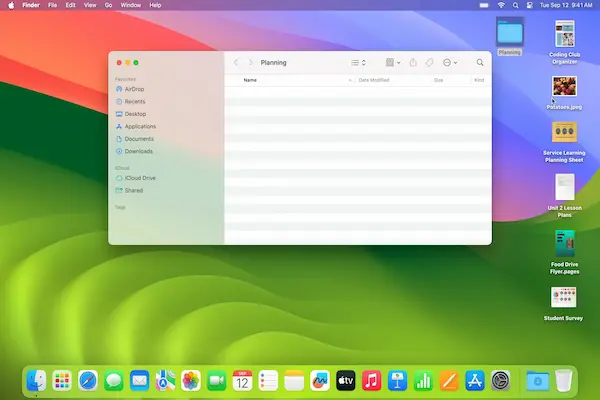
When you open a Finder window, you will see several distinct areas, each with a specific role, and learning what each part does removes much of the initial confusion.
Main Parts of a Finder Window
- Sidebar on the left.
- Main file view area in the center.
- Toolbar at the top.
- Path bar or status bar at the bottom.
Each of these elements works together to help you navigate your Mac.
The Finder Sidebar Explained in Detail
The sidebar is one of the most important areas for beginners, because it provides quick access to commonly used folders and locations.
If you used the navigation pane in Windows File Explorer, the Finder sidebar serves a very similar purpose.
Common Sections in the Sidebar
- Favorites.
- Locations.
- iCloud related folders.
- External drives.
Each section can be customized.
Favorites Section Explained
The Favorites section usually includes folders you access frequently.
- Documents.
- Downloads.
- Desktop.
- Pictures.
Clicking any of these takes you directly to that folder.
Understanding macOS Folder Structure Compared to Windows
One major difference between macOS and Windows is how storage is presented to the user.
On Windows, you often see drive letters, while on macOS, storage is presented as a single main disk with folders inside it.
Where Your Personal Files Live on macOS
- Documents for work and text files.
- Downloads for files from the internet.
- Desktop for items shown on screen.
- Pictures for photos.
- Movies for video files.
This structure is similar in purpose to Windows, even if the presentation is different.
Desktop on Mac Versus Desktop on Windows
On macOS, the Desktop is both a visible area and a real folder, just like on Windows, but Finder treats it slightly differently.
Files placed on the Desktop appear on your screen and inside the Desktop folder in Finder.
Best Practices for Desktop Use
- Use Desktop for temporary items.
- Move long term files into Documents.
- Avoid clutter for better focus.
This habit keeps Finder easier to navigate.
How to View Files in Finder
Finder offers several ways to view files, and choosing the right view makes browsing more comfortable.
Common Finder View Options
- Icon view.
- List view.
- Column view.
- Gallery view.
List view often feels familiar to Windows users.
When to Use Each View
- Icon view for visual browsing.
- List view for detailed information.
- Column view for quick navigation.
- Gallery view for photos and media.
You can switch views easily using the toolbar.
Creating New Folders in Finder Step by Step
Creating folders is a basic skill that helps keep files organized.
Steps to Create a Folder
- Open the location where you want the folder.
- Right click on empty space.
- Select New Folder.
- Type a name and press Enter.
The folder appears immediately.
Folder Naming Tips for Beginners
- Use clear and simple names.
- Group files by purpose.
- Add dates when helpful.
Clear names reduce future confusion.
Renaming Files and Folders Safely on macOS
Renaming files helps you understand their content without opening them.
How to Rename a File or Folder
- Select the file or folder.
- Press Enter.
- Type the new name.
- Press Enter again.
This process does not change the file content.
Important Renaming Warning
- Avoid changing file extensions.
- Extensions tell macOS how to open files.
This is similar to Windows behavior.
Moving and Copying Files in Finder
Moving files helps keep your Mac organized, while copying creates duplicates.
Drag and Drop Method
- Click and hold the file.
- Drag it to another folder.
- Release the mouse button.
Copying Files Instead of Moving
- Hold the Option key while dragging.
- Use Copy and Paste from the menu.
These methods resemble Windows actions.
Deleting Files and Understanding the Trash
When you delete a file on macOS, it is moved to the Trash, similar to the Recycle Bin on Windows.
How Deletion Works
- Files go to Trash first.
- You can restore them if needed.
- Emptying Trash removes them permanently.
This safety step prevents accidental loss.
Searching for Files in Finder
Finder includes a powerful search feature that helps locate files quickly.
How to Search in Finder
- Open a Finder window.
- Click the search field.
- Type part of the file name.
Results appear as you type.
Search Scope Explained
- Search current folder.
- Search the entire Mac.
This option appears below the search bar.
Using Spotlight Search on macOS
Spotlight is an additional search tool that works system wide.
If you used the Start menu search in Windows, Spotlight serves a similar role.
How to Open Spotlight
- Press Command and Space.
- Click the magnifying glass icon.
What Spotlight Can Find
- Files and folders.
- Applications.
- Settings.
- Basic information.
Spotlight is often faster than browsing manually.
Creating a Basic Folder Organization Structure
A simple folder structure helps keep files under control.
Suggested Beginner Structure
- Documents
- Personal.
- Work.
- Receipts.
- Pictures
- Family.
- Events.
Start simple and expand slowly.
Finder Tips That Help Former Windows Users
Helpful Comparisons
- Finder sidebar equals File Explorer navigation pane.
- Trash equals Recycle Bin.
- Spotlight equals Start menu search.
Thinking in familiar terms eases learning.
Common Beginner Mistakes in Finder
- Saving everything on Desktop.
- Ignoring folder organization.
- Forgetting where files were saved.
- Avoiding search tools.
Mistakes are part of learning.
Simple Practice Exercises to Build Confidence
Exercise 1: Create Practice Folders
- Open Documents.
- Create a folder named Practice.
- Create two subfolders.
Exercise 2: Move and Rename Files
- Create a test file.
- Rename it.
- Move it between folders.
Exercise 3: Search for a File
- Use Finder search.
- Use Spotlight.
Practice builds familiarity.
How Often Should You Organize Files on a Mac
Small and regular organization sessions are more effective than rare large cleanups.
Suggested Routine
- Weekly quick check.
- Monthly folder cleanup.
Consistency keeps Finder manageable.
Frequently Asked Questions About Beginner Guide to Mac Finder
Can I damage macOS using Finder?
Normal file actions are safe.
Is Finder always running?
Yes, Finder is a core part of macOS.
Should I organize files differently from Windows?
The principles are the same.
Final Thoughts and a Friendly Next Step
Learning through this beginner guide to Mac Finder is about replacing uncertainty with understanding, especially for users who recently moved from Windows and are still adapting to a new way of working.
When you understand the Finder sidebar, folder structure, file views, and search tools like Spotlight, managing files on a Mac becomes intuitive rather than stressful.
Could you open Finder today, explore the sidebar folders calmly, and create one simple folder structure inside Documents to start feeling more at home on your Mac?