
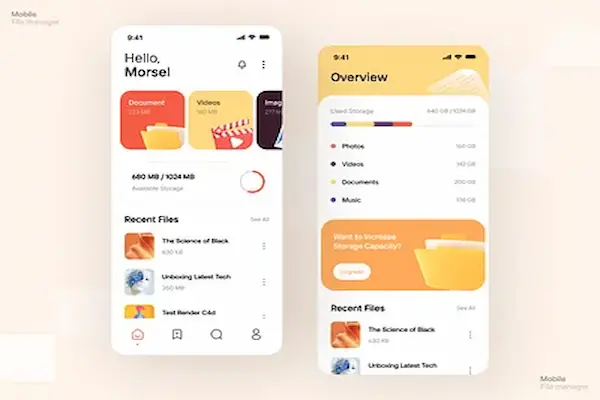
Using an Android phone every day often means downloading photos, documents, videos, audio files, PDFs, and apps without even noticing how quickly everything starts to pile up inside the device, until one day you need an important file and simply cannot remember where it was saved.
Many Android users feel frustrated when they try to find downloaded documents, move photos to free space, or understand what is taking up storage, because the system itself does not always make file organization obvious for beginners.
This is exactly where file manager apps for Android become extremely helpful, because they act as a clear window into everything stored on your phone, allowing you to see folders, understand storage usage, and perform simple actions such as moving, renaming, or deleting files.
This article was written with a didactic, practical, and step by step tone, focused on helping Android users who feel lost with their files choose a simple file explorer app and use it with confidence in everyday situations.
Throughout this guide, you will find an explanation of what file manager apps do, a comparison of popular and safe options, descriptions of essential features, practical examples of common tasks, and clear tips for organizing folders in a way that actually makes sense for daily use.
Why File Manager Apps for Android Are So Useful
Understanding why file manager apps for Android are important starts with recognizing that smartphones are not just communication tools anymore, but full storage devices that accumulate content from many different sources.
Photos from the camera, images from messaging apps, PDFs from email, audio files from downloads, and documents from work or school all end up stored somewhere inside the phone.
Without a file manager, many users rely only on recent files or app specific galleries, which makes it harder to locate older or less frequently used documents.
Common Problems Android Users Face Without a File Manager
- Not finding downloaded PDFs or images.
- Confusion about where files are saved.
- Difficulty freeing storage space.
- Accidentally deleting important files.
- Mixing work and personal documents.
Visibility is the first step toward better organization.
What Is a File Manager App and What Does It Do
A file manager app, sometimes called a file explorer app, allows you to browse the internal storage of your Android device in a structured way, similar to folders on a computer.
With a file manager, you can see all folders, check what files are inside each one, and perform basic actions such as opening, moving, copying, renaming, or deleting files.
Some file managers also provide a storage overview, helping users understand which types of files are taking up the most space.
Main Functions of File Manager Apps
- Browse folders and files.
- Manage downloads.
- Move files between folders.
- Rename documents.
- Delete unnecessary items.
- View storage usage.
These basic tools already solve most everyday problems.
Understanding Android Folder Structure in Simple Terms
Many users feel intimidated by folder names because they look technical, yet understanding a few common ones makes file management much easier.
Common Folders You Will See
- Download: where most downloaded files go.
- Pictures: images saved by apps.
- DCIM: photos and videos from the camera.
- Documents: PDFs and text files.
- Music: audio files.
Recognizing these folders already helps you locate most files.
Essential Features to Look for in File Explorer Apps
Not all file manager apps are the same, and beginners benefit from focusing on simplicity rather than advanced or technical features.
Must Have Features for Beginners
- Clear folder navigation.
- Search bar for files.
- Easy move and delete actions.
- Storage overview.
Nice to Have Features
- File categories by type.
- Recent files view.
- Dark mode.
Simple features usually cover most needs.
Overview of Popular File Manager Apps for Android
In this file manager apps for Android review, we will look at widely used and safe file explorer apps, focusing on ease of use, clarity, and practicality for everyday tasks.
Apps Covered in This Comparison
- :contentReference[oaicite:1]{index=1}
- :contentReference[oaicite:2]{index=2}
- :contentReference[oaicite:3]{index=3}
- :contentReference[oaicite:4]{index=4}
- :contentReference[oaicite:5]{index=5}
Each option will be explained with strengths, limitations, and ideal use cases.
Files by Google: Simple and Beginner Friendly
Files by Google is designed for simplicity and clarity, making it a great starting point for users who feel lost with file management.
Main Features of Files by Google
- Clear categories for files.
- Easy access to downloads.
- Storage overview.
- Built in file cleaning suggestions.
Strengths for Everyday Use
- Very easy interface.
- Good for beginners.
- Helps free space quickly.
Limitations to Consider
- Limited advanced features.
Samsung My Files: Integrated and Familiar
Samsung My Files comes preinstalled on many Samsung devices and offers a balanced experience.
Main Features of Samsung My Files
- Folder browsing.
- Category view.
- Storage analysis.
Strengths for Samsung Users
- No extra installation needed.
- Integrated with system.
Limitations to Consider
- Limited customization.
Solid Explorer: More Control With Visual Clarity
Solid Explorer offers more features while still maintaining a modern and clear design.
Main Features of Solid Explorer
- Dual pane view.
- Custom folders.
- Advanced file operations.
Strengths for Organized Users
- Powerful tools.
- Clear visual layout.
Limitations to Consider
- More options may confuse beginners.
FX File Explorer: Clean and Flexible
FX File Explorer focuses on a clean experience without heavy advertisements.
Main Features of FX File Explorer
- Folder navigation.
- Search function.
- File previews.
Strengths for Daily Tasks
- Clean interface.
- Good performance.
Limitations to Consider
- Advanced features require learning.
Total Commander: Traditional and Powerful
Total Commander offers a classic file management style similar to computers.
Main Features of Total Commander
- Detailed file control.
- Dual panel navigation.
Strengths for Experienced Users
- Very powerful.
Limitations to Consider
- Interface feels old.
Comparing File Manager Apps by Key Criteria
Ease of Use
- Very easy: Files by Google.
- Easy: Samsung My Files.
- Moderate: Solid Explorer, FX File Explorer.
- Advanced: Total Commander.
Storage Overview
- Strong: Files by Google, Samsung My Files.
- Moderate: Solid Explorer, FX File Explorer.
Common Tasks Explained Step by Step
How to Find Downloaded Files
- Open the file manager.
- Tap the Download folder.
- Use search if needed.
How to Move Files
- Long press the file.
- Select Move.
- Choose destination folder.
How to Rename Files
- Long press the file.
- Select Rename.
- Type new name.
How to Delete Files Safely
- Check file content.
- Confirm it is not needed.
- Delete.
Organizing Files by Folders: Practical Tips
Good folder organization saves time.
Simple Folder Structure Example
- Documents.
- Photos.
- Work.
- Personal.
Organization Tips
- Use clear names.
- Avoid too many folders.
- Review monthly.
Common Mistakes When Managing Files on Android
- Deleting files without checking.
- Saving everything in Downloads.
- Never reviewing storage.
How to Choose the Right File Manager App for You
Questions to Ask Yourself
- Do I want simplicity or control?
- Do I often move files?
- Do I need storage overview?
Frequently Asked Questions About File Manager Apps for Android
Can I damage my phone using a file manager?
Only if system files are changed.
Do file managers delete files automatically?
No, actions require confirmation.
Is one file manager enough?
Yes, for most users.
Taking Control of Your Android Files With Confidence
Using file manager apps for Android is not about being technical, but about gaining clarity and control over your own files.
By choosing a simple file explorer app, learning how to manage downloads, move files, and organize folders, everyday tasks become faster and less stressful.
When file management becomes a regular habit, storage stays organized, important documents are easier to find, and your Android phone feels more efficient and reliable.