
Many smartphone users reach a point where their device constantly reports that storage is full, apps begin freezing at the worst possible moments, photos stop saving, and even basic tasks like updating the system become impossible, which often leads to unnecessary panic or rushed deletions that later cause regret.
Because of that, this guide takes a gentle, step-by-step approach designed specifically for people who do not feel confident navigating storage menus, want to avoid removing anything important, and would rather follow a structured path that makes the entire cleanup process clear, predictable, and low-stress.
To achieve that, the article walks through several stages, each one intentionally detailed and supported by long sentences that help readers understand not just what to do but why they are doing it, which creates confidence and reduces anxiety.
You will also find numbered sequences, bulleted lists, safety notes, and monthly maintenance ideas so you can keep your phone running smoothly long after the initial cleanup.
1. Understand What Actually Fills Up Your Phone
Before deleting anything, it helps to know where the space is going. Most phones—Android or iPhone—categorize storage in similar ways, so understanding these groups makes cleanup decisions much easier.
The Main Categories Usually Include:
-
Photos and Videos: Typically the largest storage consumer because high-resolution images and 4K clips can quickly pile up.
-
Apps: Some apps take very little space on their own but generate extremely large caches over time, especially social media apps.
-
Messages and Attachments: Old conversations, videos sent through messaging apps, and shared images can grow quietly in the background.
-
Downloads Folder: PDFs, images, audio files, and documents often accumulate without the user realizing it.
-
System Files: These cannot be removed but understanding them reduces confusion when you see them in the storage breakdown.
-
Offline Music or Videos: Any content saved for offline use, such as playlists or downloaded episodes, can take gigabytes.
To approach storage cleanup safely, the intention is never to delete essential personal content impulsively but instead to evaluate the categories that usually contain hidden or replaceable files, such as app caches, temporary downloads, duplicate screenshots, and very old videos already stored elsewhere.
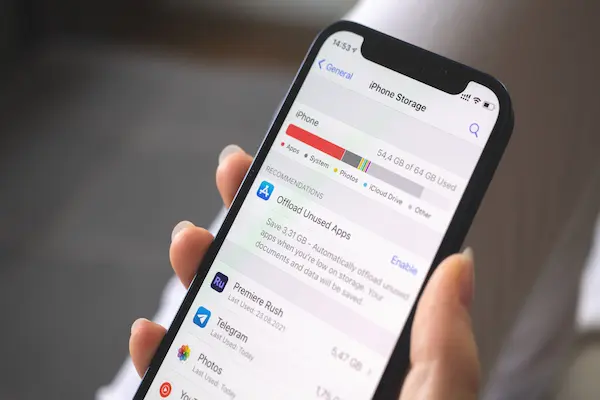
2. Start With the Safest, No-Risk Cleanups
Beginning with actions that cannot accidentally remove personal photos or essential files is the safest way to build confidence, especially for users who fear pressing the wrong button.
Safe Cleanups That Never Affect Personal Data
-
Clear App Cache (Not App Data):
The cache is a temporary storage area that apps rebuild automatically.-
Typically large cache apps include browsers, social media platforms, and video apps.
-
Clearing cache frees space instantly without deleting logins or saved content.
-
-
Delete Temporary Files:
-
Files in the Downloads folder that you know you no longer need.
-
Duplicate screenshots that serve no purpose after the moment they were taken.
-
-
Remove Offline Content:
-
Downloaded movies or episodes you already watched.
-
Offline playlists you no longer listen to.
-
-
Uninstall Apps You Never Use:
-
Many people keep apps installed “just in case,” though those apps often create background storage over time.
-
Removing them is safe and reversible.
-
-
Clear Browser Cache:
-
Browsers accumulate many megabytes of temporary files.
-
This cleanup does not remove saved passwords if done correctly.
-
Safety Reminder
Clearing cache does not delete your personal files. Clearing app data—which is different—can remove logins or internal files, so sticking to cache only keeps everything risk-free.
3. Review Photos and Videos Without Deleting Anything Yet
Because photos and videos often represent years of memories, people understandably hesitate to edit or remove them. That is why this guide encourages organizing before deleting, ensuring nothing important disappears unexpectedly.
Steps to Safely Organize Photos Before Cleanup
-
Sort by Size or Date:
Larger videos appear first, making it easy to identify the biggest space users. -
Identify Duplicates, Blurry Shots, or Accidental Captures:
These are usually safe to delete but do not delete anything yet. Instead, flag them mentally or through a “Favorites” or “Select Later” folder. -
Create an Album for Important Memories:
Moving key photos into a dedicated album ensures they never get removed by accident. -
Check if Photos Are Already Backed Up:
Many users unknowingly have cloud backup enabled, which means two copies exist, giving more freedom to declutter locally later.
Organizing before deleting gives tremendous peace of mind, especially for people who fear losing treasured photos.
4. Back Up Your Photos Safely Before Freeing Space
Because photos are often irreplaceable, backing them up correctly is essential before removing anything from the device. Users can choose cloud backup or local backup depending on their preference and available storage options.
Option A: Cloud Backup (Automatic and Easiest)
Cloud backup uploads photos to an online account and keeps them safe even if the phone is lost.
-
Check if the backup toggle is on.
-
Connect to Wi-Fi for faster upload.
-
Plug the phone into a charger if the gallery has thousands of images.
-
Wait for the backup to reach 100% before deleting local copies.
Option B: Local Backup (Cable or Computer)
Some people prefer keeping their photos entirely offline.
-
Connect your phone to a computer using a cable.
-
Open the photos folder and select the images to transfer.
-
Copy them to a dedicated folder on the computer or external drive.
-
Once confirmed, you may remove copies from the phone.
Backup Safety Checklist
Before deleting anything:
-
Ensure all important photos appear in the backup location.
-
Verify that videos also transferred correctly.
-
Confirm that you can open the files from the backup.
Completing this step prevents data loss and creates confidence for deeper cleanup.
5. Free Space by Managing Large Apps and Hidden Storage Hogs
Once photos are backed up, you can safely delete or offload items that take up significant space.
Apps Known to Accumulate Huge Space Over Time
-
Messaging apps with large media histories
-
Social media apps that cache endless photos and video previews
-
Video editing or meme-making apps that store drafts
-
Urban mobility apps storing maps offline
-
Games that download additional internal data
Ways to Reduce App Storage Without Losing Anything Important
-
Delete Old App Attachments:
Messaging apps often store years of pictures and forwarded videos. -
Offload Unused Apps (iPhone):
The app is removed but its data stays safe, letting you reinstall it instantly later. -
Use “Storage Manager” Tools:
Phones often highlight the largest and most deletable items. -
Check Drafts and Projects:
Creative apps frequently store large temporary files that users forget about.
Managing apps can create several gigabytes of space, especially for users who rely heavily on messaging and social apps.
6. Clean Up Messaging Apps Safely
Messaging apps store thousands of files over time—voice messages, forwarded images, videos, GIFs, stickers, and document files—without asking for permission.
Safe Ways to Clear Message Storage
-
Delete old video forwards that no longer matter.
-
Remove duplicate photos already saved in the main gallery.
-
Clear unnecessary voice notes.
-
Delete group chats that have no essential information.
-
Remove old PDF documents that you no longer need.
High-Risk Items to Avoid Deleting
-
Important conversations containing work info, addresses, or personal data.
-
Chats with photos that were never backed up.
-
One-time passwords or receipts needed for reference.
Because messaging storage grows quietly, this step alone often frees hundreds of megabytes—or several gigabytes.
7. Use Cloud Storage to Free Up Local Space Without Losing Files
Once photos and videos are backed up, you can remove local copies from your phone confidently.
Benefits of Cloud Storage for Long-Term Space Management
-
Reduces the need to delete memories
-
Keeps photos accessible on all devices
-
Allows seamless searching and organization
-
Protects files even if the phone breaks
Cloud-Safe Cleanups to Free Space
-
Enable “Optimize Storage” mode so only miniature previews stay on the phone.
-
Move long videos to cloud-only storage.
-
Store older albums in cloud archives rather than locally.
This approach combines safety with significant space savings.
8. Monthly Maintenance Routine (5–10 Minutes)
A predictable routine prevents storage emergencies from returning.
Monthly Tasks to Keep Storage Healthy
-
Clear cache from large apps.
-
Review the Downloads folder and delete old PDFs or pictures.
-
Check photo backup status.
-
Remove duplicate screenshots.
-
Delete videos saved through messaging apps.
-
Uninstall unused apps.
-
Check available storage to track trends.
Quarterly Deep Clean Tasks
-
Back up all photos again.
-
Review old albums for duplicates.
-
Remove unneeded offline videos or playlists.
-
Move long recordings or 4K clips to external storage.
With consistent maintenance, your phone stays fast, smooth, and clutter-free.
9. Quick-Reference Checklist (Print or Save)
Before Cleaning
-
Check current storage levels.
-
Verify photo backup is active.
-
Charge your phone and connect to Wi-Fi.
Safe Items to Delete
-
App caches
-
Old downloads
-
Duplicate screenshots
-
Offline videos already watched
-
Unused apps
-
Messaging app junk (not important chats)
Do Not Delete Without Backup
-
Personal photos and videos
-
Important chats
-
Work files or documents
-
Password screenshots
-
App “data” (only delete “cache”)
After Cleaning
-
Recheck available storage.
-
Enable cloud optimization if desired.
-
Create your monthly routine reminder.
Final Thoughts
Freeing up storage on your phone does not need to be stressful or confusing, especially when you follow a guided process that emphasizes safety, clarity, and confidence at every stage. By learning how to recognize what actually fills your phone, understanding which items can be deleted without risk, and building a backup habit that keeps your memories protected, you not only free space today but also create a healthier long-term relationship with your device, which means fewer interruptions, smoother performance, and much less stress during busy days.