
Seeing your Android phone warn that storage is almost full can feel like a small emergency, especially when you do not want to delete photos, messages, or apps you actually use, and at the same time you keep hearing people say things like “just do a quick cleanup” as if your phone were a messy room that can be fixed in seconds.
For many Android users, the most confusing part is that word cache, because it gets mentioned in tutorials, videos, and “boost” apps, yet very few explanations make it clear what cache really is, why it exists, and what can happen if you delete the wrong thing without understanding the difference between temporary files and important data.
This article is an explanatory, cautious guide that teaches how to clean cache on Android in a safe way, focusing on freeing space quickly when you truly need it, while also showing you when cleaning is helpful, when it is unnecessary, and why some “miracle cleaner” apps can create more problems than they solve.
Along the way, you will learn a simple definition of cache, how app cache works, how to clear cache Android through your phone’s settings step by step, how this relates to phone maintenance, and how to build a light routine that keeps your device running smoothly without constant anxiety or extreme cleaning.
Understanding How to Clean Cache on Android Starts With Knowing What Cache Is
Learning how to clean cache on Android becomes much easier when the concept is demystified, because cache is not a virus, not a hidden folder full of secrets, and not something that automatically means your phone is in danger, since it is simply a storage area where apps keep temporary files that help them load faster and work more smoothly.
When you open an app repeatedly, it tries to avoid downloading or recreating the same information every time, so it saves bits of data such as images, thumbnails, small pieces of pages, and other temporary items that allow your next experience to feel quicker, more responsive, and less dependent on the internet.
Because cache is meant to grow over time, it is normal for it to take up space, and it is also normal for Android users to notice that some apps accumulate more cached files than others, especially social media, streaming services, browsers, shopping apps, and anything that shows lots of photos or videos.
A Simple Definition You Can Remember
Cache is like a short term memory for apps, keeping copies of things you already used so the phone does not have to work as hard next time, which usually improves speed but can also consume storage as that temporary memory grows.
Examples of What App Cache Can Include
- Image previews and thumbnails from photos and videos you scrolled through.
- Saved elements of web pages, including logos, icons, and small files that load repeatedly.
- Temporary audio and video chunks used by streaming apps to reduce buffering.
- Maps or location tiles that help navigation feel smoother during repeated use.
- In app files that speed up menus and transitions, depending on the application.
Keeping these examples in mind helps you understand why cache exists, and also why clearing it can sometimes give you back space quickly, without deleting your personal photos or documents.
When It Makes Sense to Clear Cache Android and When It Does Not
Because cache has a purpose, clearing it constantly is not always necessary, and for some people it can even be annoying because the apps might feel slightly slower for a short period while they rebuild their temporary files, so the smartest approach is to clean cache strategically when there is a clear reason, instead of doing it daily out of fear.
In other words, clear cache Android is best seen as a helpful tool you use at the right moment, rather than a habit you must repeat nonstop to keep your phone “healthy.”
Good Reasons to Clean App Cache
- Storage is almost full and you need to free space quickly without deleting personal files.
- An app is crashing, freezing, or behaving strangely after an update or long use.
- A browser is loading pages incorrectly, showing old versions, or refusing to refresh content.
- A particular app has grown very large in storage because it holds lots of media thumbnails.
- You want a simple phone maintenance step once in a while to keep things tidy and predictable.
Situations Where Clearing Cache Might Not Help Much
- Your storage issue is actually caused by photos and videos saved in full size.
- The phone is slow because of low RAM or too many background tasks, not storage.
- The main problem is a weak internet connection or a broken app update.
- You are expecting cache cleaning to magically boost performance permanently.
Understanding this difference protects you from unrealistic expectations and helps you focus on actions that actually solve the problem you are facing.
How to Clean Cache on Android Using Settings Safely
Now that the concept is clear, it is time to walk through the safest method, which is using your Android settings rather than downloading random “cleaner” apps that promise miracles, because your phone already includes tools designed to let you manage app cache in a controlled way.
The exact words can vary slightly depending on your Android version and device brand, yet the overall structure is similar across most phones.
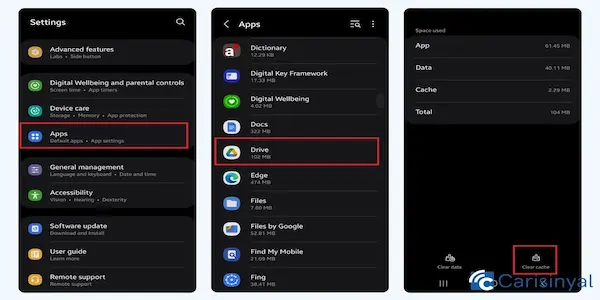
Step by Step: Clear Cache for One App
- Open the Settings app on your Android phone.
- Tap Apps, or Apps and notifications, depending on your device.
- Select See all apps if you do not immediately see the app you want.
- Tap the specific app that seems to be taking too much space or acting strangely.
- Choose Storage and cache, or Storage, based on what your phone shows.
- Tap Clear cache, then pause for a moment so the action completes.
This method clears only temporary files for that app, which usually means the app remains logged in and your personal data stays intact, although it might rebuild some temporary files the next time you use it.
Step by Step: Clear Cache for the Browser App
Browsers often store large amounts of cache, so cleaning them can free space quickly, yet it can also sign you out of some sites depending on settings, which is why a careful approach is useful.
- Open Settings and go to Apps.
- Select your browser app from the list.
- Tap Storage and cache.
- Use Clear cache first, then test the browser to see if the issue improved.
If the problem is not fixed, many browsers also have an internal option to clear browsing data, and that action may remove cookies and saved sessions, so it should be done more thoughtfully than cache clearing alone.
Step by Step: Use Android Storage Tools for a Quick Overview
Many Android phones include a storage section that highlights what is taking space, helping you choose which apps deserve attention instead of cleaning blindly.
- Open Settings and tap Storage, or Device care, depending on your phone model.
- Review the categories such as Apps, Images, Videos, and System.
- Tap Apps to see which ones are the largest.
- Pick the biggest apps you use often and consider clearing their cache individually.
This approach supports better phone maintenance, because you are making decisions based on real storage usage, not on guesswork or fear.
Clear Cache Android Versus Clear Storage: The Difference That Prevents Mistakes
One of the most important safety lessons for beginners is that Android often shows two buttons that look similar, Clear cache and Clear storage, which can lead to confusion, so understanding the difference protects you from accidental data loss and unnecessary stress.
What Clear Cache Does
- Removes temporary files that help the app load faster.
- Usually does not remove your login, preferences, or personal data.
- Often helps fix minor glitches or loading problems.
- Can free space quickly, especially for media heavy apps.
What Clear Storage Can Do
- Resets the app as if it were newly installed.
- May remove logins, downloads, settings, and saved data inside the app.
- Can be useful when an app is severely broken, but should be used carefully.
- Sometimes requires you to sign in again and reconfigure preferences.
For most people trying to free space quickly and safely, clearing cache is the best first option, while clearing storage should be reserved for moments when you understand the consequences and truly need a full reset.
How Much Space Can Cleaning App Cache Free, Realistically
Because expectations matter, it helps to know that cache size varies widely depending on how you use your phone, which apps you use most, and how often you scroll through media, since a person who watches many videos and uses social apps all day will typically build a much larger cache than someone who uses only messaging and calls.
In many real situations, cleaning app cache can free anywhere from a few hundred megabytes to several gigabytes, especially if you target the apps that are known to store a lot of temporary media files.
Apps That Commonly Build Large Cache Files
- Social media apps that show endless videos and images.
- Video streaming apps that buffer content and store thumbnails.
- Web browsers that cache websites and media elements.
- Shopping apps that store images of products you viewed.
- Navigation apps that store map tiles for faster display.
Rather than cleaning every app on the phone, focusing on these categories is often the fastest way to get meaningful results while keeping the process simple.
Warnings About “Miracle Cleaning” Apps and Why Caution Matters
When someone searches for phone maintenance tips, it is common to see apps that claim to boost your phone, clean deeply, remove junk instantly, and make everything faster with one tap, yet these promises are often exaggerated, and in some cases they can create privacy risks, unwanted ads, or even conflict with normal Android system behavior.
Android already includes tools to manage storage, and most modern phones are designed to handle cache responsibly, which means you rarely need third party cleaners to do basic tasks like clearing app cache.
Common Problems With Aggressive Cleaner Apps
- They may request excessive permissions that are not necessary for simple cleaning.
- They often show intrusive ads or notifications, creating more annoyance than they remove.
- They can close background processes aggressively, which sometimes makes apps reload more often and feel slower.
- They may delete useful cached files too frequently, causing higher data use and more loading time.
- Some promote paid upgrades by creating fear about fake problems or inflated warnings.
A Practical Safety Rule for Beginners
Whenever an app promises instant miracles, huge speed boosts, or “deep cleaning” without clear explanation, skepticism is healthy, because safe maintenance is usually simple, transparent, and already available inside your phone’s settings.
A Safe Routine for Light Phone Maintenance Without Obsession
Good phone maintenance does not require daily cleaning, constant app installs, or repeated scanning, and it also does not need you to become an expert, because a light routine that you repeat occasionally is usually enough to keep your Android device comfortable to use.
This routine is designed to be simple, realistic, and safe, especially for users who feel uncertain about storage and want a calm plan.
Weekly Maintenance Routine in 5 to 10 Minutes
- Check Storage in Settings to see if space is dropping too fast.
- Look at the largest apps and pick one or two to clear cache if needed.
- Open your photo gallery and delete obvious duplicates or blurry images.
- Remove downloads you no longer need, especially big files you forgot about.
- Restart the phone if it has been running for many days without a reboot.
Monthly Maintenance Routine for More Control
- Review app list and uninstall apps you have not used in months.
- Inspect messaging apps for large media folders or repeated videos.
- Clear cache for the biggest media apps, focusing on the top three.
- Check for system updates, because updates often improve stability and security.
- Confirm that backups are working if you use them, so you feel safe deleting files when needed.
This approach supports free space quickly when storage is tight, while also maintaining long term stability without constant cleaning.
Troubleshooting: If Clearing Cache Does Not Solve Your Storage Problem
Sometimes clearing app cache helps, yet storage still feels full, and when that happens it usually means the biggest space users are not cache files but your personal media, downloads, or hidden large folders created by certain apps, so it becomes important to expand the checklist and look at other categories calmly.
Other Places That Commonly Consume Storage
- Photos and videos saved in high resolution, especially if you record long clips.
- Messaging apps that automatically download media from group chats.
- Offline music, podcasts, or streaming downloads stored for travel.
- Large downloads such as PDFs, zip files, and installation packages.
- Duplicate media, including the same file saved in multiple apps.
Simple Actions That Can Free Space Quickly Beyond Cache
- Disable automatic media download in messaging apps if you are in many groups.
- Move photos and videos to a secure backup location if you use one, then delete local copies you do not need offline.
- Clear the Downloads folder, because it often becomes a storage graveyard.
- Remove offline content from streaming apps after you finish watching or listening.
- Use the built in storage manager if your Android version includes recommendations, then review each suggestion carefully.
Even with these actions, cache cleaning remains a useful first step because it is quick, low risk, and often gives immediate breathing room.
Frequently Asked Questions About How to Clean Cache on Android
Will clearing app cache delete my photos, messages, or contacts?
Clearing cache usually removes only temporary files created by the app, so personal photos, messages, and contacts are typically not deleted, although it is always wise to read the screen carefully to ensure you tapped Clear cache and not Clear storage.
Does clearing cache make the phone faster permanently?
Cleaning cache can help with certain glitches and may free storage, yet apps often rebuild cache as you use them, so the best benefit is safety and space management rather than expecting a permanent speed boost.
How often should I clear cache Android?
Most people do well with occasional cleaning when storage is low or when an app is acting up, while a light monthly routine is enough for many users who want steady phone maintenance without constant effort.
Is it safe to clear cache for all apps at once?
Clearing cache for many apps is usually safe, yet it can cause a short period where apps load slower because they need to rebuild temporary files, which is why targeting the biggest cache users is often more comfortable and efficient.
What is the difference between cache and junk files?
Cache is a type of temporary file that apps use for speed, while the phrase junk files is often used loosely in marketing, so it is better to focus on real categories inside Android settings rather than vague labels that create fear.
Ready to Free Space Quickly Without Risking Your Data?
Cleaning cache is one of the safest ways to take control of storage when your Android phone feels cramped, because it targets temporary files that can grow quietly over time, and it offers a practical option for people who need free space quickly without deleting precious photos or important documents.
With a clear understanding of what app cache is, knowing when it makes sense to clear cache Android, following the settings steps carefully, avoiding exaggerated “miracle cleaning” promises, and adopting a light phone maintenance routine, you can keep your device running comfortably while staying calm and confident about what you are doing.
If you want to keep improving your smartphone habits, exploring other simple tutorials about storage, security, and everyday settings can help you feel more in control, reduce stress, and make your phone work for you instead of against you.