
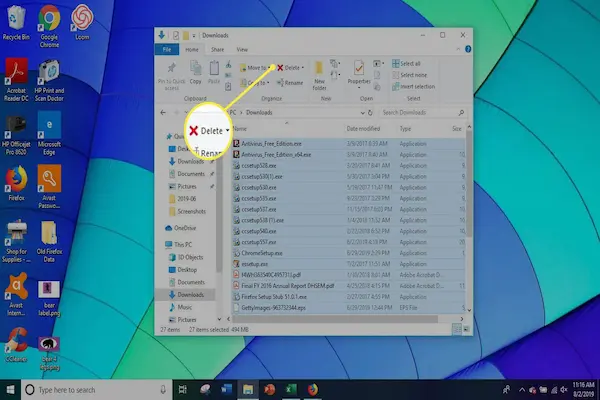
If you have ever opened your Downloads folder and immediately closed it again because of the overwhelming number of files, random names, duplicates, and old documents you do not recognize anymore, you are not alone, because the Downloads folder is often the most neglected place on a computer.
For many people, downloading files is an automatic action done dozens of times per week, whether it is invoices, photos, PDFs, installers, images from messages, or work documents, yet deleting those same files rarely becomes part of the routine.
This guide on how to clean downloads folder was created to help you organize downloads in a calm, safe, and structured way, without the fear of deleting something important or breaking your computer.
You will learn how to identify which files can usually be removed safely, how to sort downloads by date and type to make decisions faster, how to spot and delete duplicates, which simple system tools can help, and which precautions really matter so you do not lose valuable documents.
The approach here is didactic, careful, and direct, because cleaning the Downloads folder should feel like relief, not like a risky operation.
Why Learning How to Clean Downloads Folder Is So Important
The Downloads folder exists to be a temporary holding area, yet over time it quietly turns into long term storage, which is not its purpose and not how most people think when they click the download button.
Files land in Downloads because it is fast and convenient, not because they belong there, and when that folder is never reviewed, it becomes a mix of useful documents, outdated files, duplicates, installers, and forgotten items.
This clutter does more than waste disk space, because it also slows down searches, increases the risk of opening the wrong file, and creates anxiety when you need to find something quickly.
Common Problems Caused by a Messy Downloads Folder
- Running out of disk space without knowing why.
- Opening the wrong version of a document.
- Accidentally reusing outdated files.
- Keeping installers that are no longer needed.
- Feeling stressed every time the folder is opened.
Cleaning this folder regularly is one of the fastest ways to free disk space and regain control.
Understanding What Usually Lives in the Downloads Folder
Before deleting anything, it helps to understand the types of files that usually accumulate in the Downloads folder, because not all downloads have the same importance or lifespan.
Most items fall into predictable categories, and once you recognize them, decisions become much easier.
Common Types of Downloaded Files
- PDFs such as invoices, tickets, manuals, or contracts.
- Images saved from websites, emails, or messaging apps.
- Installers for apps or programs.
- Compressed files like ZIP or RAR.
- Duplicates with similar names.
- Temporary files used only once.
Each category can be handled differently, which reduces fear and hesitation.
Safe Cleanup Starts With the Right Mindset
Many people avoid cleaning the Downloads folder because they are afraid of deleting something important, yet fear usually comes from trying to decide everything at once instead of using a safe process.
A safe cleanup does not mean deleting aggressively, but moving carefully, reviewing in stages, and using the system’s tools to your advantage.
Important Principles for Safe Cleanup
- Never delete files blindly.
- Sort files to see patterns.
- Move before deleting when unsure.
- Keep backups in mind.
Confidence grows when the process is predictable.
Step by Step: How to Clean Downloads Folder Without Risk
This step by step process works for both Windows and Mac users and focuses on clarity rather than speed.
Step 1: Create a Temporary Review Folder
Before deleting anything, create a folder inside Downloads called Review Later, because this becomes a safety net for files you are unsure about.
- Open the Downloads folder.
- Create a new folder named Review Later.
- Leave it empty for now.
This simple step removes the pressure to decide everything immediately.
Step 2: Sort Files by Date
Sorting by date is one of the safest ways to start, because older files are usually less critical than recent ones.
- Click the Date column.
- Sort from oldest to newest.
- Scroll to the bottom to see recent downloads.
Files that are several years old and never opened again are strong deletion candidates.
Step 3: Identify Files That Are Almost Always Safe to Delete
Certain file types are usually temporary and can often be removed without consequences.
Files Commonly Safe to Delete
- Program installers after installation.
- Duplicate files with numbers added to the name.
- ZIP files already extracted.
- Temporary images saved once.
- Outdated versions of the same file.
Deleting these first builds confidence quickly.
Step 4: Sort by File Type
After removing obvious items, sorting by type helps you focus on one category at a time, which reduces mental load.
- Change the view to group by file type.
- Start with installers and compressed files.
- Move to images and documents afterward.
Handling one type at a time prevents mistakes.
Step 5: Move Important Documents Out of Downloads
The Downloads folder is not a good place for long term storage, so important documents should be moved to proper locations.
Suggested Destinations for Important Files
- Invoices and receipts to a Finance folder.
- Work documents to a Work or Projects folder.
- Manuals to a Reference folder.
- Personal files to Documents.
Once files leave Downloads, future cleanups become easier.
How to Organize Downloads for the Future
Cleaning once helps, yet organizing downloads prevents the same chaos from returning.
A simple structure and habit can reduce clutter dramatically.
Create Subfolders Inside Downloads
- To Sort
- Installers
- Images
- Documents
New downloads can temporarily land in these folders.
Use a Simple Naming Check
Renaming files when they are important helps you recognize them later.
- Add a date.
- Add a clear description.
- Avoid generic names.
Delete Duplicates Without Fear
Duplicate files are one of the biggest sources of wasted space.
They often appear when downloading the same file multiple times.
How to Spot Duplicates
- Files with the same name and different numbers.
- Identical size and date.
- Repeated PDFs or images.
Safe Duplicate Cleanup Process
- Keep the most recent version.
- Delete older copies.
- Move uncertain ones to Review Later.
Using System Tools to Free Disk Space Safely
Both Windows and macOS offer built in tools that help identify large or unnecessary files.
Benefits of System Cleanup Tools
- Show large files quickly.
- Highlight unused downloads.
- Reduce manual work.
These tools should be used as guidance, not blindly.
Common Files You Should Double Check Before Deleting
Some files require extra attention.
Be Careful With These
- Tax documents.
- Legal agreements.
- Work related PDFs.
- Receipts for warranties.
If unsure, move instead of deleting.
How to Clean Downloads Folder on Windows
Windows users can take advantage of sorting and search tools.
Helpful Windows Tips
- Use the search bar to find large files.
- Sort by size to spot space hogs.
- Empty the recycle bin after review.
How to Clean Downloads Folder on Mac
Mac users have useful Finder features.
Helpful Mac Tips
- Use Finder’s group by kind.
- Use quick look to preview files.
- Use tags for temporary importance.
Weekly and Monthly Maintenance Routine
A small routine prevents buildup.
Weekly Quick Check
- Open Downloads.
- Delete installers.
- Move important files.
Monthly Deeper Review
- Sort by date.
- Delete duplicates.
- Review Review Later folder.
Common Mistakes to Avoid
- Deleting everything at once.
- Keeping everything forever.
- Ignoring Downloads for years.
Frequently Asked Questions About How to Clean Downloads Folder
Will deleting downloads break programs?
No, once installed, installers are not needed.
What if I delete something important?
Check the recycle bin before emptying.
How often should I clean Downloads?
Weekly light checks work best.
Final Thoughts and Next Step
Learning how to clean downloads folder is not about being perfect, but about building a safe and repeatable habit that protects important files while freeing disk space.
When you understand what can be removed, how to organize downloads properly, and how to use system tools without fear, the Downloads folder stops being a source of anxiety and becomes a manageable temporary space.
Which file type do you think is taking the most space in your Downloads folder right now, and could you spend ten minutes today removing just that one category to feel immediate relief?