
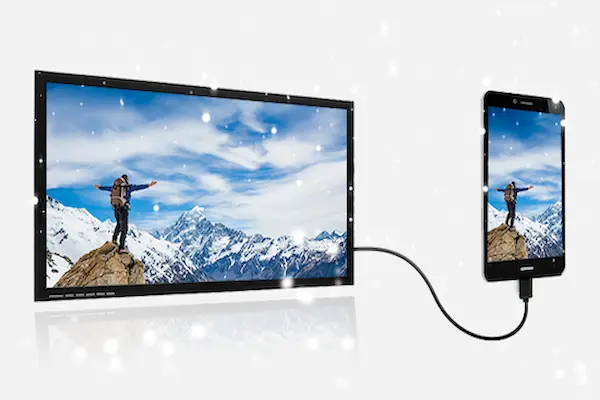
Watching videos, looking at photos, or even showing something to family and friends can feel much more enjoyable when everything appears on a big television screen instead of a small phone display, yet many people avoid trying because they believe the process is complicated, full of cables, strange apps, or confusing technical terms.
This guide was created for anyone who wants to understand how to connect phone to TV in a simple and calm way, without stress, without advanced technical knowledge, and without the fear of doing something wrong and “breaking” the TV or the phone.
If your goal is to watch videos from your phone, share photos from trips or family moments, or simply cast phone screen to a larger display so everyone can see comfortably, you are in the right place.
Throughout this article, you will learn what screen mirroring really means, what the most common connection options are, how to use cables, apps, and built in features step by step, what limitations you should expect, and how a good Wi-Fi connection can make a big difference in image quality and stability.
The language here is light, practical, and accessible, focused on real life use rather than technical perfection.
Understanding How to Connect Phone to TV in Simple Terms
Learning how to connect phone to TV becomes much easier when you first understand the basic idea behind it, because all methods, no matter how different they look, serve the same purpose, which is showing what is on your phone screen on your television.
This process is often called screen mirroring, screen casting, or simply sharing the screen, and it allows your TV to act like a bigger version of your phone display.
When the connection works, anything you see on your phone can also appear on the TV, including videos, photos, apps, presentations, and even menus.
Common Situations Where Screen Mirroring Is Useful
- Watching videos from your phone on a larger screen.
- Sharing photos and videos with family and friends.
- Showing a video call to multiple people in the room.
- Displaying apps or documents for easier viewing.
- Enjoying content without holding the phone.
Understanding this purpose helps you choose the best connection option for your situation.
Main Ways to Connect Phone to TV
There are several ways to connect a phone to a TV, and none of them are “better” in all situations, because each method has advantages, limitations, and ideal use cases.
The most important thing is to know that you usually have more than one option available.
The Three Most Common Connection Methods
- Using a cable between the phone and the TV.
- Using built in screen mirroring or cast features.
- Using apps that support casting content.
Each of these methods will be explained clearly, step by step.
How to Connect Phone to TV Using a Cable
Using a cable is often the most direct and reliable way to connect phone to TV, especially for users who want simplicity and do not want to depend on Wi-Fi quality.
This method works by physically linking the phone to the TV, allowing the image and sound to travel through the cable.
What You Need for a Cable Connection
- A compatible cable or adapter for your phone.
- An available HDMI port on the TV.
- A TV remote to select the correct input.
Many modern TVs include multiple HDMI ports, usually labeled HDMI 1, HDMI 2, and so on.
Basic Step by Step for Cable Connection
- Connect the cable or adapter to your phone.
- Plug the other end of the cable into the TV HDMI port.
- Turn on the TV.
- Use the TV remote to select the correct HDMI input.
- Wait a few seconds for the phone screen to appear.
Once connected, the phone screen is usually mirrored automatically.
Advantages of Using a Cable
- Stable connection.
- No need for Wi-Fi.
- Good image and sound quality.
- Low delay between phone and TV.
Limitations of Cable Connections
- Cable length limits movement.
- Some phones require specific adapters.
- Not all apps support full screen display.
This option is ideal for users who want a simple and predictable experience.
How to Use Built In Screen Mirroring Features
Many modern smartphones and smart TVs include native features that allow screen mirroring without cables, using Wi-Fi instead.
This method is popular because it feels wireless and convenient.
What Screen Mirroring Means in Practice
Screen mirroring duplicates your phone screen on the TV in real time, showing exactly what you see on the phone.
- Menus appear on the TV.
- Notifications may be visible.
- Orientation changes follow the phone.
Basic Requirements for Screen Mirroring
- Phone and TV connected to the same Wi-Fi network.
- TV that supports screen mirroring.
- Screen mirroring enabled on both devices.
Step by Step: Screen Mirroring From Phone to TV
- Turn on the TV.
- Open the TV settings and enable screen mirroring or casting.
- On the phone, open Settings.
- Look for options like Screen Mirroring, Cast Screen, or Smart View.
- Select your TV from the list.
- Confirm the connection if asked.
After a short moment, the phone screen should appear on the TV.
Advantages of Screen Mirroring
- No cables needed.
- Easy to start and stop.
- Good for showing photos and apps.
Limitations of Screen Mirroring
- Depends heavily on Wi-Fi quality.
- Possible delay between phone and TV.
- Notifications may appear on screen.
This method works well for casual use and short sessions.
How to Cast Phone Screen Using Apps
Another popular way to connect phone to TV is by using apps that support casting, which is slightly different from full screen mirroring.
When you cast content, only the video or media is sent to the TV, not the entire phone screen.
Difference Between Screen Mirroring and Casting
- Screen mirroring shows everything from the phone.
- Casting sends only the selected media.
- Casting often uses less phone battery.
- Casting allows phone use during playback.
Step by Step: Casting Videos or Photos
- Connect phone and TV to the same Wi-Fi network.
- Open an app that supports casting.
- Look for the cast icon on the screen.
- Select your TV from the list.
- Start playing the video or photo.
Once casting starts, the TV plays the content directly.
Advantages of Casting
- Better video quality.
- Lower delay.
- Phone remains usable.
Limitations of Casting
- Works only with supported apps.
- Requires Wi-Fi.
- Not suitable for showing menus or other apps.
This method is ideal for watching videos comfortably.
Watching Videos on TV From Your Phone
Many users look for how to connect phone to TV mainly to watch videos on a larger screen, whether they are personal recordings or online content.
Choosing the right method improves the experience.
Best Options for Watching Videos
- Cable connection for maximum stability.
- Casting for supported video apps.
- Screen mirroring for offline videos.
Tips for Better Video Quality
- Use strong Wi-Fi for wireless methods.
- Close unnecessary apps on the phone.
- Reduce distance between router and TV.
- Lower video quality if buffering occurs.
How to Share Photos From Phone to TV
Sharing photos is one of the most satisfying uses of screen mirroring and casting, especially during family gatherings.
Simple Ways to Share Photos
- Screen mirroring to browse gallery freely.
- Casting photos individually.
- Using cable for quick access.
Tips for Comfortable Photo Viewing
- Rotate phone for full screen display.
- Use slideshow mode if available.
- Adjust TV picture settings if needed.
Wi-Fi Quality Tips for Better Screen Mirroring
Wi-Fi quality plays a major role in wireless connections, and understanding a few basic principles can greatly improve the experience.
How Wi-Fi Affects Screen Mirroring
- Weak signal causes lag.
- Busy networks reduce quality.
- Distance from router matters.
Improving Wi-Fi for Better Connection
- Place router closer to TV.
- Reduce number of connected devices.
- Restart router occasionally.
- Use a less crowded Wi-Fi band if available.
Common Problems and Simple Solutions
Even with simple methods, small issues can happen, yet most of them are easy to fix.
Phone Does Not Find the TV
- Check Wi-Fi network.
- Restart both devices.
- Enable screen mirroring on TV.
No Sound on TV
- Check TV volume.
- Confirm audio output settings.
- Restart connection.
Connection Drops Frequently
- Improve Wi-Fi signal.
- Switch to cable connection.
- Reduce interference.
Choosing the Best Method for Your Situation
The best way to connect phone to TV depends on what you want to do.
Quick Recommendation Guide
- For watching videos: casting or cable.
- For sharing photos: screen mirroring.
- For stable connection: cable.
- For convenience: wireless methods.
Frequently Asked Questions About How to Connect Phone to TV
Do all TVs support screen mirroring?
Not all TVs support it, especially older models.
Is internet required for cable connection?
No, cable connections work without internet.
Can notifications appear on the TV?
Yes, during screen mirroring they may appear.
Does screen mirroring drain battery?
Wireless methods usually use more battery.
Ready to Enjoy Your Phone Content on the Big Screen?
Learning how to connect phone to TV does not have to be stressful or technical, because with a basic understanding of cables, screen mirroring, and casting options, you can choose the method that fits your needs and enjoy videos, photos, and content comfortably on a larger screen.
By knowing the limitations, using good Wi-Fi practices, and following simple step by step instructions, even beginners can turn the TV into an extension of the phone without frustration.
Once you try it a few times, the process becomes natural, opening new ways to enjoy your phone together with others.