
Losing a phone can feel overwhelming in just a few seconds, because a modern Android device is no longer just a communication tool, but a container for personal memories, photos, messages, accounts, payments, and daily routines, which explains why the fear of losing it outside the house often triggers panic, rushed decisions, and unnecessary stress.
Learning how to find lost Android phone using official tools and calm, structured steps can dramatically reduce that anxiety, because most Android devices today include powerful built-in features that allow you to locate, ring, lock, or even secure your phone remotely, often within minutes, as long as those tools are activated in advance.
This guide was created for everyday users who want reassurance and clarity, not technical jargon or complicated instructions, focusing instead on simple actions, clear explanations, and realistic expectations, so that if a phone ever goes missing, you already know what to do without wasting time or taking unnecessary risks.
First Things to Remember When Your Android Phone Is Missing
Before jumping into technical steps, it is important to pause briefly and assess the situation, because many phones are not truly lost but simply misplaced nearby, such as inside a bag, under a seat, or forgotten at home.
Take a moment to ask yourself:
-
When was the last time you clearly remember using the phone?
-
Were you at home, work, a store, or public transport?
-
Was the phone on silent or vibration mode?
-
Is the battery likely still charged?
This short mental check helps guide your next steps and prevents unnecessary panic.
What Makes Android Phones Easier to Find Than You Think
Android devices are designed with loss prevention in mind, especially through Google’s official location services, which are enabled on most phones by default when you sign in with a Google account.
Key advantages include:
-
Built-in location tracking
-
Remote ringing even when silent
-
Locking the device from another screen
-
Displaying a message on the lock screen
-
Protecting personal data if recovery fails
Understanding these tools before you need them is the most effective way to stay in control.
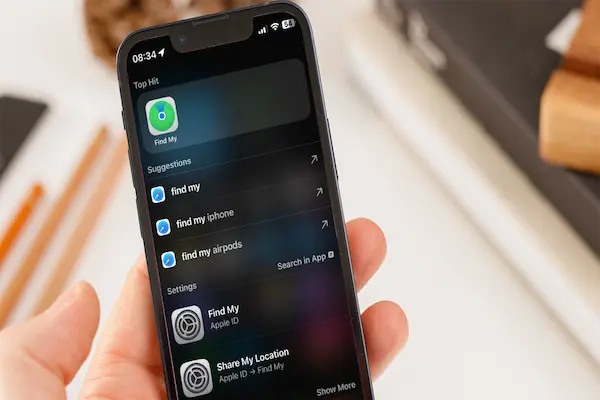
What Is “Find My Device” on Android
Find My Device is Google’s official service that helps locate, secure, and manage a lost Android phone remotely, using your Google account from another phone, tablet, or computer.
This service allows you to:
-
See the phone’s last known location
-
Make the phone ring at full volume
-
Lock the device remotely
-
Display a contact message
-
Erase data if recovery is impossible
It works as long as the phone:
-
Is signed into a Google account
-
Has location services enabled
-
Is connected to the internet (Wi-Fi or mobile data)
How to Check If Find My Device Is Enabled Before Loss
Most Android phones already have this feature active, but it is wise to confirm.
On your Android phone, you can check by reviewing:
-
Location services being turned on
-
Google account logged in
-
Find My Device enabled in security settings
Having this confirmed provides peace of mind.
Step-by-Step: How to Find Lost Android Phone Using Official Tools
When your phone goes missing, follow these steps in order, without rushing.
Step 1: Use Another Device to Access Your Google Account
You can use:
-
Another Android phone
-
An iPhone
-
A tablet
-
A laptop or desktop computer
Sign in using the same Google account connected to your lost phone.
Step 2: Select the Missing Android Device
If you have more than one Android device linked to your account, make sure to select the correct one.
You will see:
-
Device name
-
Last known location
-
Battery level
-
Network status
This information helps determine how recent the location data is.
Step 3: Check the Location Carefully
The map view shows where the phone was last detected.
Important details to consider:
-
Is the location recent or several hours old?
-
Does it show a familiar place?
-
Is it near your home or workplace?
If the phone is nearby, recovery may be quick and simple.
How to Make Your Lost Android Phone Ring
One of the most useful features is the ability to make your phone ring loudly, even if it is set to silent or vibration.
Use this feature when:
-
You believe the phone is nearby
-
The phone may be hidden under furniture
-
You lost it inside a bag or car
The phone will ring at maximum volume for several minutes.
How to Lock a Lost Android Phone Remotely
If the phone appears to be outside your immediate reach, locking it protects your data.
Remote locking allows you to:
-
Set or change the lock screen PIN
-
Prevent access to apps and data
-
Display a custom message
-
Show a contact number for return
This step is especially important if the phone was lost in public.
What Message to Display on the Lock Screen
A clear, polite message increases the chance of recovery.
Good examples include:
-
“This phone is lost. Please call [number].”
-
“If found, please contact the owner.”
-
“Reward offered for return.”
Avoid sharing sensitive information in the message.
When to Consider Erasing the Device
Erasing the phone is a last resort, used only when recovery seems impossible.
Consider erasing if:
-
The phone has not moved for days
-
It appears in an unfamiliar location
-
You suspect theft
-
Sensitive data is at risk
Erasing removes personal data but protects your privacy.
Important Safety Rules When Trying to Recover a Phone
Personal safety should always come first.
Never:
-
Confront strangers directly
-
Visit unfamiliar or unsafe locations alone
-
Attempt recovery late at night
-
Take unnecessary risks for the device
If theft is suspected, contact authorities instead of acting alone.
What to Do If the Phone Is Offline
Sometimes the phone appears offline, which means:
-
Battery is dead
-
Device is turned off
-
No internet connection
In this case:
-
The last known location is still useful
-
You can lock the phone in advance
-
Actions apply once the phone reconnects
Patience is important in this situation.
How to Prepare Your Android Phone Before It Gets Lost
Preparation dramatically increases recovery chances.
Helpful preparation steps include:
-
Keeping location services enabled
-
Turning on Find My Device
-
Using a secure lock screen
-
Keeping Google account access updated
-
Enabling backups for photos and data
Preparation reduces panic and limits damage.
Common Mistakes to Avoid When a Phone Is Lost
Many users make mistakes that reduce recovery chances.
Avoid:
-
Panicking and forgetting account credentials
-
Ignoring remote lock options
-
Sharing tracking information publicly
-
Waiting too long to act
-
Resetting passwords without securing the device first
Clear thinking improves outcomes.
What If the Phone Is Stolen
If theft is likely, shift focus from recovery to protection.
Steps to take:
-
Lock the phone remotely
-
Change Google account password
-
Contact your mobile carrier
-
Monitor account activity
-
Consider erasing the device
Your data matters more than the hardware.
How to Reduce Stress While Searching
Emotional stress can interfere with decision-making.
Helpful techniques:
-
Follow steps one at a time
-
Write down actions taken
-
Ask someone for help calmly
-
Focus on safety, not urgency
Staying calm improves clarity.
How Long Location Data Remains Useful
Location accuracy depends on:
-
Battery level
-
Movement
-
Network availability
Recent locations are more reliable, but even older data helps identify patterns.
What Data Is Protected by Locking the Phone
Remote locking protects:
-
Photos
-
Messages
-
Apps
-
Saved accounts
-
Considerably limits misuse
This step alone prevents most data access.
What Data Is Not Affected by Location Tracking
Find My Device does not:
-
Read personal messages
-
Access private content
-
Share data with others
It only shows location and device status.
Simple Checklist: What to Do When Android Phone Is Lost
Use this checklist as a quick reference:
-
Stay calm
-
Access Google account
-
Check device location
-
Ring the phone
-
Lock the device
-
Display a message
-
Prioritize personal safety
-
Erase if necessary
This structure keeps actions organized.
Building Confidence About Phone Loss Prevention
Confidence comes from preparation and understanding.
Build confidence by:
-
Testing Find My Device once
-
Reviewing security settings
-
Practicing calm responses
-
Sharing knowledge with family
Prepared users react better under stress.
Final Thoughts on How to Find Lost Android Phone
Learning how to find lost Android phone is not about expecting something bad to happen, but about being prepared enough that if it does, you can respond with calm, informed, and responsible actions rather than fear or confusion.
By understanding Google’s official tools, knowing how to ring, lock, or secure your device remotely, and prioritizing personal safety at every step, you significantly increase the chances of recovery while protecting what matters most, which is your personal data and peace of mind.
When these steps become familiar, the idea of losing a phone becomes far less frightening, because instead of feeling helpless, you know exactly what to do, when to do it, and how to protect yourself throughout the process.