
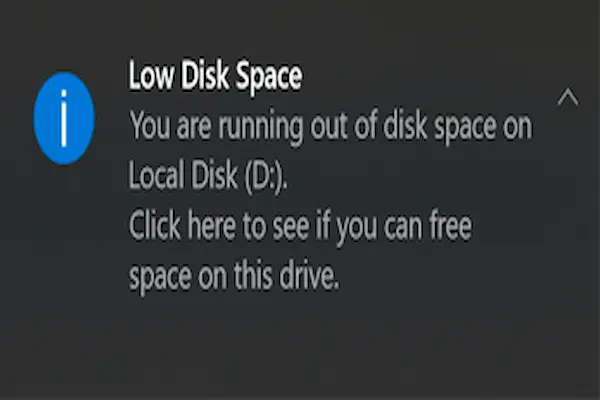
Receiving alerts that your computer is running out of disk space can be stressful, especially when everything still seems to be working and you are not sure which files are safe to remove or where all that storage has gone in the first place.
Many users reach this point slowly, because photos accumulate over the years, programs are installed and forgotten, downloads pile up silently, and temporary files are created without being noticed, until one day the system warns that there is not enough free space left.
This guide on how to free up disk space was written for people who feel lost when facing low storage warnings, offering simple, careful, and realistic steps that work on both Windows and Mac without exaggerated promises or risky shortcuts.
Throughout this article, you will learn how to identify what is taking up space, how to find and remove big files safely, how to use built in storage tools on Windows and macOS, how to review rarely used programs, and why making a basic backup before deleting large amounts of data is a smart habit.
The goal is to help you free storage in a calm and organized way, so your computer feels lighter and more responsive without putting important files at risk.
Understanding Why Disk Space Runs Out Over Time
Disk space rarely disappears suddenly, because most storage problems are the result of many small actions repeated over months or years, such as saving photos, downloading files, installing programs, and keeping old documents that are no longer needed.
Even users who believe they do not store much can be surprised by how quickly storage fills up, especially when modern files like photos and videos are much larger than they used to be.
Common Reasons Storage Gets Full
- Large photo and video collections.
- Old downloads that were never deleted.
- Programs installed for testing and forgotten.
- Temporary system and app files.
- Duplicate files saved in different places.
Recognizing these patterns helps you decide where to start.
First Rule: Do Not Panic and Do Not Delete Randomly
When storage warnings appear, many people react by deleting files quickly without checking what they are, which can lead to accidental loss of important documents or photos.
A better approach is to slow down, understand what is using space, and remove items step by step.
Safe Mindset Before Cleaning Storage
- Avoid deleting system folders.
- Focus on personal files first.
- Move unsure items instead of deleting.
Calm decisions are safer decisions.
How to See What Is Taking Up Space on Your Computer
Before deleting anything, it is important to see a clear overview of how storage is being used, because this prevents guessing and saves time.
Both Windows and macOS include built in storage settings that break down disk usage by category.
Why Storage Overview Is Helpful
- Shows biggest space users.
- Highlights problem areas.
- Guides cleanup priorities.
This overview is your starting map.
How to Free Storage on Windows Using Storage Settings
Windows includes storage tools designed to help users understand and manage disk space without extra software.
Accessing Storage Settings on Windows
- Open Settings.
- Select System.
- Click Storage.
This screen shows how storage is divided.
Categories You Will See
- Apps and features.
- Temporary files.
- Documents.
- Pictures.
- Other.
Each category can be reviewed individually.
Using Temporary Files Cleanup
Temporary files are often safe to remove and can free space quickly.
- Click Temporary files.
- Review the list.
- Select safe items.
- Confirm removal.
This step alone can recover several gigabytes.
How to Free Storage on Mac Using Storage Management
macOS also offers a built in storage management tool that presents disk usage visually.
Accessing Storage Management on Mac
- Click the Apple menu.
- Select System Settings.
- Go to General.
- Click Storage.
The system analyzes storage automatically.
What You Will See in Mac Storage Settings
- Applications.
- Documents.
- Photos.
- System data.
This view helps identify large categories.
Finding Big Files That Use a Lot of Space
Large files are often the fastest way to free disk space, because deleting a few big items can recover more storage than removing hundreds of small ones.
Big files often include videos, backups, archives, or old installers.
How to Locate Large Files Manually
- Sort folders by file size.
- Check Videos and Downloads.
- Look for old archives.
Sorting by size makes problems visible.
Common Large File Types
- Video files.
- Disk images.
- Compressed archives.
- Backup copies.
These files deserve careful review.
Cleaning the Downloads Folder Safely
The Downloads folder is one of the most common sources of clutter, because files are saved there temporarily and rarely reviewed again.
Safe Downloads Cleanup Approach
- Sort files by date.
- Delete old installers.
- Remove duplicate downloads.
- Move important documents.
Downloads are rarely long term storage.
Reviewing and Removing Unused Programs
Programs can take significant space, especially games, creative tools, and trial software.
Removing programs you no longer use is a safe and effective way to free storage.
How to Identify Unused Programs
- Sort by install date.
- Sort by size.
- Look for programs you forgot.
If you have not used it in a year, consider removing it.
Safe Program Removal Practices
- Use system uninstall tools.
- Avoid deleting program folders manually.
Official uninstallers are safest.
Dealing With Photos and Videos Carefully
Photos and videos often hold personal value, so deleting them requires more care.
Smart Ways to Reduce Media Storage
- Remove duplicates.
- Delete blurry or unnecessary shots.
- Move archives to external storage.
Small reductions add up over time.
Understanding System and Other Data
System data can look large and mysterious, yet most of it should not be touched directly.
What to Do With System Data
- Use built in cleanup tools.
- Update the system regularly.
- Restart occasionally.
Manual deletion here is risky.
Using Storage Settings to Get Recommendations
Both Windows and macOS offer suggestions based on your storage usage.
Typical Recommendations
- Remove unused apps.
- Clean temporary files.
- Review large files.
These recommendations are generally safe.
Why Backup Is Important Before Deleting Many Files
Before removing large amounts of data, creating a simple backup protects you from mistakes.
Backups do not need to be complex.
Simple Backup Options
- External drive copy.
- Cloud storage for key folders.
Backup adds peace of mind.
What Not to Do When Freeing Disk Space
Some actions can cause more harm than good.
Actions to Avoid
- Deleting system folders.
- Using unknown cleaner tools.
- Removing files you do not recognize.
When unsure, do nothing and research.
How Much Free Space Should You Aim For
Keeping some free space is important for performance.
General Guidelines
- At least 10 to 20 percent free.
- More space for older systems.
Free space helps the system work smoothly.
Creating a Simple Storage Maintenance Routine
Regular maintenance prevents future storage problems.
Monthly Quick Check
- Review Downloads.
- Check storage overview.
- Delete temporary files.
Quarterly Deeper Review
- Review large files.
- Check installed programs.
- Archive old projects.
Small habits avoid big cleanups.
How Freeing Disk Space Improves Performance
Low disk space can slow down the system, especially during updates and file operations.
Benefits of Free Storage
- Faster updates.
- Better system responsiveness.
- Reduced error messages.
Performance improves gradually.
Common Myths About Disk Space Cleanup
Myth: You Must Delete Everything Old
Old does not always mean unnecessary.
Myth: Cleaner Apps Are Always Safe
Some cleaners remove important files.
Myth: One Cleanup Solves Everything Forever
Maintenance is ongoing.
Frequently Asked Questions About How to Free Up Disk Space
Will deleting files break my computer?
Normal personal file deletion is safe.
Can I move files instead of deleting?
Yes, external storage is a good option.
How often should I clean storage?
Light monthly checks work well.
Final Thoughts and a Practical Next Step
Learning how to free up disk space does not require technical expertise or drastic actions, but rather a clear understanding of where storage is being used and a careful approach to removing what is no longer needed.
When you use built in storage settings, focus on large files, review unused programs, and back up important data before deleting, freeing space becomes a manageable and safe process instead of a stressful one.
Could you open your storage settings today, identify the largest category using space, and remove or move just a few unnecessary files to start relieving that low storage warning?