
Turning on the computer and waiting several minutes until it becomes usable is a very common frustration, especially when the system feels slow, unresponsive, or overloaded before you even open the programs you actually need.
In many cases, this slow startup does not mean the computer is old or broken, but rather that too many programs are set to open automatically when the system starts, silently consuming memory and processing power in the background.
This guide on how to manage startup programs was created to help users who experience slow boot times understand what startup programs are, why they exist, how to review them safely, and how to disable unnecessary ones on both Windows and macOS without putting the system at risk.
Throughout this article, you will learn where to find startup apps in Windows and Mac, how to tell which programs are safe to disable, which ones should usually stay enabled, and how small adjustments can result in noticeably faster startup and a smoother daily experience.
The focus is practical and objective, with clear alerts about what not to touch, so you can improve performance confidently instead of guessing.
What Are Startup Programs and Why They Matter
Startup programs are applications or background services that are configured to launch automatically when you turn on your computer or log into your user account.
Some of these programs are essential for the system to work correctly, while others are added by software installations for convenience, updates, or marketing reasons.
Over time, the list of startup programs tends to grow, especially for users who install many applications, test software, or accept default installation options without reviewing them.
Why Too Many Startup Programs Slow Down the Computer
- They use memory before you start working.
- They compete for processor resources.
- They increase disk activity at boot.
- They extend the time until the system feels responsive.
Reducing unnecessary startup programs allows the system to focus on what really matters.
Startup Programs Versus Programs You Open Manually
It is important to understand that disabling a startup program does not uninstall it, nor does it prevent you from using it later.
Disabling startup simply means the program will not open automatically, but you can still launch it manually whenever you need it.
Simple Comparison
- Startup enabled: opens automatically.
- Startup disabled: opens only when you choose.
This distinction helps reduce fear when making changes.
Common Signs That Startup Programs Need Review
Some symptoms strongly suggest that too many programs are launching at startup.
Typical Warning Signs
- Very slow boot time.
- Computer freezes shortly after login.
- Fan noise immediately after startup.
- Many icons appearing near the clock.
If you recognize these signs, reviewing startup programs is a good next step.
How to Manage Startup Programs on Windows
Windows includes built in tools that make it possible to see which programs start with the system and how much impact they have on startup speed.
No additional software is required for this task.
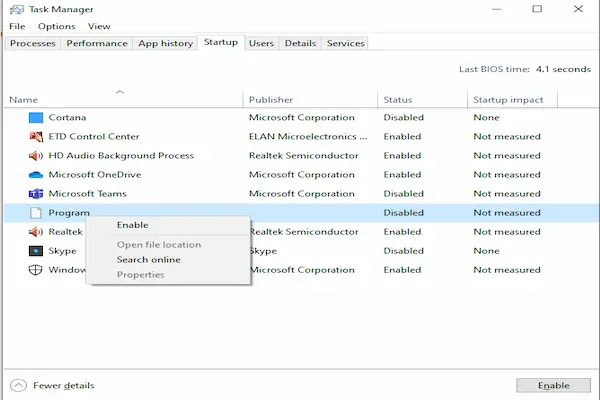
Accessing Startup Apps Through Task Manager
- Right click on the taskbar.
- Select Task Manager.
- Click the Startup tab.
This list shows all programs configured to start automatically.
Understanding the Startup Tab Columns
- Name: the program name.
- Status: enabled or disabled.
- Startup impact: estimated effect on boot time.
The impact column is especially useful for beginners.
What Startup Impact Means
- High impact: significantly slows startup.
- Medium impact: moderate effect.
- Low impact: minimal effect.
- Not measured: impact not recorded yet.
High impact programs deserve attention first.
How to Disable Startup Apps on Windows Safely
Disabling startup apps in Windows is simple and reversible.
Steps to Disable a Program
- Open Task Manager.
- Go to Startup tab.
- Select the program.
- Click Disable.
The change takes effect on the next restart.
Examples of Programs Often Safe to Disable
- Music players.
- Chat apps you do not use daily.
- Game launchers.
- Optional cloud sync tools.
These programs can still be opened manually.
Programs That Usually Should Stay Enabled
- Security or antivirus software.
- Input drivers.
- System related services.
When in doubt, leave it enabled.
How to Manage Startup Programs on Mac
On macOS, startup programs are managed through Login Items, which control which apps open automatically when you sign in.
This area is designed to be simple and user friendly.
Accessing Login Items on Mac
- Open System Settings.
- Select your user account.
- Click Login Items.
The list shows apps that open at login.
Understanding the Login Items List
- Apps that open automatically.
- Background items.
macOS separates visible apps from background processes.
How to Remove or Disable Login Items on Mac
Managing login items is straightforward.
Steps to Disable a Login Item
- Select the app in the list.
- Click the remove button.
The app will no longer open automatically.
Examples of Login Items Often Safe to Remove
- Media players.
- Optional productivity tools.
- Third party update checkers.
Manual launch remains available.
Login Items That Usually Should Stay
- Security software.
- Accessibility tools you rely on.
- Essential sync services.
Removing essential items can affect functionality.
Understanding Background Items on macOS
macOS also shows background items that run without visible windows.
These items support updates, sync, or system integration.
How to Approach Background Items
- Review names carefully.
- Disable only if familiar.
- Restart and observe behavior.
Caution is recommended here.
How Startup Programs Affect Boot Speed
Each startup program adds a small delay, and together they can significantly slow the boot process.
Why Fewer Startup Apps Help
- Less competition for resources.
- Faster desktop availability.
- Smoother login experience.
The improvement is often noticeable after one restart.
How Many Startup Programs Are Reasonable
There is no universal number, but fewer is generally better.
General Guidelines
- Essential system apps only.
- Avoid optional tools at startup.
- Launch rarely used apps manually.
Minimalism improves performance.
Creating a Startup Review Routine
Startup programs tend to increase again over time.
Simple Maintenance Routine
- Review startup list every three months.
- Disable new unnecessary entries.
- Restart and test performance.
This habit prevents future slowdowns.
What Not to Do When Managing Startup Programs
Some actions can cause confusion or problems.
Actions to Avoid
- Disabling unknown system entries.
- Using aggressive cleaner apps.
- Removing security software from startup.
When uncertain, research first.
Difference Between Startup Programs and Services
Some background activity comes from system services rather than startup apps.
Services are more advanced and should not be modified casually.
Beginner Recommendation
- Focus on startup apps only.
- Avoid changing services.
This keeps changes safe.
How to Test Changes After Disabling Startup Programs
Testing confirms whether adjustments were helpful.
Testing Steps
- Restart the computer.
- Observe boot time.
- Check system responsiveness.
If something feels wrong, re enable the app.
Re Enabling Startup Programs If Needed
Changes are reversible.
How to Re Enable
- Windows: Enable in Task Manager.
- Mac: Add back to Login Items.
Flexibility reduces risk.
Examples of Good Startup Setups
Lightweight Setup
- Security software.
- System drivers.
Balanced Setup
- Security software.
- One essential sync tool.
- Accessibility app if needed.
Choose based on personal needs.
How Startup Management Improves Daily Use
Faster startup affects more than boot time.
Additional Benefits
- Lower background resource usage.
- Better battery life on laptops.
- Less system noise and heat.
The system feels lighter overall.
Common Myths About Startup Programs
Myth: Disabling Startup Uninstalls the App
The app remains installed.
Myth: More Startup Apps Means Faster Access
Manual launch is usually fast enough.
Myth: All Startup Apps Are Necessary
Many are optional.
Frequently Asked Questions About How to Manage Startup Programs
Can disabling startup apps damage my system?
Disabling non essential apps is safe.
How often should I review startup programs?
Every few months is sufficient.
Will this make an old computer feel new?
It improves responsiveness but has limits.
Final Thoughts and a Practical Next Step
Learning how to manage startup programs is one of the most effective and low risk ways to improve computer performance, especially for users who experience slow boot times and unnecessary background activity.
When you understand which programs truly need to open with the system, disable the rest carefully, and review the list periodically, your computer starts faster, feels more responsive, and becomes more pleasant to use every day.
Could you open the startup list today, identify just one non essential program, disable it, and restart your computer to experience how a small change can already make a noticeable difference?