
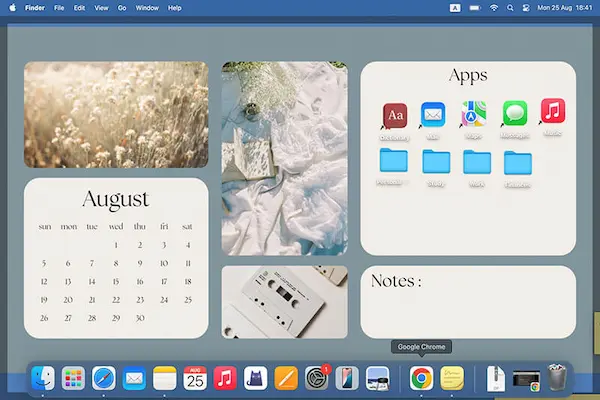
Living with a desktop full of icons can feel normal at first, because saving a file to the Desktop is fast and it looks like an easy place to “remember later,” yet over time that habit turns into visual noise that makes it harder to focus, slower to find what you need, and surprisingly stressful when you are already busy.
Many Windows and Mac users end up with the same pattern, which is a wallpaper hidden behind dozens of files, screenshots, random downloads, duplicate documents, and shortcuts that seemed important at the moment, but now create a crowded workspace that feels more like a storage closet than a helpful starting point.
This guide on how to organize desktop files is designed to help you clear the clutter in a structured way that does not rely on motivation alone, because the key to a clean desktop is a simple system that is easy to maintain even when you are tired, in a hurry, or juggling many tasks.
You will learn desktop clutter tips that work for real life, a step by step sorting routine, a suggested folder structure that makes sense for most people, practical ways to manage shortcuts without turning your desktop into a billboard, and a quick weekly maintenance habit that keeps things under control without consuming your whole weekend.
Context and Why “How to Organize Desktop Files” Matters in Real Life
A messy desktop is rarely a sign of laziness, because most clutter appears when people are doing their best to move fast, get work done, and keep life running, which means the desktop becomes the default parking lot for anything that feels urgent.
When your desktop is overloaded, the problem is not only aesthetic, because it becomes harder to locate the correct file version, you waste time scanning the screen, and you may accidentally drag, delete, or overwrite items without noticing, especially when the icon grid is packed tightly.
Windows and macOS both provide tools to keep the desktop organized, yet most users never set up a basic system, so the desktop becomes a mix of work files, personal documents, temporary downloads, old screenshots, and shortcuts that all compete for attention.
Common Signs Your Desktop Needs a Reset
- You take screenshots and they disappear into the mess, so you capture the same thing multiple times.
- You keep opening several files to find the “final final” version because names are unclear.
- You avoid showing your screen during calls because the desktop looks chaotic.
- You save things to the desktop because you do not know where else they should go.
- You feel a small wave of stress when you minimize windows and the desktop appears.
If any of these feel familiar, the good news is that you do not need a perfect personality, because you only need a simple system and a repeatable routine.
How to Organize Desktop Files With a One Time Reset That Actually Works
The fastest way to clean a desktop is not to drag items into random folders, because that usually creates a new kind of mess, so instead you will do a short triage that separates temporary clutter from important files and puts everything into a predictable structure.
Before you start, close apps that might be saving files to the desktop automatically, and make sure you have a few minutes where you will not be interrupted, because the first pass works best when you keep momentum.
Step 1: Create a Temporary “Desktop Inbox” Folder
Create one folder on the desktop named 00 Desktop Inbox, because it becomes the safe holding area where you can drop everything quickly without losing anything, and this avoids endless decision making while you are still trying to get visibility back.
- Right click the desktop, choose New Folder, and name it 00 Desktop Inbox.
- Select everything on your desktop except important permanent folders you already trust.
- Drag the selected items into 00 Desktop Inbox to instantly clear your screen.
- Take a breath and notice how much easier it is to think with a clean background.
This is not cheating, because you are not hiding the mess forever, you are creating a controlled place to process it.
Step 2: Separate Shortcuts From Real Files
Shortcuts are useful, yet they often multiply, and many people keep shortcuts for apps they can already open from the Start menu, Dock, Spotlight, or search, so the first organizing move is to split shortcuts from files.
- Create a folder inside the inbox called Shortcuts.
- Create another folder called Files to Sort.
- Move all shortcuts, aliases, or app icons into Shortcuts.
- Move everything else into Files to Sort.
Once shortcuts are separated, you can be more honest about which ones you truly use.
Step 3: Do a Quick “Keep, Move, Delete” Pass
This pass is where your desktop clutter tips become practical, because you are not trying to organize perfectly, you are trying to remove obvious junk and reduce the pile quickly.
- Open Files to Sort and sort by Date Modified to see the most recent items first.
- Delete obvious trash like duplicates, outdated exports, and files you no longer recognize.
- Move personal photos and random images into a Photos folder or your system Photos app.
- Move documents into a Documents folder, even if you will reorganize later.
- Move installers and temporary downloads into Downloads or delete them if they are no longer needed.
The goal is speed with safety, so when you are unsure, keep the file and move it into a “Review Later” folder rather than getting stuck.
Step 4: Create a Simple Folder Structure You Can Maintain
A good folder structure is not the most complex one, because it is the one you can follow on a tired day, so the suggestion below uses a small number of top level folders with clear meaning.
Create these folders in your main Documents directory, or inside a dedicated “Workspace” folder, depending on how you prefer to work.
Suggested Folder Structure
- 01 Work
- 02 Personal
- 03 School (optional)
- 04 Finance
- 05 Photos
- 06 Downloads to Review
- 07 Archive
Numbering keeps folders in a predictable order, which is helpful when your brain is tired and you want to find things quickly.
Inside Each Folder, Use Simple Subfolders
Instead of creating dozens of categories immediately, start with a small set of subfolders that match real life, because your system should mirror how you think.
- 01 Work: Projects, Admin, Clients, Templates
- 02 Personal: Home, Health, Travel, Family
- 04 Finance: Receipts, Taxes, Banking, Purchases
- 07 Archive: Old Projects, Old Receipts, Past Years
As your needs grow, add subfolders slowly, because too many categories too early usually makes the system harder to use.
Desktop Clutter Tips That Keep the Desktop Clean Without Feeling Strict
Once the big cleanup is done, the main skill is not organizing perfectly, because the main skill is preventing the desktop from becoming the default dump zone again.
These desktop clutter tips focus on changing small behaviors and using system features to reduce friction.
Tip 1: Treat the Desktop Like a Temporary Countertop, Not a Storage Closet
When you treat the desktop like a kitchen countertop, you only leave items there temporarily while you are using them, and then you put them away when you are done, which means the desktop remains functional and visually calm.
- Leave only current work items on the desktop, ideally fewer than 10.
- Move finished items into the correct folder the same day if possible.
- Use the inbox folder whenever you need speed without chaos.
Tip 2: Use a “Today” or “This Week” Folder for Active Work
Many people keep files on the desktop because they are afraid of forgetting them, so a simple alternative is to create one active folder that holds only what you are currently working on.
- Create a folder named Active inside your Work folder.
- Place current documents there, not on the desktop.
- Review it weekly, moving finished items into Projects or Archive.
Tip 3: Use Better File Names to Stop Version Confusion
File naming feels boring until it saves you from opening five similar documents, so a basic naming pattern helps you identify files instantly.
Simple Naming Pattern
- YYYY-MM-DD at the start for time sensitive files.
- A short clear title in the middle.
- A version tag only when needed, such as v1, v2, or Final.
Examples that stay readable include 2026-01-06 Budget Update v2 or 2026-01-06 Client Proposal Draft, because they show date and purpose without being too long.
How to Clean Desktop and Keep Only Shortcuts That Matter
Shortcuts can be genuinely helpful, yet many desktops are filled with duplicates, app icons that can be opened faster through search, and random links that were created automatically, so the goal is to keep shortcuts intentionally rather than by accident.
Manage Shortcuts With a “Launch Pad” Approach
Instead of spreading shortcuts across the desktop, create one folder or one small area for the few items that truly deserve one click access.
- Keep shortcuts for tools you open multiple times per day.
- Remove shortcuts for apps you open once a week or less, because search is faster.
- Keep a shortcut for the Work folder or Active folder if you use it constantly.
- Add a shortcut for Screenshots only if you take them daily and need quick access.
Shortcuts That Are Usually Worth Keeping
- Your main Work folder or active project folder.
- Your most used communication app.
- Your browser if you rely on a specific profile for work.
- Your screenshot folder if your job depends on capturing things.
Shortcuts That Usually Create Clutter
- Installers or setup files that should live in Downloads or be deleted.
- Old project folders that belong in Archive.
- Duplicate app icons that already live in the Dock or Taskbar.
Windows Tips to Organize Desktop Files Faster
Windows offers several built in tools that help you keep the desktop organized, and when you use them intentionally, you reduce the chance of icons scattering everywhere.
Use “Sort by” and “Group by” for Quick Visual Order
- Right click the desktop and select Sort by Name to align things temporarily.
- Use Sort by Date modified when looking for the newest item.
- Try Group by Type if your desktop is full of mixed items like PDFs and images.
Use the Taskbar for Apps and Keep the Desktop for Files
Pin the apps you use daily to the taskbar, because that reduces the need for app shortcuts on the desktop and keeps your workspace looking cleaner.
- Pin browser, email, and file explorer to the taskbar.
- Pin your communication app if you use it daily.
- Unpin things you rarely use to avoid a cluttered taskbar.
Make Downloads Less Messy With a Simple Habit
Downloads often end up on the desktop because users want quick access, so use a routine that moves downloads into a review folder instead.
- Open Downloads once per day or once per week.
- Move important items into Work or Personal immediately.
- Delete installers and duplicates you do not need.
Mac Tips to Sort Folders and Reduce Desktop Visual Noise
macOS has a feature that can instantly make a messy desktop look organized, and using it together with a simple folder system gives you both short term relief and long term structure.
Use Stacks to Group Desktop Files Automatically
Stacks groups desktop files into neat piles by kind, date, tags, or other categories, which is helpful when you need quick order without a deep cleanup.
- Right click the desktop.
- Select Use Stacks.
- Adjust Group Stacks By to choose Kind or Date Created depending on your needs.
Stacks is not a replacement for a good system, yet it is a powerful support tool when the desktop gets busy.
Use Finder Favorites for Fast Access Without Desktop Clutter
Adding key folders to Finder Favorites gives you quick access without creating desktop shortcuts, and it works well for people who want a clean desktop with efficient navigation.
- Add Work, Personal, and Active folders to Favorites.
- Remove folders you no longer use to keep the list short.
- Use Tags sparingly to highlight urgent items instead of placing them on the desktop.
Step by Step Weekly Routine to Keep the Desktop Organized
A clean desktop is not maintained by willpower, because it is maintained by a small routine that is fast enough to repeat, and the best routine is the one you can do in ten minutes or less.
The 10 Minute Weekly Desktop Reset
- Move everything currently on the desktop into 00 Desktop Inbox, except the few shortcuts you intentionally keep.
- Open the inbox and delete obvious trash first, because this creates quick wins.
- Sort remaining items by type, then move them into Work, Personal, Finance, or Archive.
- Rename any files that are unclear, focusing on date and purpose.
- Open Downloads and move anything important into the correct folders.
- Check Screenshots and move important ones into the right project folder.
- Empty the recycle bin or trash only after confirming nothing important was deleted.
Doing this weekly keeps the desktop from reaching a crisis point, and once you practice it a few times, it becomes almost automatic.
A Monthly Deepening Step That Prevents Future Chaos
Once per month, take a little extra time to reduce future clutter, because many desktop problems come from repeated patterns like saving screenshots, exporting files, and downloading attachments.
- Review the Archive folder and create year based subfolders if needed.
- Delete duplicates and old installers you forgot about.
- Check large files to see what is consuming space.
- Confirm that Work projects are stored where they should be, not scattered.
Examples of Real Life Desktop Scenarios and How to Fix Them
Organization systems work best when they match real situations, so the examples below show how to handle common desktop chaos patterns with simple actions.
Scenario 1: Desktop Full of Random PDFs and Receipts
- Create a Finance folder with Receipts and Purchases subfolders.
- Rename files using date and store name, then move them into Receipts.
- Move warranty PDFs into Purchases so they are easy to find later.
Scenario 2: Desktop Covered in Screenshots
- Create a Screenshots folder inside Photos or Work depending on usage.
- Move all screenshots there, then delete duplicates and blurry captures.
- Use a weekly habit to process screenshots, keeping only what matters.
Scenario 3: Desktop Full of Project Files From Different Months
- Create a Projects folder inside Work and add one folder per project.
- Move related files into each project folder, then delete old drafts if safe.
- Create an Archive folder for completed projects, labeled by year.
Frequently Asked Questions About How to Organize Desktop Files
Is it okay to keep files on the desktop if it works for me?
Keeping a few active files on the desktop can be fine, especially for short periods, yet the key is to keep the number small and have a predictable place to move files once they are finished.
What if I am afraid of losing files when I move them?
Using the inbox folder reduces fear, because you always have one place to check, and naming folders clearly helps you build trust that files are not disappearing, they are simply living in a more reliable structure.
How many folders should I create to start?
Starting with five to seven top level folders is usually enough, because too many folders at the beginning adds complexity and increases the chance that you will avoid the system.
Should I use cloud storage or keep everything local?
Both approaches can work, and the safest choice often involves storing important files in a reliable place that is backed up, while still keeping a simple folder structure that remains clear whether files live locally or in a synced folder.
Wrap Up: A Clean Desktop That Stays Clean Without Constant Effort
Learning how to organize desktop files is less about becoming perfectly tidy and more about building a simple system that reduces daily friction, keeps your work visible without chaos, and makes it easier to find what you need when time is short.
When you use a quick triage method, maintain a small folder structure, keep only the shortcuts that truly matter, and follow a weekly ten minute reset, the desktop becomes a calm workspace again instead of a growing pile of unfinished decisions.
Which part of your desktop clutter feels most annoying right now, is it the downloads, the screenshots, the duplicated documents, or the shortcuts you never use, and which one small change could you try today so that your desktop looks better before the week ends?