
Having internet at home has become almost as essential as electricity or water, because it connects the family to work, school, entertainment, communication, and daily services, yet many people responsible for the home Wi-Fi network have never stopped to think about how protected that connection really is.
For most households, the Wi-Fi router was installed once, the password written down somewhere, and everything started working, which feels convenient, but over time this lack of review can leave the network more open than necessary, especially as new devices connect, neighbors change, or settings remain exactly as they were on the first day.
This complete guide on how to protect WiFi network was created for people without technical background who simply want to make sure their home internet is reasonably safe, stable, and under their control, without advanced configurations, complicated words, or risky experiments.
Throughout this article, you will learn in a calm and didactic way why Wi-Fi protection matters, what simple actions make the biggest difference, how to think about passwords and encryption, why default settings deserve attention, and how the idea of a guest network can help keep your main devices more protected.
The goal is not to turn you into a networking expert, but to help you understand enough to make informed, safe decisions while always following the official manual of your equipment.
Why Protecting Your Home Wi-Fi Network Matters
Your home Wi-Fi network is the door through which all your connected devices access the internet, including phones, computers, TVs, and smart devices, which means that anyone who connects to it shares the same digital space.
When a Wi-Fi network is poorly protected, it can allow unknown devices to connect, consume internet speed, or in worse cases create privacy and security problems.
What Can Happen With an Unprotected Wi-Fi Network
- Slower internet due to unknown users.
- Loss of control over connected devices.
- Increased risk of misuse.
- Exposure of shared devices.
Protection is about prevention, not paranoia.
Understanding Wi-Fi in Simple Terms
Wi-Fi is simply a way to send internet data through the air from your router to your devices, which makes it convenient, but also means that the signal reaches beyond your walls.
Because the signal travels through space, basic protection is necessary to decide who is allowed to use it.
Key Parts of a Home Wi-Fi Network
- The internet provider connection.
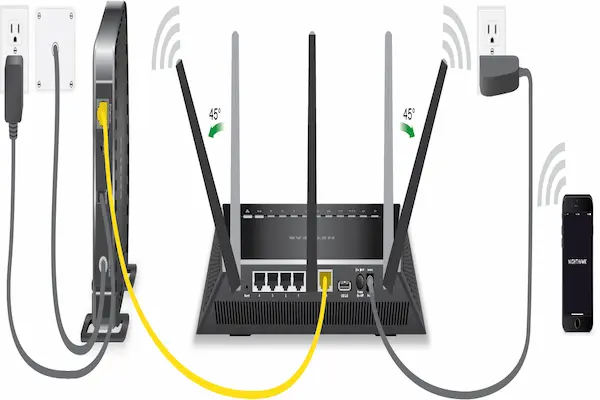
- The Wi-Fi router.
- The devices connected to it.
Most safety steps involve the router.
The Role of the Router in Network Protection
The router is the central piece that controls access to your Wi-Fi network, acting like a gatekeeper that allows or denies connections based on the rules you set.
Even simple routers include basic security options that are often enough when used correctly.
What the Router Controls
- Wi-Fi name and password.
- Type of encryption.
- Connected devices list.
Small adjustments can bring big improvements.
First and Most Important Step: Setting a Strong Wi-Fi Password
The Wi-Fi password is the first line of defense for your home network, and it should be strong enough to prevent neighbors or passersby from guessing it easily.
A weak password is like leaving the door unlocked.
Characteristics of a Safer Wi-Fi Password
- Longer length.
- Combination of letters and numbers.
- No obvious words.
Length matters more than complexity.
Examples of Weak Wi-Fi Passwords to Avoid
- 12345678.
- Password.
- Your address or name.
Predictability makes guessing easier.
Why Changing the Default Wi-Fi Password Is Essential
Many routers come with a default Wi-Fi password printed on a label, which is convenient at the beginning, but not ideal for long-term use.
Default passwords are often shared among many devices of the same model.
Risks of Keeping Default Passwords
- Easier for others to find online.
Changing it adds a personal layer of protection.
How Often You Should Change the Wi-Fi Password
Wi-Fi passwords do not need constant changes, but reviewing them periodically is a good habit.
Good Moments to Change the Password
- After sharing with many people.
- After moving to a new home.
- When devices change frequently.
Changes should be intentional, not constant.
Understanding Wi-Fi Encryption in Simple Language
Encryption is the method used to protect data traveling between your router and your devices, making it unreadable to outsiders.
Using current encryption is an important part of network protection.
Why Encryption Matters
- Protects information in transit.
- Prevents easy interception.
Encryption works silently in the background.
General Advice About Encryption Settings
- Use the most recent option available on your router.
- Avoid outdated encryption when possible.
Always follow the router manual.
The Importance of Changing Router Login Details
Besides the Wi-Fi password, routers also have a login for their settings page, which many people never change.
This login controls the entire network.
Why Router Login Protection Is Important
- Prevents unauthorized changes.
- Protects network settings.
Default logins are widely known.
Simple Advice for Router Login Safety
- Change default username if possible.
- Use a different password than Wi-Fi.
Keep login details stored safely.
Keeping the Router in a Good Physical Location
Where you place the router also affects security and performance.
Why Location Matters
- Signal range.
- Physical access.
Central placement often works best.
Placement Tips
- Avoid placing near windows.
- Keep away from public access areas.
Small changes can reduce exposure.
Understanding the Wi-Fi Network Name
The Wi-Fi network name, also called SSID, is visible to anyone nearby.
Choosing a neutral name is part of good practice.
What to Avoid in Network Names
- Your full name.
- Apartment number.
- Router model.
Less information means less attention.
Checking Which Devices Are Connected to Your Network
Routers usually show a list of connected devices, which can help you notice unfamiliar connections.
Why Checking Connected Devices Is Useful
- Identify unknown devices.
- Understand network usage.
Occasional checks are enough.
What to Do If You See an Unknown Device
- Change the Wi-Fi password.
- Reconnect known devices.
This resets access control.
Using a Guest Network for Visitors
A guest network is a separate Wi-Fi network for visitors that does not give access to your main devices.
Many modern routers support this feature.
Why a Guest Network Is Helpful
- Protects personal devices.
- Avoids sharing main password.
Guests get internet without full access.
When a Guest Network Makes Sense
- Frequent visitors.
- Friends or service providers.
It is optional but useful.
Simple Rules for Sharing the Wi-Fi Password
Sharing the Wi-Fi password is common, but doing it carefully reduces future issues.
Good Sharing Practices
- Share only when necessary.
- Avoid posting passwords publicly.
Control who knows the password.
Understanding That Public Wi-Fi Is Different
Home Wi-Fi protection habits differ from public Wi-Fi usage.
Key Difference
- Home Wi-Fi is under your control.
- Public Wi-Fi is shared.
Do not treat them the same.
Updating the Router When Recommended
Routers sometimes receive updates that improve stability or security.
Why Updates Matter
- Fix known issues.
- Improve protection.
Follow manufacturer instructions carefully.
Avoiding Advanced Settings Unless Necessary
Many routers offer advanced options that are not needed for basic protection.
Why Simplicity Is Safer
- Less chance of mistakes.
- Easier troubleshooting.
Basic settings are usually enough.
Creating a Simple Wi-Fi Protection Routine
Routine checks help maintain safety without effort.
Suggested Routine
- Review password once a year.
- Check connected devices occasionally.
- Confirm guest network settings.
Consistency is more important than frequency.
Explaining Wi-Fi Safety to Family Members
Everyone in the household should understand basic Wi-Fi rules.
Topics to Explain Simply
- Not sharing the password freely.
- Asking before changing settings.
Shared understanding prevents problems.
Common Myths About Protecting Wi-Fi Networks
Myth: Home Wi-Fi Is Not Interesting to Others
Any open network can attract attention.
Myth: Protection Requires Technical Knowledge
Basic steps already help a lot.
Myth: One Setup Is Enough Forever
Occasional review is healthy.
Printable Checklist: How to Protect WiFi Network
Essential Actions
- Change default Wi-Fi password.
- Use current encryption option.
- Protect router login.
Helpful Extras
- Enable guest network if available.
- Check connected devices.
Good Habits
- Do not rush changes.
- Follow router manual.
This checklist can be printed and kept nearby.
Practice Exercise: One Small Improvement Today
Exercise Ideas
- Check your Wi-Fi password length.
- Look at connected devices.
- Write down router login details safely.
Small actions bring peace of mind.
Frequently Asked Questions About Protecting Wi-Fi
Is protecting Wi-Fi complicated?
No, basic steps are enough.
Do I need to buy extra equipment?
Usually no.
Should I change settings often?
Only when needed.
Final Thoughts and a Calm Next Step
Learning how to protect WiFi network does not require technical expertise, but rather attention to simple details, such as changing default information, choosing a strong password, using available encryption, and understanding who has access to your connection.
When you treat your home Wi-Fi as an important shared resource, follow the router’s official manual, and adopt a few careful habits, you significantly reduce unnecessary risks while keeping your internet easy and reliable for everyone in the house.
Could you choose just one step today, such as reviewing your Wi-Fi password or checking the router’s basic settings, and take a calm but meaningful step toward a safer home internet environment?