
Knowing how to record screen on phone has become an increasingly valuable skill for everyday users, because recording what happens on the screen makes it much easier to explain steps, demonstrate solutions, save important processes, or help friends and family without needing complex explanations or repeated messages.
Many people already know how to take screenshots, but screen recording goes one step further by capturing movement, taps, menus, and transitions in real time, which is especially helpful when you want to show exactly how something works instead of describing it with words alone.
This guide was created for people who want to record their phone screen in a simple, safe, and ethical way, whether the goal is creating small tutorials, saving proof of an issue, guiding someone step by step, or keeping a visual record of something important, all without advanced technical knowledge or complicated tools.
What Screen Recording on a Phone Actually Does
Screen recording is a built-in phone feature that captures everything happening on your display as a video file, including apps opening, buttons being tapped, menus scrolling, and transitions between screens, while optionally recording audio such as system sounds, microphone input, or both.
When used correctly, screen recording allows you to:
-
Create visual tutorials for apps or settings
-
Demonstrate how to complete a task step by step
-
Record temporary information that disappears quickly
-
Save evidence of errors, bugs, or system behavior
-
Share instructions more clearly than screenshots
However, screen recording should always be used with awareness and responsibility, especially when other people’s information or private content appears on the screen.
When Screen Recording Is Useful in Everyday Life
Many users underestimate how often screen recording can simplify communication and problem-solving, especially in situations where words alone feel confusing or insufficient.
Common practical uses include:
-
Recording steps to help a friend set up an app
-
Showing parents or relatives how to change phone settings
-
Capturing a problem before it disappears
-
Creating short tutorials for work or study
-
Saving confirmation flows or temporary messages
-
Demonstrating app behavior for customer support
Once you understand how to record screen on phone properly, the feature often becomes a natural extension of daily phone use rather than a rare tool.
Ethical and Responsible Use of Screen Recording
Before learning the technical steps, it is essential to understand the ethical side of screen recording, because recording content without awareness can accidentally expose sensitive information or violate someone’s privacy.
Always keep these principles in mind:
-
Never record private conversations without consent
-
Avoid capturing personal data such as passwords or codes
-
Pause or stop recording when sensitive content appears
-
Inform others if their messages or profiles are visible
-
Use recordings for helpful purposes, not manipulation
Responsible usage builds trust and avoids unnecessary problems.
How to Record Screen on Android Phones
Most modern Android phones include a built-in screen recording feature that is easy to access once you know where it is located.
Finding the Screen Recording Tool on Android
On many Android devices, the screen recorder is found inside the quick settings panel.
Steps to locate it:
-
Swipe down from the top of the screen to open quick settings
-
Swipe again to expand all available icons
-
Look for an option labeled “Screen Recorder” or “Record Screen”
-
If not visible, tap the edit icon to add it
Once added, the screen recording icon remains available for future use.
Starting a Screen Recording on Android
After locating the screen recorder, starting a recording is usually straightforward.
Steps to begin recording:
-
Open the app or screen you want to record
-
Swipe down to access quick settings
-
Tap the screen recording icon
-
Choose audio options if prompted
-
Confirm and wait for the countdown
The phone will begin recording everything shown on the screen.
Audio Options When Recording on Android
Android phones often allow different audio recording choices, depending on device model and version.
Common audio options include:
-
No audio
-
System sounds only
-
Microphone only
-
System sounds and microphone
Choosing the correct option depends on your goal, such as explaining steps verbally or only showing visual actions.
Stopping the Screen Recording on Android
Ending a recording is just as simple as starting one.
Ways to stop recording:
-
Tap the stop button in the notification bar
-
Tap the floating stop icon on the screen
-
Lock the phone if configured to stop recording
Once stopped, the video is automatically saved to your gallery or a screen recordings folder.
How to Record Screen on iPhone
iPhones also include a built-in screen recording feature that is hidden by default but easy to activate once configured.
Enabling Screen Recording on iPhone
Before using screen recording on iPhone, the feature must be added to Control Center.
Steps to enable it:
-
Open the Settings app
-
Go to Control Center
-
Find Screen Recording
-
Add it to the active controls list
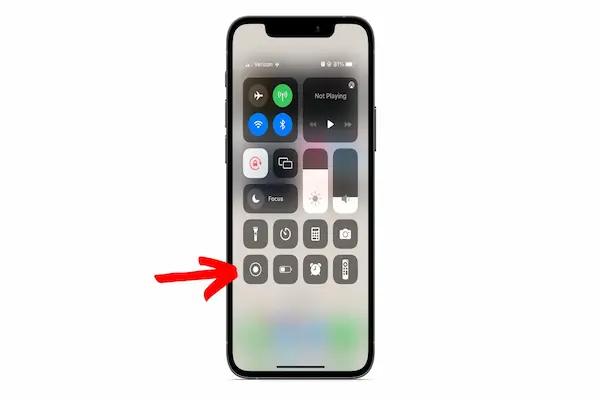
After this step, screen recording becomes accessible from the Control Center.
Starting a Screen Recording on iPhone
Once enabled, starting a recording takes only a few seconds.
Steps to start recording:
-
Open the screen you want to capture
-
Swipe down from the top right corner to open Control Center
-
Tap the Screen Recording icon
-
Wait for the countdown
The phone immediately begins recording everything on the display.
Recording Audio on iPhone Screen Recordings
iPhones allow microphone audio to be added manually.
Steps to enable microphone audio:
-
Open Control Center
-
Press and hold the Screen Recording icon
-
Toggle the microphone option on
-
Start recording
This is useful when you want to narrate actions or explain steps aloud.
Stopping the Screen Recording on iPhone
Stopping a recording can be done quickly.
Ways to stop recording:
-
Tap the red status bar at the top
-
Open Control Center and tap the recording icon again
The recording is saved automatically to the Photos app.
Preparing Your Screen Before Recording
Good preparation greatly improves the quality and usefulness of your screen recordings.
Before starting, consider the following:
-
Close unnecessary apps
-
Disable notifications temporarily
-
Adjust brightness for visibility
-
Clean up the home screen
-
Turn on Do Not Disturb mode
Preparation reduces distractions and prevents interruptions during recording.
How to Make Screen Recordings Clear and Easy to Follow
Recording the screen is only part of the process; clarity comes from how you interact with the phone during recording.
Helpful techniques include:
-
Move slowly between screens
-
Pause briefly after each action
-
Avoid rapid scrolling
-
Use clear gestures
-
Repeat important steps if needed
These habits make recordings more understandable, especially for beginners.
Editing Screen Recordings on Your Phone
Most phones allow basic editing of recorded videos directly inside the gallery or photos app.
Common editing options include:
-
Trimming the beginning or end
-
Cropping unnecessary parts
-
Muting unwanted audio
-
Adding simple annotations
Editing improves focus and removes mistakes.
Organizing Screen Recordings on Your Phone
Screen recordings can quickly clutter storage if not organized properly.
Simple organization strategies:
-
Create a dedicated album for recordings
-
Rename important videos
-
Delete outdated recordings weekly
-
Separate tutorials from personal recordings
Good organization saves time later.
Practical Examples of Screen Recording Use
Screen recording is useful in many everyday situations.
Examples include:
-
Showing how to adjust phone settings
-
Explaining how to use a new app
-
Recording a payment confirmation flow
-
Demonstrating a technical problem
-
Teaching someone remotely
These real-world uses highlight why learning how to record screen on phone is valuable.
Privacy Reminders When Recording Your Screen
Screen recordings can unintentionally capture sensitive information.
Always remember to:
-
Hide notifications before recording
-
Avoid recording passwords or codes
-
Stop recording during private messages
-
Review the video before sharing
Privacy awareness protects both you and others.
Common Mistakes to Avoid
Many beginners make simple mistakes that reduce recording quality.
Avoid these issues:
-
Starting recording too late
-
Moving too quickly
-
Forgetting to enable audio
-
Sharing without reviewing
-
Recording sensitive data
Being mindful prevents unnecessary re-recording.
Quick Checklist Before Sharing a Screen Recording
Use this checklist to ensure quality:
Before sharing:
-
Is the content clear and complete?
-
Is private information hidden?
-
Is the audio understandable?
-
Is the video trimmed properly?
This final review step improves professionalism.
Building Confidence With Screen Recording
The more you practice, the more natural screen recording becomes.
Helpful habits to build confidence:
-
Practice short recordings
-
Review your own videos
-
Improve pacing gradually
-
Focus on clarity, not perfection
Confidence comes from repetition, not complexity.
Final Thoughts on How to Record Screen on Phone
Learning how to record screen on phone is not about becoming a content creator or technical expert, but about gaining a practical communication skill that makes everyday tasks easier, explanations clearer, and digital interactions more efficient.
With a basic understanding of where the recording feature is located, how to configure audio, how to prepare the screen, and how to use the tool responsibly, anyone can create useful, clear, and respectful screen recordings that genuinely help others or preserve important information.
Once screen recording becomes part of your routine, it often replaces long explanations, repeated messages, and confusing instructions, allowing you to show instead of tell, while keeping control over privacy, clarity, and purpose.