
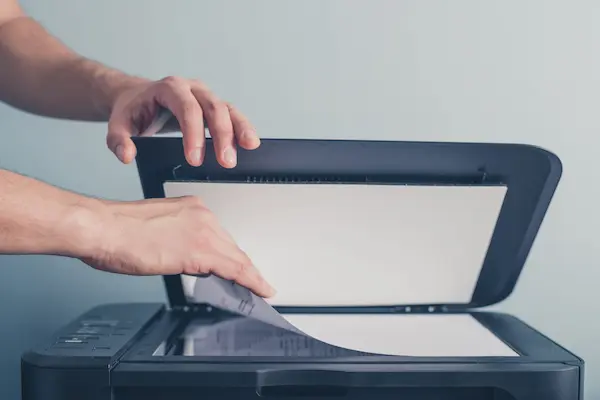
Keeping important papers only in physical form is becoming less practical every year, because documents can be lost, damaged, or simply difficult to find when you need them quickly, which is why scanning documents to the computer has become such an important habit for work, study, and personal organization.
Many people already own a multifunction printer with a scanner or carry a powerful smartphone in their pocket, yet still feel insecure about how to properly scan documents, choose the right format, save files correctly, or organize everything in a way that makes sense over time.
This complete guide on how to scan documents to computer was created for users who want simple and reliable ways to digitize documents, whether using a traditional scanner connected to the computer or using a mobile phone as a scanning tool, without unnecessary complexity or advanced technical terms.
Throughout this article, you will learn what scanning really means, how to prepare documents before scanning, how to use a multifunction printer or standalone scanner, how to scan documents using your phone, how to save files as PDF or images, how to organize scanned files efficiently, and why basic backup practices are essential once everything becomes digital.
The objective is to help you turn paper documents into well organized digital files that are easy to find, share, and protect.
What Does Scanning a Document Actually Mean
Scanning a document means creating a digital copy of a physical paper using a scanner or camera, transforming text and images into a file that can be stored, viewed, and shared on a computer.
This digital version does not replace the original paper in all cases, but it provides convenience, accessibility, and protection against loss.
What Happens During Scanning
- The scanner captures an image of the paper.
- The image is converted into a digital file.
- The file is saved on the computer.
The quality depends on settings and preparation.
Why Scanning Documents Is Useful in Daily Life
Understanding the benefits of scanning helps justify the time spent organizing documents digitally.
Common Reasons to Scan Documents
- Backup of important papers.
- Easy sharing by email or messaging.
- Reduced physical clutter.
- Faster access when needed.
Digital copies simplify many tasks.
Types of Documents That Are Worth Scanning
Not every piece of paper needs to be scanned, so choosing what to digitize helps keep things manageable.
Documents Commonly Scanned
- Personal identification.
- Contracts and agreements.
- Receipts and invoices.
- School certificates.
Focus on documents that matter.
Preparing Documents Before Scanning
Good preparation improves scan quality and saves time later.
Preparation Checklist
- Remove staples and clips.
- Smooth folded pages.
- Clean dust from paper.
Flat and clean documents scan better.
Understanding Scanner Options Available to You
There are two main ways to scan documents to a computer: using a physical scanner connected to the computer or using a smartphone with a scanning app.
Main Scanning Options
- Multifunction printer scanner.
- Standalone scanner.
- Smartphone camera.
Each option has advantages.
Using a Multifunction Printer to Scan Documents
Many homes and offices already have multifunction printers that include scanning features, making them the most common scanning tool.
What You Need
- Printer connected to computer.
- Scanner drivers installed.
- Scanning software.
Most printers include basic scanning software.
Step by Step: How to Scan Documents to Computer Using a Printer Scanner
Basic Scanning Steps
- Turn on the printer.
- Open the scanner lid.
- Place document face down.
- Align with scanner marks.
- Close the lid gently.
Proper placement is essential.
Starting the Scan From the Computer
- Open scanning software.
- Select scan option.
- Choose file type.
- Click Scan.
The scan appears on the screen.
Choosing Scan Settings Correctly
Scan settings define file quality and size.
Important Scan Settings
- Resolution.
- Color mode.
- File format.
Default settings work for most cases.
Understanding Resolution in Simple Terms
Resolution defines how detailed the scan is.
Common Resolution Options
- 150 DPI for simple text.
- 300 DPI for documents.
- 600 DPI for photos.
Higher resolution means larger files.
Choosing Between Color and Black and White
Color mode affects readability and file size.
When to Use Color
- Documents with stamps.
- Certificates.
When Black and White Is Enough
- Text only documents.
- Receipts.
Black and white saves space.
Choosing File Format: PDF or Image
The file format determines how the scan is used.
Scan to PDF
- Best for documents.
- Multiple pages in one file.
Scan as Image
- Useful for photos.
- One page per file.
PDF is usually preferred.
Scanning Multiple Pages Into One PDF
Many documents have several pages.
How Multi Page Scanning Works
- Scan first page.
- Add next page.
- Repeat until finished.
- Save as one PDF.
This keeps documents together.
Using a Standalone Scanner
Standalone scanners work similarly to printer scanners but focus only on scanning.
Advantages of Standalone Scanners
- Compact design.
- Faster scanning.
The process remains the same.
How to Scan Documents Using Your Phone
Smartphones are powerful alternatives for scanning when no scanner is available.
Modern phone cameras can capture clear document images with the help of scanning apps.
Why Scan From Phone
- No extra equipment.
- Portable scanning.
- Fast results.
Phones are very convenient.
Basic Steps to Scan Documents With a Phone
Phone Scanning Process
- Open scanning app.
- Place document on flat surface.
- Ensure good lighting.
- Capture image.
- Adjust edges.
- Save as PDF.
Lighting makes a big difference.
Tips for Better Phone Scans
Small adjustments improve scan quality.
Helpful Tips
- Avoid shadows.
- Use plain background.
- Hold phone steady.
Practice improves results.
Sending Phone Scans to the Computer
After scanning on the phone, files need to reach the computer.
Common Transfer Methods
- Cloud storage.
- Email.
- USB cable.
Choose what feels easiest.
Organizing Scanned Documents on the Computer
Scanning is only useful if files are easy to find later.
Why Organization Matters
- Faster retrieval.
- Less duplication.
- Reduced stress.
Organization saves time long term.
Suggested Folder Structure for Scans
Simple Folder Example
- Scanned Documents
- Personal.
- Work.
- School.
- Receipts.
Adapt structure to your needs.
Naming Scanned Files Clearly
Clear file names make searching easier.
Good Naming Practices
- Include document type.
- Add date.
- Avoid generic names.
Example: receipt_groceries_2024.pdf
Reviewing Scans Before Storing
Always check scans before saving permanently.
What to Review
- Text readability.
- Complete page captured.
- No blurred areas.
Fixing early avoids rework.
Handling Sensitive Documents Carefully
Scanned documents often contain personal data.
Examples of Sensitive Documents
- ID cards.
- Financial statements.
- Medical records.
Extra care is essential.
Basic Security Practices for Scanned Files
Simple Safety Tips
- Store in private folders.
- Avoid public computers.
Digital safety matters.
Backing Up Scanned Documents
Once documents are digital, backups become critical.
Why Backups Are Important
- Protect against device failure.
- Prevent accidental deletion.
Backups provide peace of mind.
Simple Backup Options
Common Backup Methods
- External hard drive.
- Cloud storage.
Use more than one if possible.
How Often to Backup Scanned Documents
Frequency depends on how often you scan.
Suggested Backup Routine
- Weekly for frequent scanning.
- Monthly for occasional scanning.
Consistency matters more than perfection.
Common Scanning Mistakes and How to Avoid Them
- Low resolution scans.
- Poor lighting with phone.
- Disorganized storage.
Awareness prevents frustration.
Comparing Scanner Versus Phone Scanning
Scanner Advantages
- Consistent quality.
- Better for large batches.
Phone Advantages
- Portability.
- Convenience.
Both methods are useful.
When to Keep the Original Paper
Digital copies do not always replace originals.
Documents to Keep Physically
- Legal contracts.
- Official certificates.
Check requirements before discarding.
Practice Exercise: Your First Digital Archive
Exercise 1: Scan One Document
- Choose an important paper.
- Scan to PDF.
Exercise 2: Organize the File
- Create a folder.
- Name the file clearly.
Exercise 3: Backup the Scan
- Copy to backup location.
Small steps build confidence.
Frequently Asked Questions About How to Scan Documents to Computer
Is scanning from phone good enough?
Yes, for many documents.
Should I scan everything in color?
No, black and white is often sufficient.
Can scanned PDFs be edited?
They are mostly read only.
Final Thoughts and a Practical Next Step
Learning how to scan documents to computer is a valuable skill that helps you reduce paper clutter, protect important information, and access documents whenever you need them, whether for work, study, or personal organization.
When you understand how to use a scanner or phone, choose the right settings, organize files thoughtfully, and maintain simple backups, scanning becomes a natural and reliable habit instead of a confusing task.
Could you choose one important document today, scan it using the method you have available, save it in a clearly named folder, and take the first step toward building your own digital document archive?