
Parents and caregivers often reach a moment when a child’s smartphone begins to feel both helpful and a little overwhelming, which is exactly why understanding Android’s parental controls can make daily tech management far more predictable and less stressful.
Although smartphones can open the door to creativity, learning, and connection, they also expose kids to distractions, inappropriate content, and time drains that can be tough to manage without structure, so establishing clear controls allows the device to fit into family routines rather than control them. When adults set boundaries early and consistently, children tend to feel more secure because expectations are visible, predictable, and explained rather than imposed without context.
To make the entire process easier, this guide breaks everything into four clear sections:
-
Understanding what Android parental controls actually include
-
Setting up supervision step-by-step
-
Configuring limits for apps, screen time, content, and permissions
-
Maintaining ongoing conversations and healthy digital habits
Each section uses friendly, long-form explanations so even adults with little tech familiarity can confidently complete the setup.
Part 1 — What Parental Controls on Android Actually Do
Before jumping into settings, it helps to understand the categories of protection and management available on most Android phones.
The primary tools you’ll be using include:
-
Account supervision that allows the adult to review app activity, approve downloads, check usage, and set restrictions.
-
App controls that limit which apps are allowed, how often they’re used, and whether new apps require approval.
-
Content filters blocking mature content in Play Store, Chrome, YouTube, and other supported apps.
-
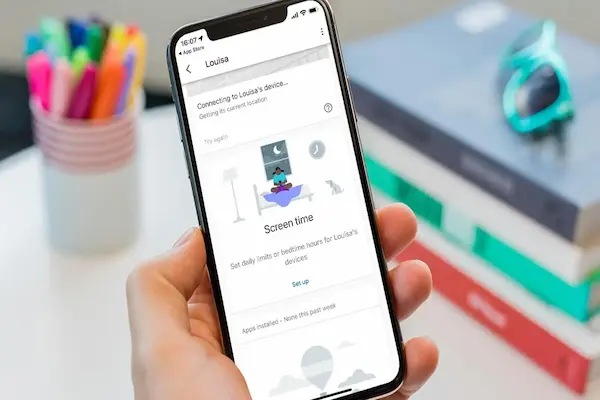
Screen time controls managing how long a child may use the phone per day, which hours are allowed, and which apps are paused during homework or bedtime.
-
Location settings that allow caregivers to confirm where the device is, which is helpful for peace of mind.
-
Purchase restrictions preventing surprise spending on games, themes, and in-app purchases.
-
Device-level protections such as requiring permission for installing apps from unknown sources, controlling camera and microphone access, and limiting system changes.
To make all of this work smoothly, Android relies mainly on supervised accounts, typically set up using the Family Link system built into Google services. You do not need technical skills; you only need your own Google account, the child’s Google account, and any Android device with recent updates.
Part 2 — Setting Up Parental Controls Step by Step
Setting up supervision becomes easier when each action is done slowly and carefully, ensuring nothing is skipped, so the instructions below are written in longer sentences that describe what you should expect to see on your screen.
Step 1 — Create or verify your child’s Google account
Because Android parental controls work best when each person has their own account, you should start by confirming whether your child already has one.
-
If your child does not have an account, create one on your device first.
-
When asked for age, enter it accurately, because this determines default protections.
-
Add a recovery email (yours) to prevent lockouts.
-
Set a password you and your child can remember but keep private.
Step 2 — Add your child’s account to your Family Group
Once the account exists:
-
Open your Android phone’s Settings.
-
Look for Google Account settings.
-
Choose Family options.
-
Select Add Family Member.
-
Invite your child’s Google account.
-
Accept the invitation from the child’s device.
This links the accounts under family supervision and prepares the phone for parental controls.
Step 3 — Turn on device supervision
After families are linked, you will walk through the supervision setup.
-
On the child’s phone, sign in using the supervised Google account.
-
Follow the on-screen instructions that explain what the parent will be able to see.
-
Choose your device as the supervising one.
-
Confirm permissions for app activity, screen time, and content filters.
Once supervision is active, you can adjust limits at any time from your own phone.
Part 3 — Setting App Limits, Content Filters, and Screen Time Rules
This is where parental controls become genuinely useful, because the structure you set here determines how the child experiences the device from day to day.
1. App Filters and Approvals
You can restrict apps by category, age rating, or specific choices. Longer explanations help clarify each option:
-
Automatic age filtering hides apps rated above the selected maturity level.
-
App approval requires the child to request permission before installing something new, and you will receive a notification to approve or deny.
-
Blocked app list stops access to apps you consider distracting or unsafe even if they’re preinstalled.
-
Time-based restrictions per app allow daily maximums, so a child might use a messaging app freely but only spend 20 minutes in games.
2. Screen Time Controls
Screen time rules help families build healthier rhythms.
You may set:
-
Daily device limits (for example, 2 hours per day).
-
Bedtime schedules automatically turning off apps during overnight hours.
-
Focus time or homework windows where educational apps may remain available but games and entertainment apps pause.
-
Usage summaries giving adults a weekly report of how many hours were spent in each app.
3. Content Filters
Content filtering is essential for younger users.
You can filter:
-
Web browsing by blocking explicit or mature sites.
-
YouTube content based on age-appropriate modes.
-
Google Play Store categories limiting movies, books, and apps to safe ratings.
4. Device Permissions
Android supervision allows fine-tuned control of device capabilities, which helps reduce risks.
You may choose to limit or approve:
-
Camera access
-
Microphone access
-
Location usage
-
Installing unknown apps
-
Notifications for certain apps
-
Background data usage
When you explain these restrictions gently to your child, they often understand that the purpose is not surveillance but protection.
Part 4 — Maintenance, Dialogue, and Family Agreements
Parental controls work best when paired with conversations rather than silence, because kids learn digital responsibility more effectively when adults explain why a rule exists instead of relying only on technical restrictions.
Healthy habits to reinforce:
-
Review settings together once a month so children feel included.
-
Explain why some apps are limited rather than simply blocked.
-
Discuss online safety basics, including privacy, respectful communication, and how to seek help.
-
Encourage balance, reminding kids that screens are part of life, not the center of it.
-
Update limits as children grow, because needs change quickly.
A simple family tech agreement may include:
-
When phones can be used
-
Where phones charge overnight
-
Which apps require permission
-
How homework and screens interact
-
What happens if limits are ignored
Longer agreements can help, but even a short list of expectations makes evenings calmer.
Frequently Asked Questions (Quick, Clear Answers)
1. Can kids turn off parental controls?
Not without your account password, though tech-savvy teens may search for workarounds, so maintain conversations and update rules regularly.
2. Do parental controls read messages?
No. Android’s built-in tools do not give access to message content, which respects the child’s privacy.
3. What if we share one device?
You can create separate user profiles on many Android phones, though parental controls are strongest when the child has their own supervised profile.
4. Are these controls the same on every phone brand?
No. Samsung, Motorola, Xiaomi, and others may include extra features, but the core Google supervision options remain consistent.
A Practical Monthly Checklist for Parents
To keep things smooth, use this long-form checklist:
-
Check photo backups so memories stay safe.
-
Review how much storage the phone has left.
-
Confirm the child’s app list matches your expectations.
-
Adjust time limits based on school events or holidays.
-
Make sure account recovery options are accurate.
-
Test whether bedtime mode still activates at the right time.
-
Review search and browsing filters.
-
Update permissions for new apps.
-
Talk with your child about how the rules feel and what might need revisions.
A Gentle Closing Note
Even though technology sometimes feels overwhelming, especially when children use devices independently, you can absolutely guide them with clarity and confidence once you understand how these tools work. Parental controls are not meant to replace trust; instead, they complement it by creating an environment where kids explore safely and adults remain informed without needing to hover constantly. A supervised Android phone becomes easier to manage when routines, expectations, and open dialogue work together.