
Installing programs on a computer is usually quick and effortless, because one click is often enough to start using a new tool, yet removing that same software later can feel confusing, especially when the program was only tested for a short time and then forgotten.
Many people accumulate trial programs, utilities, games, and tools that seemed useful at first, but now sit quietly on the system, occupying storage, slowing startup, or simply creating uncertainty about what is still installed and what is actually needed.
This guide on how to uninstall programs safely was created to help Windows and Mac users remove software in a correct, calm, and responsible way, without technical jargon, risky shortcuts, or false promises from so called miracle cleaners.
Throughout this article, you will learn the official and safest ways to uninstall apps on both Windows and macOS, understand the differences between the two systems, discover when restarting the computer actually matters, and recognize which cleanup tools should be avoided to prevent damage or data loss.
The goal is not only to free storage, but to give you confidence that software is being removed properly, without breaking the system or leaving you worried about hidden leftovers.
Why Learning How to Uninstall Programs Safely Is Important
Removing software might sound like a simple task, yet doing it incorrectly can cause problems that range from minor annoyances to more serious issues, such as broken file associations, startup errors, or unnecessary background processes.
When programs are not uninstalled properly, they may leave behind files, folders, or settings that continue to occupy disk space or interfere with other software.
On the other hand, using aggressive third party tools without understanding what they remove can delete important system components.
Common Problems Caused by Improper Uninstallation
- Programs that appear removed but still show errors.
- Leftover files consuming storage.
- Startup slowdowns caused by unused services.
- Broken shortcuts or file associations.
- System instability from unsafe cleanup tools.
Understanding the correct process reduces these risks significantly.
Basic Principle: Always Use Official Uninstall Methods First
The safest rule when learning how to uninstall programs safely is to always start with the methods provided by the operating system or by the software itself.
Windows and macOS both include built in ways to remove applications that are designed to handle dependencies and system permissions correctly.
Skipping these official paths and deleting files manually should only happen in specific situations and with caution.
Why Official Methods Matter
- They remove files in the correct order.
- They unregister system components safely.
- They reduce the chance of errors.
- They are designed for non technical users.
Starting simple is the most responsible choice.
How to Uninstall Programs Safely on Windows
Windows offers a clear and structured way to uninstall apps, and most programs are designed to integrate with this system.
Following the correct steps ensures that the software is removed properly and that Windows remains stable.
Method 1: Uninstall Through Windows Settings
This is the most common and recommended method for removing programs.
- Open the Start menu.
- Go to Settings.
- Select Apps.
- Choose Installed Apps or Apps and Features.
- Scroll through the list or use search.
- Click the program you want to remove.
- Select Uninstall and follow the prompts.
This process triggers the program’s own uninstaller, which knows what files to remove.
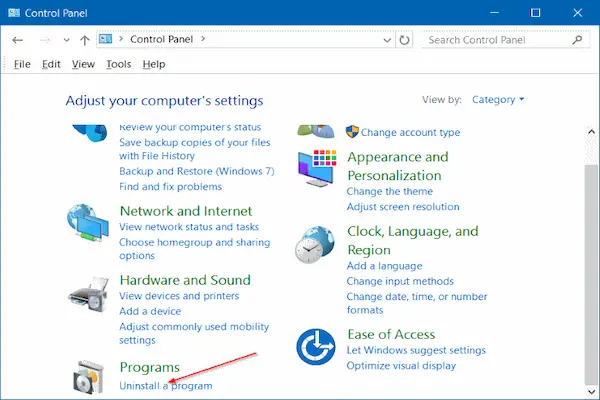
Method 2: Uninstall Through Control Panel
Some older programs still rely on the traditional Control Panel method.
- Open Control Panel.
- Select Programs.
- Click Programs and Features.
- Find the program in the list.
- Click Uninstall and confirm.
This method remains reliable for legacy software.
What to Expect During Windows Uninstallation
- A confirmation message.
- Optional questions about keeping settings.
- A short progress bar.
If the process finishes without errors, the program is usually removed correctly.
How to Uninstall Programs Safely on macOS
macOS uses a different approach from Windows, and understanding this difference helps avoid mistakes.
Many Mac applications are self contained, which makes removal simpler, yet not all apps behave the same way.
Method 1: Uninstall Apps Using the Applications Folder
For many Mac apps, especially those downloaded from the App Store, this method is sufficient.
- Open Finder.
- Go to the Applications folder.
- Locate the app you want to remove.
- Drag it to the Trash.
- Empty the Trash when ready.
This removes the main application file.
Method 2: Use Built In Uninstallers
Some Mac programs include their own uninstaller.
- Check the Applications folder for an Uninstall tool.
- Open the program folder if one exists.
- Run the provided uninstaller and follow instructions.
This method is preferred when available.
What About Leftover Files on Mac
Some Mac apps store preferences or support files elsewhere.
These files are usually small and harmless, and removing them manually is optional for most users.
Understanding the Difference Between Windows and Mac Uninstallation
Windows relies more heavily on installers and uninstallers, while macOS often uses self contained applications.
This difference explains why the steps are not identical.
Key Differences Explained Simply
- Windows apps often register system components.
- Mac apps are often bundled into one file.
- Windows requires uninstallers more often.
- Mac allows drag to trash for many apps.
Knowing the system you use helps avoid confusion.
How to Identify Programs That Can Be Removed Safely
Not every installed program needs to stay on your system.
Removing unused software can free storage and reduce clutter.
Programs Commonly Safe to Remove
- Trial software you no longer use.
- Games you finished or stopped playing.
- Utilities you tested once.
- Old versions replaced by newer ones.
Programs to Be Careful With
- System utilities you do not recognize.
- Drivers or hardware related tools.
- Security software without replacements.
When in doubt, research or leave it installed.
How to Avoid Leftovers Without Risky Tools
The idea of completely removing every trace of a program sounds appealing, yet chasing zero leftovers is rarely necessary for everyday users.
Most leftover files are small and do not affect performance.
Safe Ways to Minimize Leftovers
- Use official uninstallers.
- Restart the system after removal.
- Delete obvious empty folders if visible.
Avoid extreme cleanup actions unless you know exactly what you are doing.
Why Restarting After Uninstalling Can Be Helpful
Restarting the computer after uninstalling software is often recommended, and there are practical reasons for it.
Benefits of Restarting
- Stops background processes.
- Completes file removal.
- Refreshes system memory.
A restart is especially useful after removing large or system integrated programs.
Alert: Be Careful With “Miracle Cleaner” Programs
Many tools promise to uninstall apps completely, clean every leftover, and speed up your computer instantly.
These claims should be treated with caution.
Risks of Aggressive Cleaner Tools
- Deleting important system files.
- Causing system instability.
- Removing useful settings.
- Showing misleading warnings.
Responsible maintenance rarely requires extreme tools.
When Manual Cleanup Is Appropriate
In rare cases, a program may not uninstall correctly.
Manual cleanup should only be attempted after official methods fail.
Safe Manual Cleanup Guidelines
- Delete only clearly named folders.
- Avoid system directories.
- Restart after changes.
If unsure, stop and seek guidance.
Step by Step Routine to Keep Installed Programs Under Control
A simple routine prevents clutter from building up again.
Monthly Software Review
- Open the installed apps list.
- Sort by installation date.
- Identify unused programs.
- Uninstall what you no longer need.
Questions to Ask Before Installing New Software
- Do I really need this?
- Is it from a trusted source?
- Will I remember to uninstall it?
Common Mistakes to Avoid When Removing Software
- Deleting program folders directly.
- Using unknown uninstall tools.
- Ignoring restart requests.
- Removing system components.
Frequently Asked Questions About How to Uninstall Programs Safely
Does uninstalling programs free storage?
Yes, especially large or unused software.
Can uninstalling programs speed up my computer?
It can reduce background processes.
Is it safe to uninstall preinstalled apps?
Only some, and caution is advised.
Final Thoughts and Practical Next Step
Learning how to uninstall programs safely is an important skill for maintaining a healthy computer, because it protects system stability while helping you free storage and reduce clutter.
When you follow official uninstall paths, understand the differences between Windows and Mac, restart when appropriate, and avoid miracle cleaners, software removal becomes a calm and predictable process.
Which program on your computer do you already know you no longer use, and could you uninstall just that one today to practice a safer and more confident approach?