
Many Android users feel a little nervous whenever a system update notification pops up, partly because they worry the phone might slow down, break an app they depend on, or behave in a way they do not fully understand, which is why taking the time to learn how updates work and how to prepare for them gently removes much of the stress surrounding this essential maintenance task.
Because smartphones now handle banking, personal messages, private photos, passwords, and sensitive work information, keeping the operating system updated has become one of the most important ways to protect your device from vulnerabilities that attackers often exploit in outdated systems.
While updates can look technical or intimidating at first glance, nearly all modern Android devices are designed to install them safely and predictably, and the benefits are enormous once you understand what they improve.
Android updates usually provide four major benefits:
-
Security patches, which fix weaknesses discovered by Google or manufacturers so your personal information stays protected.
-
Bug fixes, reducing crashes, app errors, battery drains, or glitches you may not even realize are fixable.
-
Performance improvements, which can make the phone smoother, faster, and more energy efficient.
-
Feature upgrades, adding new tools, layout refinements, accessibility enhancements, camera improvements, or battery-saving modes.
Because updates also help apps run correctly, avoiding them for too long often creates more problems than the update itself ever would.
Understanding the Different Types of Android Updates
Before moving into the step-by-step instructions, it helps to understand the categories of updates, since knowing the difference makes the process feel far less risky.
1. Security Patch Updates
These small updates arrive monthly or quarterly.
They install quickly, rarely change the phone’s appearance, and primarily focus on safety.
2. System Feature Updates
These updates add improvements such as camera enhancements, battery updates, or layout refinements.
They may take slightly longer to install but remain very safe.
3. Major Android Version Upgrades
These are the big ones—like upgrading from Android 12 to Android 13.
They may introduce new gestures, notification behaviors, privacy tools, or interface changes.
While the installation takes longer, the device prepares itself carefully so the risk stays low as long as the user follows common-sense precautions.
4. Manufacturer Updates
Brands such as Samsung, Motorola, Xiaomi, Google Pixel, Nokia, or OnePlus may also release brand-specific updates that adjust camera tools, battery optimization, or custom features on top of the standard Android version.
Understanding these categories helps you decide how much preparation is necessary and which updates can be installed immediately versus which deserve a short checkup first.
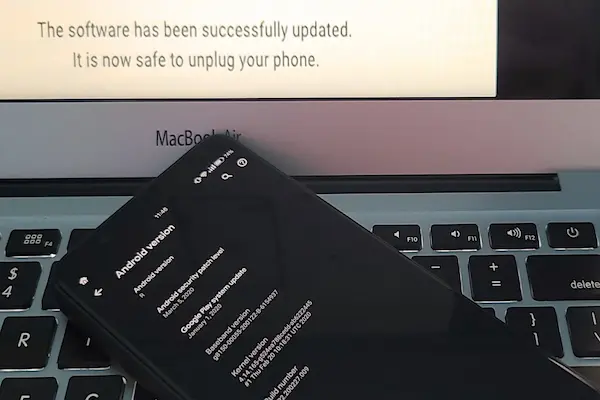
Part 1 — Preparing Your Phone for a Safe Update
Although Android updates are designed to be smooth, taking simple precautions ensures that installation happens without interruptions, frustration, or unnecessary data loss. Because many users skip preparation, adding this checklist builds confidence that the update will run correctly.
Step 1 — Check Your Battery Level
A system update cannot complete if the battery dies, so ensuring enough power ahead of time is essential.
Use this simple checklist:
-
Charge the phone to at least 60% before updating.
-
Ideally, keep the phone plugged in during the update.
-
Avoid updating when the battery is overheating or extremely low.
Because updates take anywhere from 5 to 30 minutes, having adequate power prevents corruption.
Step 2 — Connect to a Stable Wi-Fi Network
A reliable connection avoids incomplete downloads.
Guidelines include:
-
Prefer home Wi-Fi instead of public Wi-Fi networks.
-
Avoid updating during storms or unstable internet periods.
-
Pause large household downloads (movies or games) to keep bandwidth clear.
If Wi-Fi is unavailable, updates can download through mobile data, but this isn’t recommended for large upgrades.
Step 3 — Check Your Storage Space
Updates require free space to unpack files.
Typical safety amount:
-
2–5 GB free for major updates
-
500 MB–1 GB free for smaller ones
To check storage:
-
Open Settings.
-
Tap Storage or Device Care.
-
Review how much space is available.
If space is low, delete temporary files, unused apps, or large videos you’ve already backed up.
Step 4 — Back Up Your Data Before Updating
Although updates rarely cause data loss, performing a backup ensures peace of mind. Backups protect your photos, contacts, apps, and messages, making the update stress-free.
You can back up data using:
-
Your Google Account (Google Backup)
-
Manufacturer backups (Samsung Cloud for older models)
-
A computer connection using USB
-
A manual folder copy to cloud storage
A complete pre-update backup usually includes:
-
Photos and videos
-
Contacts
-
SMS messages (optional)
-
App data
-
Documents and downloads
-
Device settings
Because the backup process runs quietly in the background, most users complete it in less than five minutes.
Step 5 — Restart the Phone Before Updating
Restarting clears temporary files and resets essential services.
This improves:
-
Installation speed
-
System stability
-
Storage accuracy
Most technicians recommend restarting before any major update to reduce the risk of minor software conflicts.
Part 2 — How to Check for Android Updates
Since Android phones vary, menus may appear slightly different across brands, but the overall logic stays the same.
Method 1 — Through Standard Settings
-
Open Settings.
-
Scroll to System or About Phone.
-
Tap Software Update or System Update.
-
Select Check for updates.
-
Wait while the device checks Google and the manufacturer’s servers.
If an update is available, you’ll see a summary including the version, size, and new features.
Method 2 — From Notification Prompts
Most devices automatically notify you when an update becomes available.
You can:
-
Install it immediately
-
Schedule it for overnight
-
Snooze the reminder
Avoid dismissing update notifications for too long, because delaying security patches can expose your device to risks.
Part 3 — Installing the Android Update Safely
Once your battery, Wi-Fi, storage, and backup are ready, installation becomes straightforward.
Step-by-Step Update Installation
-
Tap Download and Install.
-
Allow the update to download fully.
-
Review the update notes if you want details.
-
Tap Install Now or Schedule Install.
-
Let the phone restart automatically.
-
Wait while the system optimizes apps.
Because the phone may reboot several times, avoid pressing buttons or disconnecting from power during installation.
Signs the Installation Is Working Normally
-
The phone shows a progress bar.
-
The device displays the Android robot icon.
-
Messages such as “Optimizing apps” appear.
-
The device restarts on its own.
If the phone takes longer than expected, remain patient; major updates occasionally require up to 20–25 minutes depending on the brand and the number of apps installed.
Part 4 — What to Do After the Update Completes
Updates typically complete without complication, although reviewing a few settings ensures everything works properly.
Post-Update Checklist
-
Confirm Wi-Fi reconnects automatically.
-
Open your most-used apps to check performance.
-
Review battery usage to ensure no unusual drain.
-
Confirm Bluetooth accessories reconnect as expected.
-
Check mobile data and call quality.
-
Test the camera if your update included camera upgrades.
-
Review permissions that may have reset for security reasons.
Updates sometimes reset small settings for safety, so spending a few minutes reviewing your configuration brings everything back to normal quickly.
Part 5 — When Updates Fail (and How to Fix Them Calmly)
Even though update failures are rare, knowing how to respond helps keep the situation under control.
Common Update Problems and Simple Fixes
-
Not Enough Storage
-
Delete files or apps you no longer need.
-
Move photos to cloud or computer backup.
-
Clear temporary cache files.
-
-
Update Download Fails
-
Restart the device.
-
Reconnect to Wi-Fi.
-
Clear the updater app’s cache (varies by manufacturer).
-
-
Phone Freezes During Install
-
Leave the phone alone for 15 minutes.
-
If frozen beyond that, force restart (holding power + volume buttons depending on model).
-
-
Performance Issues After Updating
-
Restart the phone again.
-
Update all apps from the Play Store.
-
Clear cached data for problematic apps.
-
-
Battery Drain After Update
-
Give the phone 48 hours to re-optimize.
-
Review location, Bluetooth, and screen brightness settings.
-
Check for another small patch update.
-
Most issues resolve themselves without requiring expert help.
Part 6 — Monthly Healthy Update Habits for Peace of Mind
Developing simple routines ensures your Android device always stays protected.
Monthly Android Care Checklist
-
Check for pending updates manually.
-
Back up your photos and files regularly.
-
Review your storage level and clear temporary files.
-
Restart the phone once per week for smoother performance.
-
Update all installed apps.
-
Check security features like screen lock, finger unlock, and app permissions.
-
Review battery health and power-saving suggestions.
Following this routine prevents slowdowns and keeps the update process simpler each time.
Part 7 — Myths About Android Updates (and the Truth Behind Them)
Because many users hesitate to update, addressing common misunderstandings builds confidence and encourages safer habits.
Myth 1 — “Updates always slow down the phone.”
While extremely old devices may struggle with large upgrades, most updates improve speed, not reduce it.
Myth 2 — “Updating will delete my data.”
Updates do not delete data; only resetting or unlocking procedures cause data loss.
Myth 3 — “Updates break apps.”
Most developers update their apps in advance, and compatibility issues are rare.
Myth 4 — “Skipping updates is safer.”
Skipping updates actually increases risk, because missing security patches exposes the phone to malware.
Myth 5 — “Updating uses too much storage.”
Temporary files are removed after installation, minimizing long-term storage use.
Understanding these myths helps users feel more comfortable embracing updates rather than avoiding them.
Part 8 — What to Do if Your Phone Is Too Old for New Updates
Eventually, every smartphone stops receiving updates. When this happens, the device still works, but security becomes weaker over time.
Guidelines for older devices:
-
Continue installing app updates from the Play Store.
-
Use strong passwords and avoid sensitive banking apps.
-
Avoid unknown Wi-Fi networks.
-
Clear storage often to maintain stability.
-
Consider buying a budget-friendly new model if security patches have stopped for more than a year.
Buying the newest flagship is unnecessary; even affordable models receive modern security updates.
Part 9 — A Complete Example of a Safe Update Workflow
Here is a realistic scenario demonstrating the full process for a cautious Android user:
-
You receive a message saying “System update available.”
-
Instead of installing immediately, you open Settings and check battery (75%), which is enough.
-
You plug the phone in to be safe.
-
You switch to home Wi-Fi.
-
You open Google Backup and tap “Back up now” to create a fresh copy of your photos and data.
-
You check storage and see 8 GB free, which is plenty.
-
You restart the device to clear temporary memory.
-
You return to Settings > System Update and tap Download.
-
After the download finishes, you tap Install.
-
The phone restarts twice and optimizes apps.
-
You unlock the phone and check your essential apps.
-
Everything works well, and the phone feels slightly smoother.
This example shows that updating is simpler than many people expect once they follow the right preparation steps.
Frequently Asked Questions
1. How often should I update Android?
Install security patches as soon as they appear; install major upgrades within one to two weeks after reviewing your schedule.
2. Should I update if my phone is old?
Yes, because security patches are still valuable even for older devices.
3. Can I stop an update after it begins?
Once installation starts, do not interrupt; stopping it may corrupt files.
4. Will updating erase my photos or apps?
No, updates never erase data.
5. How much time should I set aside?
Most updates require 5–20 minutes, depending on size and device age.
Conclusion: Updating Android Safely Is Simple When You Follow a Gentle Routine
Although many people worry that updating their Android phone might create problems, the truth is that updates protect your privacy, improve performance, and extend the life of your device when installed with a little preparation and patience. By following a calm, structured routine—charging the battery, connecting to Wi-Fi, backing up photos, checking storage, reviewing update notes, and letting the installation run uninterrupted—you transform the entire experience from something stressful into a predictable monthly habit that keeps your phone working smoothly for years.