
Postponing system updates is a very common habit among Windows users, not because people do not care about security or performance, but because many have already experienced slow updates, unexpected restarts, or the fear that something might go wrong and leave the computer unusable.
For users who rely on their computer for work, study, or personal tasks, the idea of clicking “Update now” can feel risky, especially when there is little understanding of what actually happens during the update process.
This guide on how to update Windows system was created to remove that fear by explaining, in a tranquil and objective way, what Windows Update really does, why updates are important, how to control when they install, and which simple precautions make the process much safer.
Throughout this article, you will learn how to check for updates step by step, how to view update history, how to configure installation schedules so updates do not interrupt your day, how to perform simple backups for peace of mind, and which good practices help avoid problems during the update process.
The goal is not to pressure you into updating immediately, but to give you enough clarity and confidence so that updates become a routine task instead of a source of anxiety.
Why Learning How to Update Windows System Matters
Keeping Windows updated is one of the most important actions you can take to protect your computer, because updates are not only about new features, but also about fixing problems that already exist in the system.
Many updates focus on security patches, which correct vulnerabilities that could be used by malicious software, while others improve stability, compatibility, and overall performance.
Delaying updates for too long increases the risk of running outdated components, even if everything seems to work fine on the surface.
Main Reasons Windows Updates Exist
- Fix security vulnerabilities.
- Correct system bugs.
- Improve performance and stability.
- Enhance compatibility with programs and devices.
- Add small improvements over time.
Understanding the purpose of updates helps reduce unnecessary fear.
What Is Windows Update and How It Works
Windows Update is a built in service that checks Microsoft servers for available updates and installs them on your computer, usually in the background.
These updates can include small security patches, cumulative updates that group several fixes together, driver updates, and occasional larger feature updates.
Most updates are incremental, meaning they improve what is already there rather than changing everything at once.
Types of Windows Updates Explained Simply
- Security updates: focus on protecting your system.
- Quality updates: fix bugs and improve reliability.
- Feature updates: add or adjust functionality.
- Driver updates: improve hardware compatibility.
Not every update has the same impact, and most are designed to be safe and automatic.
Common Fears About Updating Windows and Why They Happen
Fear around updates usually comes from past experiences, stories from other users, or a lack of information about what is happening behind the scenes.
While problems can occur, they are far less common than many people think, especially when basic precautions are taken.
Typical Concerns Users Have
- The computer might become slower.
- An update could get stuck.
- Important files could be lost.
- A restart might interrupt work.
- The system could stop working properly.
Most of these concerns can be addressed with simple preparation.
How to Update Windows System Step by Step
Updating Windows does not require advanced technical knowledge, and the process is designed to be accessible to all users.
Step 1: Open Windows Update Settings
- Click the Start menu.
- Open Settings.
- Select Windows Update.
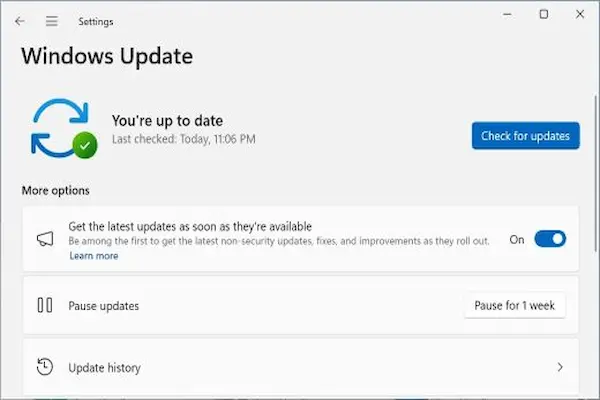
This screen shows the current update status.
Step 2: Check for Updates
- Click Check for updates.
- Wait while Windows searches.
- Review available updates.
If updates are available, Windows will usually start downloading them automatically.
Step 3: Install Updates
Some updates install in the background, while others require a restart.
- Follow on screen instructions.
- Choose restart timing if prompted.
You remain in control of when restarts happen.
How to See Windows Update History
Viewing update history helps you understand what has been installed and reassures you that updates are happening correctly.
Steps to View Update History
- Open Windows Update settings.
- Select Update history.
- Review installed updates.
This list shows dates and types of updates.
Why Update History Is Useful
- Confirms updates were installed.
- Helps identify recent changes.
- Supports troubleshooting if needed.
Transparency builds confidence.
How to Schedule Updates and Avoid Interruptions
One of the biggest frustrations with updates is unexpected restarts, yet Windows offers tools to prevent this.
Using Active Hours
Active hours tell Windows when you usually use your computer.
- Open Windows Update settings.
- Select Active hours.
- Set your typical usage times.
Windows avoids restarting during these hours.
Restart Later Option Explained
When updates require a restart, you can often choose when.
- Restart now.
- Schedule restart.
- Restart later.
This flexibility reduces stress.
Simple Backup Recommendations Before Updating
Although updates rarely cause data loss, having a basic backup adds peace of mind.
A backup does not need to be complex or time consuming.
Easy Backup Options
- Copy important files to an external drive.
- Use cloud storage for key documents.
- Back up photos and work folders.
Backing up important files is a good habit beyond updates.
Good Practices During Windows Updates
Following a few simple rules greatly reduces the chance of issues.
What to Do During Updates
- Keep the computer plugged in.
- Ensure stable internet.
- Be patient during installation.
What to Avoid During Updates
- Do not force shutdown.
- Do not unplug power.
- Do not interrupt the process.
Interruptions are the most common cause of update problems.
What to Expect During a Windows Update
Knowing what is normal helps prevent unnecessary panic.
Normal Update Behaviors
- Percentage may pause.
- Screen may restart multiple times.
- Fans may run louder.
These behaviors are usually harmless.
How Long Do Windows Updates Take
Update duration depends on several factors.
Factors That Affect Update Time
- Type of update.
- Computer speed.
- Internet connection.
Most regular updates complete within minutes.
Free Updates and What That Means
Windows updates are provided at no extra cost.
They are part of maintaining the system.
What Free Updates Include
- Security patches.
- Bug fixes.
- Performance improvements.
You do not need to pay for safety.
Common Myths About Windows Updates
Myth: Updates Always Slow Down the Computer
Many updates actually improve performance.
Myth: Skipping Updates Is Safer
Skipping updates increases security risks.
Myth: Updates Are Only for New Features
Most updates focus on stability and security.
What to Do If an Update Fails
Occasional update failures can happen.
First Steps to Try
- Restart the computer.
- Check internet connection.
- Try again later.
Most failures resolve automatically.
How Often Should You Update Windows
Regular updates are recommended.
Suggested Frequency
- Install security updates as they appear.
- Review updates weekly.
Consistency reduces large update piles.
How Updating Windows Improves Security
Security patches close vulnerabilities.
Outdated systems are more exposed.
Security Benefits of Updates
- Protection against malware.
- Improved defense mechanisms.
- Reduced attack surface.
Who Benefits Most From Keeping Windows Updated
- Home users.
- Students.
- Remote workers.
- Anyone connected to the internet.
Frequently Asked Questions About How to Update Windows System
Can I delay updates?
Yes, within reasonable limits.
Do updates delete files?
Updates are designed to preserve files.
Is it okay to update overnight?
Yes, if the computer is plugged in.
Final Thoughts and Calm Next Step
Learning how to update Windows system does not require bravery, only understanding, because updates are a normal and necessary part of keeping your computer secure and reliable.
When you know what Windows Update does, how to schedule restarts, how to check history, and how to prepare with a simple backup, updates become predictable rather than stressful.
Could you open Windows Update today, check your update status, and schedule the next installation for a time that feels comfortable, so that your system stays protected without disrupting your routine?