
There is a moment for almost every smartphone user when they notice someone else’s home screen showing useful information like the weather, a calendar preview, or a music control panel, and they suddenly realize their own home screen could be doing much more than simply displaying rows of static app icons that require constant tapping and searching.
Although most people use their home screens only as a place to launch apps, Android widgets offer something much more dynamic, since they display glanceable information, quick actions, and personalized layouts that reduce friction during daily use. Because of this, adding even two or three well-chosen widgets can make your phone feel significantly more helpful, allowing you to check your schedule, track habits, see your to-do list, or monitor the weather without opening anything at all.
This becomes especially useful for users who constantly find themselves switching between apps or digging through folders just to perform simple checks, and it’s particularly impactful for beginners who have never explored personalization options beyond moving icons around.
What Widgets Actually Are, Explained in a Clear and Friendly Way
Before diving into steps and configurations, it helps to understand the concept in plain terms. Widgets are mini-versions of apps that live on your home screen and update automatically, which means you don’t need to open an app to access key information.
To clarify this further, here are several characteristics that help define widgets:
-
Widgets always remain visible unless removed, creating a persistent dashboard that reflects your routine.
-
They usually offer one or more interactive elements, such as buttons, checkboxes, or taps that lead to specific app sections.
-
Layout and size can often be adjusted, allowing you to choose compact styles or larger information panels.
-
Developers design widgets to complement frequent tasks, meaning they tend to focus on quick previewing rather than deep interaction.
Because of this structure, widgets can dramatically reduce the number of taps you perform daily, which makes your phone feel smoother, simpler, and more organized.
Before You Add Widgets: A Quick Prep Checklist That Avoids Confusion Later
Many new users try adding widgets without any preparation and end up frustrated because they don’t understand how sizing works, or they place widgets in cluttered pages where they don’t serve a purpose. By preparing the home screen first, the process becomes substantially easier.
Here is a warm-up checklist to make your first experience smoother:
-
Clear at least half of one home screen page so you have space to experiment.
-
Remove unused icons so widgets don’t feel squeezed or visually overwhelming.
-
Decide on a theme or purpose (such as productivity, morning overview, or quick actions).
-
Check whether your apps offer widgets, since not every app includes them.
-
Ensure your launcher supports widgets, which is true for nearly all modern Android launchers.
Completing this short preparation helps you avoid constantly shuffling items later and gives your widgets room to look clean and intentional instead of cluttered or randomly placed.
How to Add Widgets on Android: A Step-by-Step Guide Anyone Can Follow
Adding widgets is easier than people think, but because different Android skins look slightly different, it helps to describe the actions in a slow, clear, universal way.
Step-by-Step: Adding Your First Widget
-
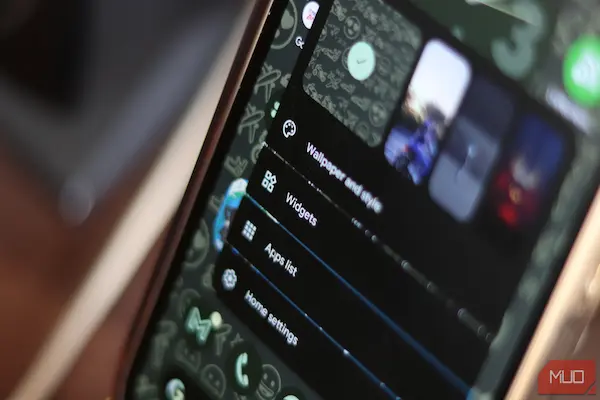
Press and hold on an empty area of your home screen, allowing the interface to zoom out and reveal modification options.
-
Tap the option labeled “Widgets”, typically found along the bottom or top of the screen depending on your phone model.
-
Scroll through the widget list, noticing that apps are arranged alphabetically and many offer multiple widget formats.
-
Select a widget by tapping and holding it, causing your launcher to switch back to your home screen.
-
Drag the widget into place, choosing the page and location that feel most natural for everyday use.
-
Release your finger to place the widget, allowing it to snap into structure according to your grid layout.
-
Resize the widget by long-pressing it again and dragging the handles until the layout fits your preference.
This straightforward process requires no technical knowledge, and with just a few tries, most users begin experimenting freely.
How to Remove Widgets if You Change Your Mind
Removing a widget is just as simple as adding one:
-
Press and hold the widget, wait for the interface to shift, and drag it toward the “Remove” or “Trash” label that appears at the top or bottom of your screen.
-
Release to delete, which removes the widget from the home screen without uninstalling the app.
Knowing how to remove widgets quickly encourages experimentation, since you’re free to test layouts without fear of messing anything up.
Useful Widgets to Try First: Examples That Actually Make Daily Life Easier
Because beginners often don’t know which widgets are most helpful, it helps to start with universal options that suit nearly every lifestyle.
1. Weather Widget
-
Shows temperature, conditions, and forecasts.
-
Useful for commuters, parents, and morning planners.
-
Works well in small or large formats.
2. Calendar Widget
-
Displays upcoming events, reminders, and time-sensitive tasks.
-
Helps reduce forgotten appointments or double-booking.
-
Can show a full month or a simple agenda list.
3. Clock or Alarm Widget
-
Lets you check the time in multiple zones or toggle alarms.
-
Ideal for students or professionals with irregular schedules.
4. Notes or To-Do Widgets
-
Allows quick capture of ideas.
-
Shows your current list without opening anything.
-
Encourages small habits and reminders.
5. Music or Podcast Controls
-
Lets you pause, skip, or resume playback instantly.
-
Useful for workouts, travel, or work sessions.
6. Battery or Device Health Widgets
-
Offers glanceable information about your phone’s status.
-
Helps users who frequently run low on power.
7. Search Bar
-
A surprisingly powerful widget for anyone who searches apps or the web often.
Choosing even two from this list establishes a productivity-friendly home screen that eliminates constant app-hunting.
Different Ways to Organize Widgets for a Clean and Functional Layout
Many users place widgets randomly, which leads to frustration and visual clutter. Instead, consider organizing using one of these intentional models:
Model A: The Morning Dashboard
Place widgets you check first thing in the morning:
-
Weather
-
Calendar
-
Clock
-
To-do list
Model B: The Productivity Workspace
Use a clean page with:
-
Notes widget
-
Task manager widget
-
Email preview widget
-
Timer widget
Model C: The Minimalist Single-Page Layout
Rely on:
-
A single large calendar
-
One small weather panel
-
A search bar
Minimalism works beautifully because it reduces decision fatigue and makes your phone calm to look at.
Model D: The Multi-Panel Functional Spread
Arrange widgets by category:
-
Page 1: Essential info
-
Page 2: Media and entertainment
-
Page 3: Work apps and tasks
Because this model spreads information across pages, users can swipe intentionally instead of seeing everything at once.
Resizing and Customizing Widgets for Better Home Screen Balance
Widgets rarely look right the first time you place them, so resizing is an essential skill. Many widgets allow widths of 2×2, 4×2, or even 4×4, depending on your launcher.
How to Resize
-
Long-press the widget.
-
Release when the border appears.
-
Drag corner handles to expand or shrink.
-
Adjust nearby icons to maintain balance.
Customization Ideas
-
Center large widgets to reduce visual noise.
-
Place rectangular widgets along the top for a “dashboard” feel.
-
Use symmetrical layouts for a cleaner aesthetic.
-
Create breathing room so the screen doesn’t feel crowded.
A well-resized widget not only looks better but also reduces the mental clutter of scanning your screen.
Troubleshooting: What to Do if Widgets Don’t Appear or Don’t Update
Sometimes widgets behave unexpectedly, especially on older devices or heavily customized launchers.
If Widgets Don’t Appear
-
Ensure the app offering the widget is installed.
-
Restart your phone.
-
Clear your launcher’s cache.
-
Check if battery optimization is blocking background activity.
If Widgets Don’t Update
-
Confirm Internet or Wi-Fi reliability.
-
Disable battery saving mode, which often freezes updates.
-
Lock the app in memory if your phone allows it.
-
Re-add the widget, since sometimes a fresh start fixes hiccups.
Troubleshooting step-by-step helps reduce frustration and builds confidence in customizing your device.
Beginner-Friendly Widget Ideas That Make Daily Life Smoother
People often underestimate how much small interactions shape their day, so incorporating widgets that remove friction is surprisingly valuable.
Here are some ultra-practical options:
-
Habit trackers for water, steps, or daily goals.
-
Finance widgets showing remaining budget or spending summaries.
-
Messaging widgets displaying pinned contacts.
-
Smart home widgets for lights or devices.
-
Travel widgets showing commute details or transit schedules.
These additions help create a sense of flow, allowing your phone to serve as a helpful assistant rather than a distraction machine.
A Sample Home Screen Layout for Beginners Who Want Clean Organization
Below is an example layout that balances clarity and usefulness without overwhelming the viewer:
Top Section
-
Medium weather widget
-
One-line calendar preview
Middle Section
-
Large to-do or notes widget
-
Search bar underneath
Bottom Section
-
Frequently used apps (4–6 icons)
-
One small widget like music controls
This structure ensures you can wake the phone and instantly see what matters while maintaining enough open space for visual calm.
Do and Don’t List for Using Widgets Without Clutter
Do:
-
Mix small and large widgets for balance.
-
Use consistent colors or themes when possible.
-
Limit the number of pages to avoid swipe fatigue.
-
Refresh layouts every month to remove unused widgets.
-
Prioritize widgets that display evolving information.
Don’t:
-
Place too many widgets on a single page.
-
Combine widgets with overly bright or busy wallpapers.
-
Allow duplicate widgets that provide redundant information.
-
Keep widgets from apps you rarely open.
-
Ignore spacing, which makes screens look cramped.
This list prevents your home screen from becoming chaotic and ensures widgets feel intentional, not random.
FAQs: Quick Answers for Beginners Who Feel Uncertain
1. Do widgets drain battery?
Widgets use some battery, but responsible use—choosing well-optimized apps and avoiding unnecessary refreshes—minimizes impact.
2. Can I use widgets without installing anything extra?
Yes, many default apps already include widgets, making them immediately available.
3. Why do some widgets look different on my friend’s phone?
Manufacturers customize Android, so appearance varies, but functionality remains similar.
4. Can I use multiple widgets from the same app?
Absolutely, and doing so can enhance productivity or visibility.
5. Is it easy to undo changes if I don’t like them?
Yes, removing widgets takes only a second, which encourages experimentation.
Final Thoughts: Enjoy the Process and Let Your Home Screen Evolve Slowly
Using Android widgets is an enjoyable way to create a calmer, more supportive digital environment, and when you approach the process with curiosity rather than pressure, you end up designing a screen that genuinely feels like it belongs to you. Because widgets offer quick information, fewer taps, and more personalization, they gently guide you toward a smoother daily routine, allowing your phone to support your life instead of interrupting it. By starting with just one or two widgets, adjusting their size, placing them intentionally, and refining the layout over time, you build a home screen that grows with your habits and reflects the way you actually live day to day.